Photoshop合成冰凍特效的金魚場景【英】(4)
文章來源于 Tutsplus.com,感謝作者 Jenny Le 給我們帶來經精彩的文章!Step 6
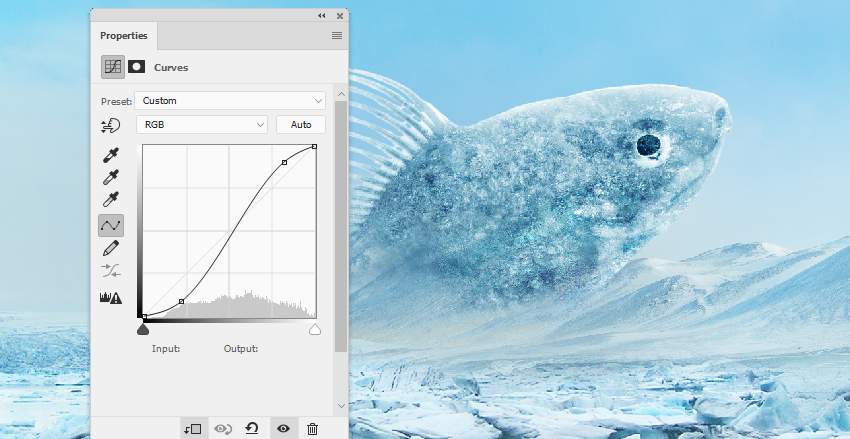
Make a Hue/Saturation and Curves adjustment layers to match the color and contrast of the effect with the existing one.

4. How to Paint the Icy Bubbles
Step 1
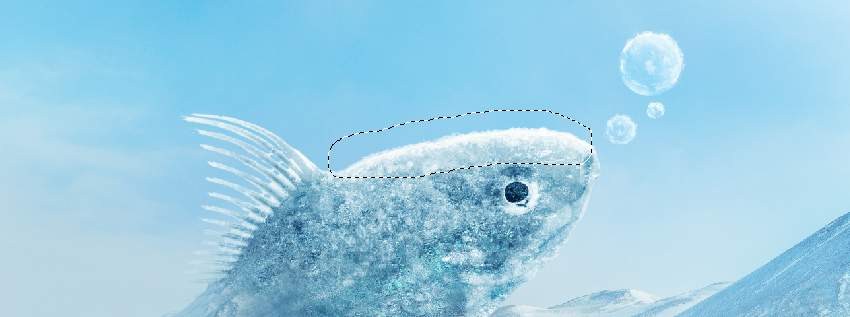
Create a new layer on top of the layers and use the Elliptical Marquee Tool (M) to grab three circles with different sizes above the fish's right. After this, fill them with the color #fbfcfc and lower the opacity of this layer to 60%.

Add a mask to this layer and use a small medium-soft black brush to paint inside the circles, revealing some transparency so they look like bubbles.

Step 2
Make a new layer and use a small soft brush with the color #fbfcfc to paint more snowy effects inside and outside the bubbles, as well as on the top of the fish.
5. How to Complete the Icy Ground
Step 1
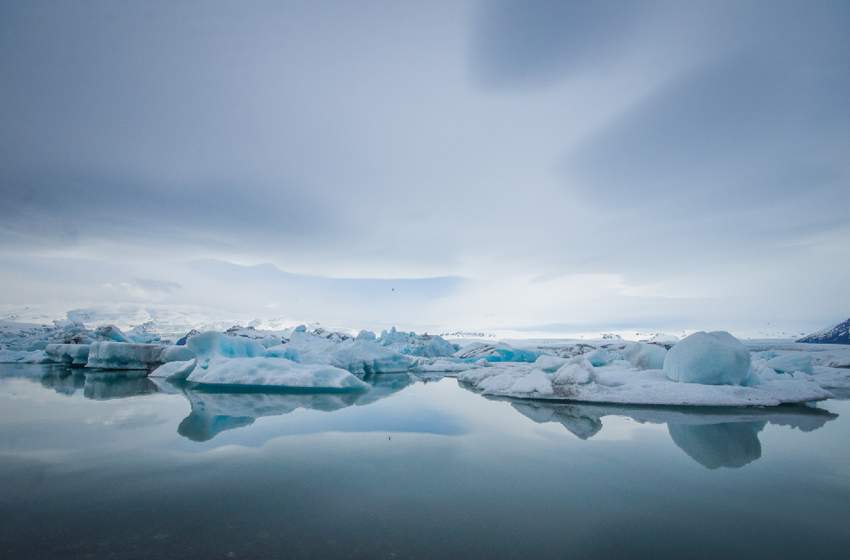
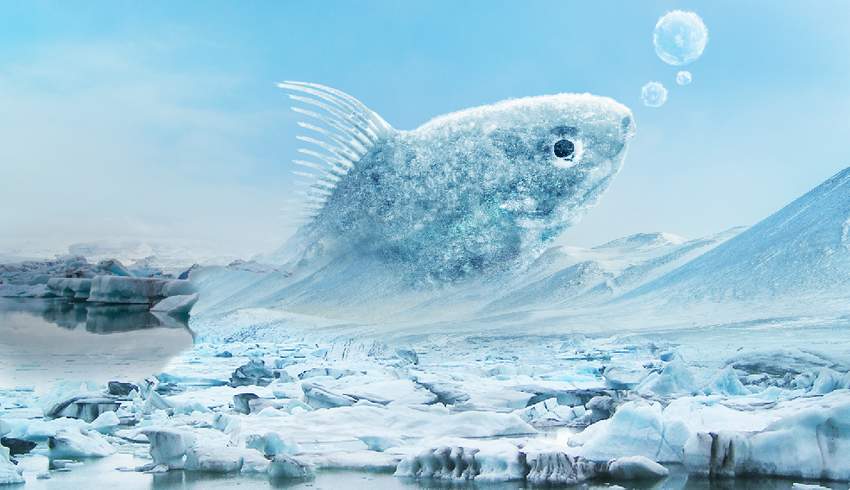
Move the ice 2 image to our working document and mask it off to show a part of the left corner only.
 情非得已
情非得已
-
 Photoshop制作復古風格的老照片效果【英】2018-04-23
-
 Photoshop合成長著創(chuàng)意大樹的長頸鹿【英】2018-04-23
-
 Photoshop合成冰凍特效的金魚場景【英】2018-02-10
-
 Photoshop合成夢幻風格的森林場景【英】2018-02-10
-
 Photoshop合成正在施法的巫師【英】2018-02-10
-
 Photoshop制作金屬質感的3D立體字【英】2018-01-09
-
 Photoshop設計火焰燃燒藝術字教程【英】2018-01-09
-
Photoshop合成長著創(chuàng)意大樹的長頸鹿【英】
相關文章13832018-04-23
-
Photoshop合成夢幻風格的森林場景【英】
相關文章24492018-02-10
-
Photoshop合成正在施法的巫師【英】
相關文章8372018-02-10
-
 Photoshop合成絢麗空中翱翔的仙子【英】
相關文章7412018-01-05
Photoshop合成絢麗空中翱翔的仙子【英】
相關文章7412018-01-05
-
 Photoshop合成恐怖特效的萬圣節(jié)人像【英】
相關文章6702018-01-05
Photoshop合成恐怖特效的萬圣節(jié)人像【英】
相關文章6702018-01-05
-
 Photoshop合成被樹妖困住的女孩【英】
相關文章7152018-01-05
Photoshop合成被樹妖困住的女孩【英】
相關文章7152018-01-05
-
 Photoshop合成在天空中飛行的天使【英】
相關文章4622017-12-25
Photoshop合成在天空中飛行的天使【英】
相關文章4622017-12-25
-
 Photoshop合成城市被流星攻擊場景【英】
相關文章7142017-12-12
Photoshop合成城市被流星攻擊場景【英】
相關文章7142017-12-12
