Photoshop合成絢麗空中翱翔的仙子【英】
文章來源于 photoshoptutorials,感謝作者 Jenny Le 給我們帶來經精彩的文章!教程素材和源文件:空中仙境中的美麗仙子PS教程素材
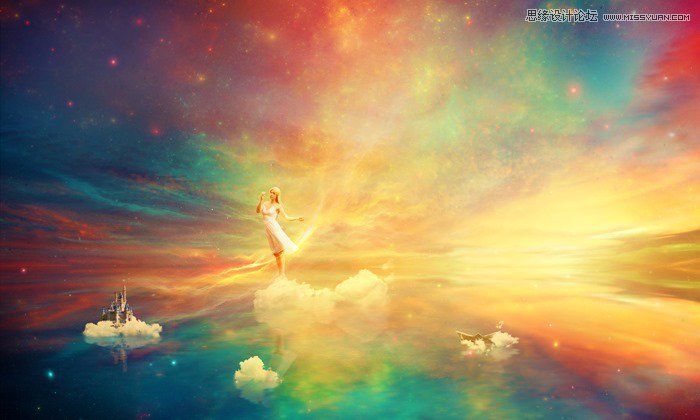
In this tutorial I’ll show you how to create a fantasy, heavenly scene with a beautiful dreamer. You’ll learn how to play with color, blend using adjustment layers and brush, add texture, work with lighting effect and more.
What you’ll be creating
We’ll start this tutorial by creating a beautiful lake scene from a sky image. Then we’ll add nebula texture to increase fantasy effect for the scene. Later we’ll add clouds, paper boat, model, castle and blend them using adjustment layers, masking and brush. Then we’ll continue to build up the color and light of the image with light and nebula textures. Finally we’ll use an adjustment layer to enhance the final effect. I recommend you to use Photoshop CS3 or newer to follow this tutorial properly.
Step 1
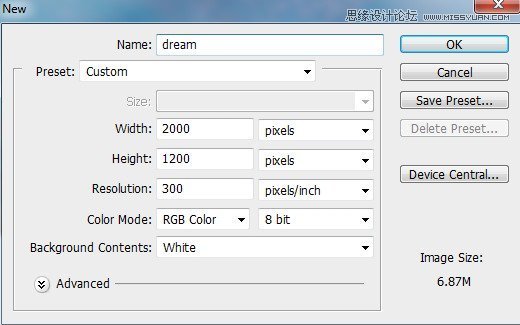
Create a new document in Photoshop with the given settings:
Step 2
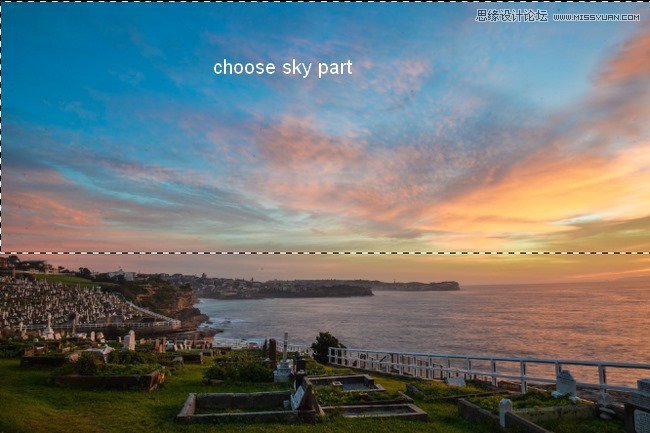
Open the sky stock. Use the Retangular Marquee Tool (M) to make a selection of the sky part:
Use the Move Too (V) to drag this selection onto the top of our white canvas:
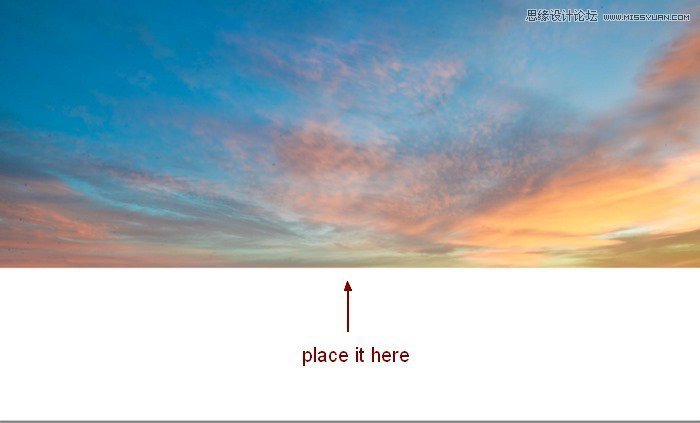
Name it “sky”.
Step 3
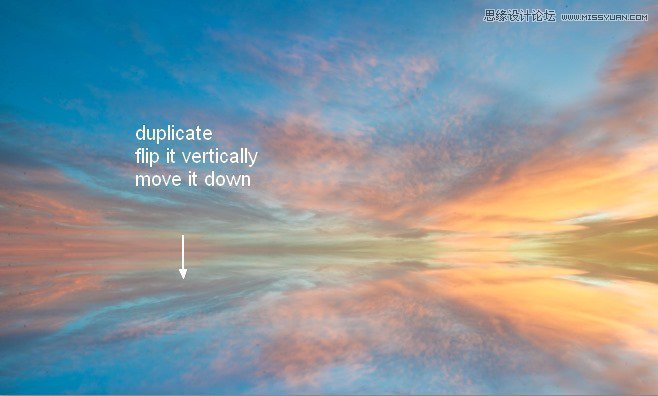
Press Cmd/Ctrl+J to duplicate this layer. Go to Edit > Transform > Flip Vertical, move it down then place this layer under the sky one.
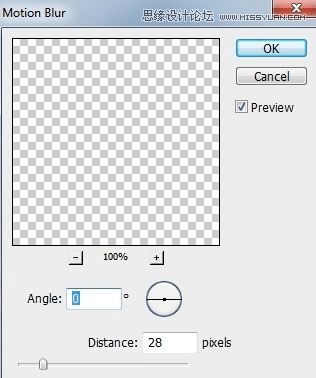
Go to Filter > Blur >Motion Blur and pick the settings below:
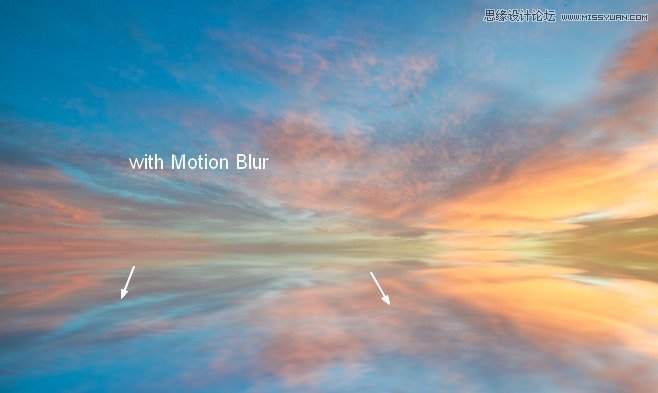
Name this layer “lake”.
Step 4
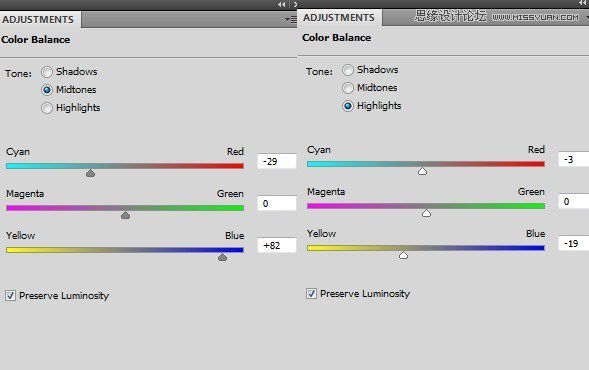
To add some red and blue to the scene, I used an adjustment layer. Go to Layer > New Adjustment Layer > Color Balance:

Step 5
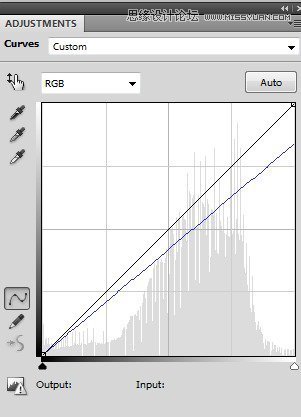
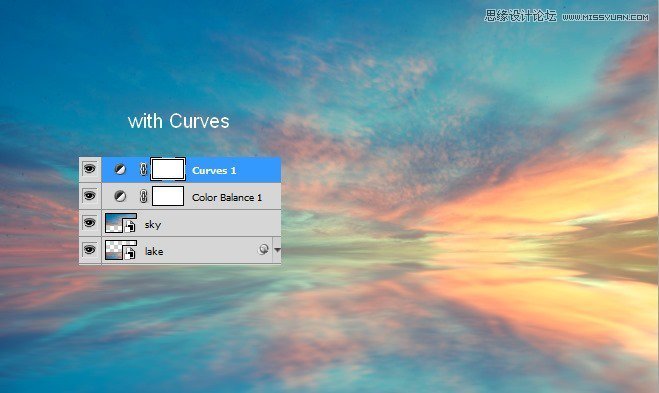
I used a Curves adjustment layer to add some nice cyan tone to the picture:
Step 6
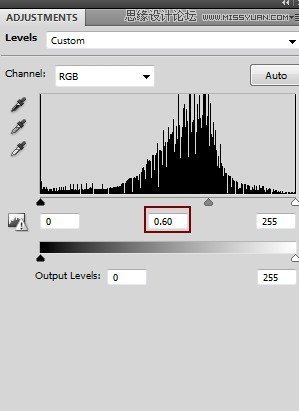
To change the contrast of the pic, I used a Levels adjustment layer:
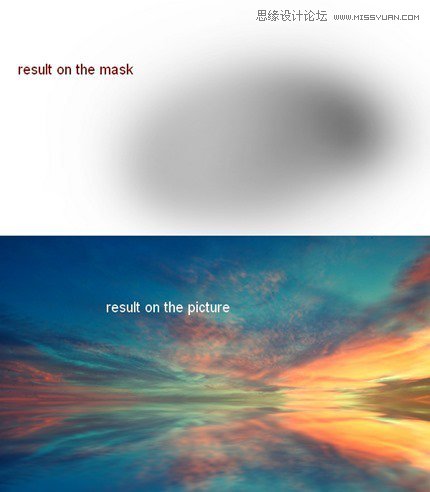
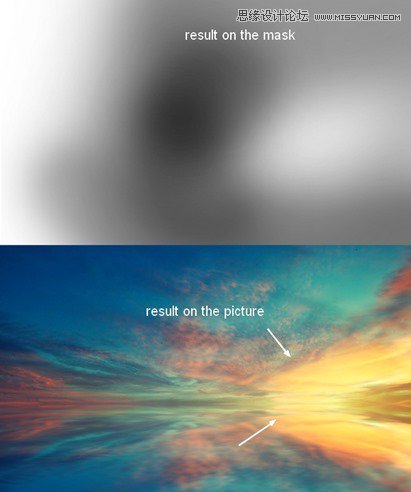
On this Levels layer mask use a soft black brush with opacity from 20-25% to erase the center and right side of the pic. You can see how I did it on the layer mask and result on the picture:
Step 7
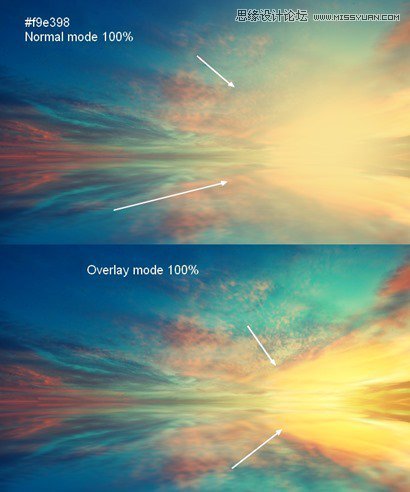
To create more light for the sky I used a soft brush with color #f9e398 to paint over the right of the horizon. Change the mode to Overlay 100%:
Click the second button at the bottom of the Layers Panel to add mask to this layer. Use a soft black brush to reduce the light effect as the image below shows:
 愛你不要你
愛你不要你
-
 Photoshop制作復古風格的老照片效果【英】2018-04-23
-
 Photoshop合成長著創(chuàng)意大樹的長頸鹿【英】2018-04-23
-
 Photoshop合成冰凍特效的金魚場景【英】2018-02-10
-
 Photoshop合成夢幻風格的森林場景【英】2018-02-10
-
 Photoshop合成正在施法的巫師【英】2018-02-10
-
 Photoshop制作金屬質感的3D立體字【英】2018-01-09
-
 Photoshop設計火焰燃燒藝術字教程【英】2018-01-09
-
Photoshop制作復古風格的老照片效果【英】
相關文章11882018-04-23
-
Photoshop合成長著創(chuàng)意大樹的長頸鹿【英】
相關文章13832018-04-23
-
Photoshop合成冰凍特效的金魚場景【英】
相關文章34052018-02-10
-
 Photoshop制作黃金質感立體字【英】
相關文章7422018-02-10
Photoshop制作黃金質感立體字【英】
相關文章7422018-02-10
-
 Photoshop制作驚艷大氣的3D立體字
相關文章14682018-02-10
Photoshop制作驚艷大氣的3D立體字
相關文章14682018-02-10
-
Photoshop合成夢幻風格的森林場景【英】
相關文章24492018-02-10
-
Photoshop合成正在施法的巫師【英】
相關文章8372018-02-10
-
 Photoshop制作復古雙重曝光字體
相關文章6532018-01-09
Photoshop制作復古雙重曝光字體
相關文章6532018-01-09
