Photoshop制作復古風格的老照片效果【英】
文章來源于 站酷,感謝作者 Melody Nieves 給我們帶來經精彩的文章!教程所需要的素材:歐式相框老照片效果PS教程素材
先看看效果圖
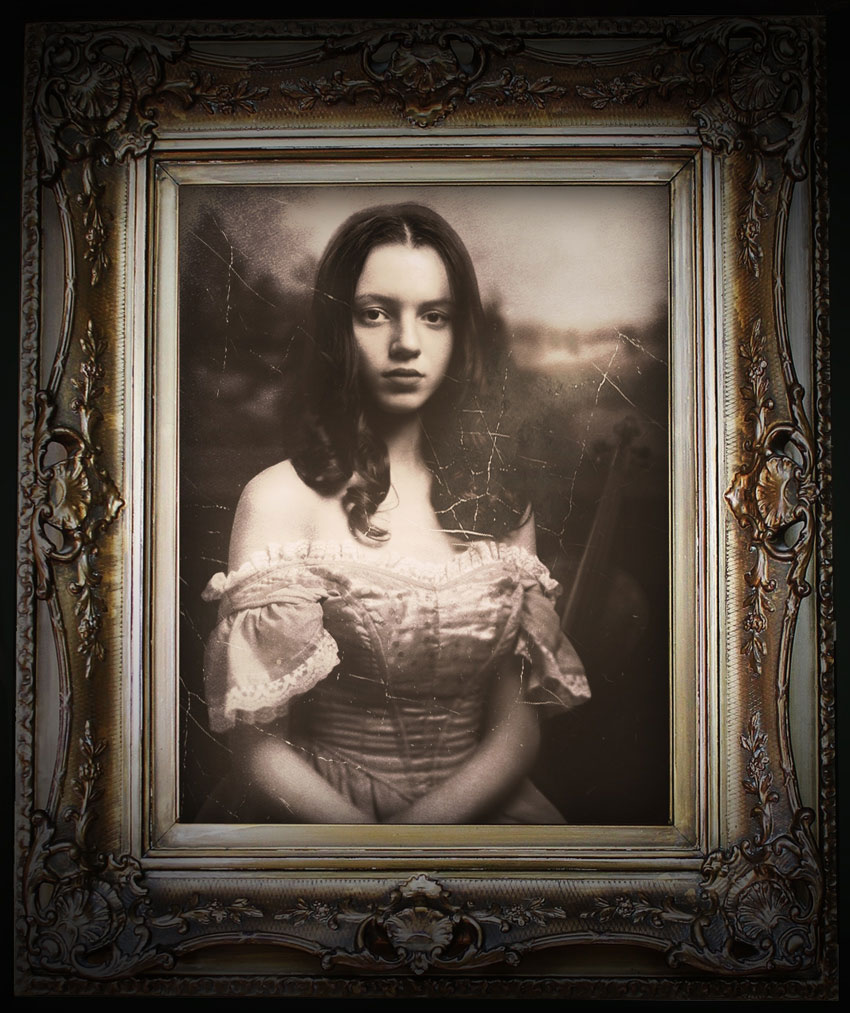
What You'll Be Creating
Some of our greatest inspiration can come from learning about the past.
In this tutorial, I'll show you how to create a realistic vintage portrait in the old Victorian style. We'll fabricate the entire scene from scratch by using a few stocks to establish depth of field as well as an authentic old-world mood.
Get inspired! Find more incredible vintage assets for your manipulations on Envato Market.
You can find a lot of inspiration in vintage photography. From the style to the lighting and general setup, artists have always made the most out of their limited resources.
So today, I'll show you how to create a realistic vintage portrait using just a few stocks. Let's take a look at a before and after result.
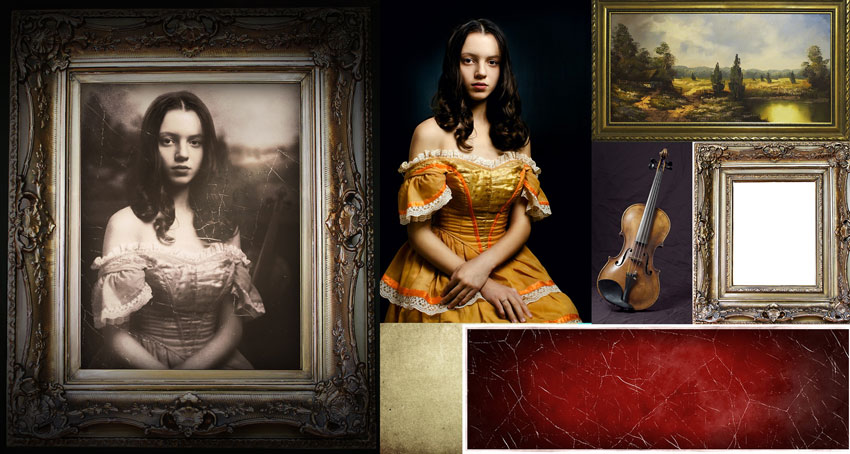
See the difference?
To get to the final result, we must study authentic vintage portraiture. Find inspiration on Google, Tumblr, and Pinterest by typing in keywords like "Vintage Victorian Portraits".
Here are a few key details to keep in mind:
Victorian portraiture is usually darkly lit, with one major light source.
The old-school style of developing photos led to brightly blown-out areas reminiscent of high exposure in photography.
The style included elaborate Victorian/Edwardian fabrics that usually showed a person's class or occupation.
Models rarely smiled and held more dignified poses.
With old photos, there's usually some damage, wrinkling, or other aging effects present.
I've always loved this style! You may have seen me repeat it in other tutorials like this dapper Victorian cat.

DIGITAL PAINTING
How to Paint a Dapper Victorian Cat in Adobe Photoshop
Melody Nieves
Now that we have the essentials in mind, we can move on to the manipulation.
Let's begin!
1. How to Build the Victorian Scene
Step 1
Open a New Document in Photoshop at 1074 x 1280 pixels.
Let's start with the frame.
Open the Picture Frame image in a separate document. Use the Rectangular Marquee Tool (M) to create a selection of the white area in the center of the frame. Hit the Delete key to remove this area.
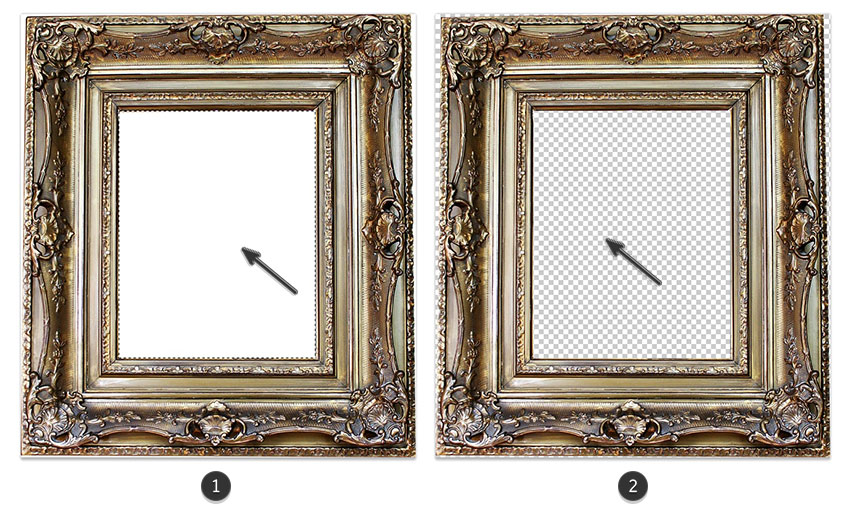
Since the edges of the photo are white too, you'll need to use the Polygonal Lasso Tool (L) to remove them as well. Follow the same process to select and remove these areas.
Step 2
Return to the previous document.
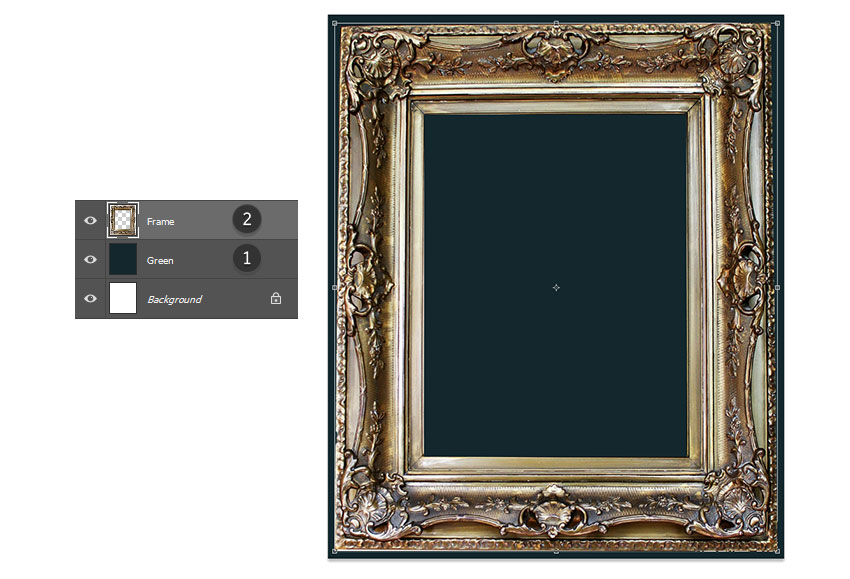
Create a New Layer and use the Paint Bucket Tool (G) to fill it with green #13272d.
Next, Copy and Paste the frame onto the new document. Resize it to fit the document with the Free Transform Tool (Control-T).
Step 3
Add the model.
Copy and Paste the Victorian Woman stock onto a New Layer beneath the frame layer.
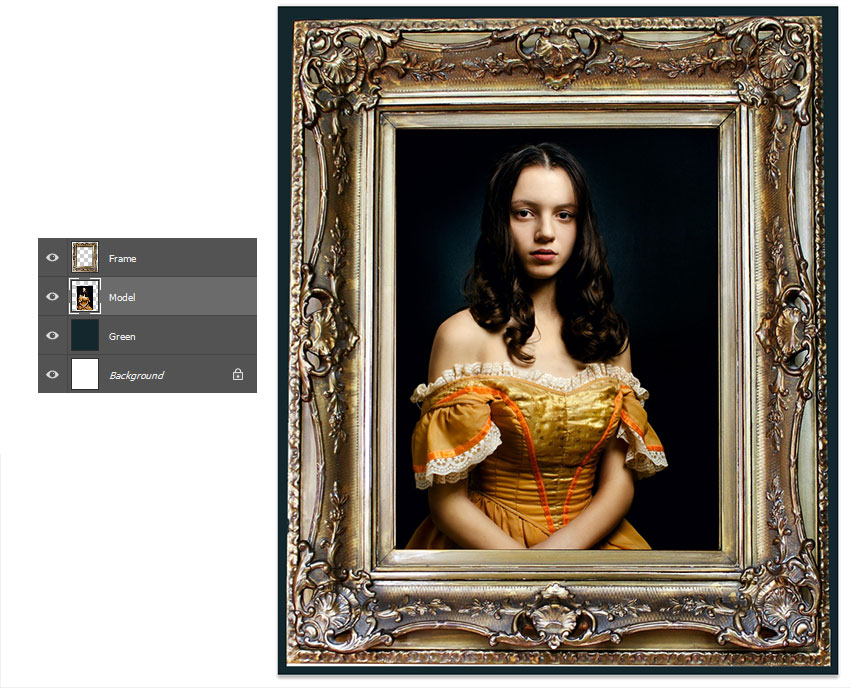
Step 4
Generally speaking, the model's picture is exactly what we need for this Victorian-inspired composition.
However, we need to separate her from the dark background so we can add a few more elements behind her. This will create depth of field and an interesting story.
So temporarily Hide the Visibility of the frame layer. Do this by hitting the Eye button on the side of the layer.
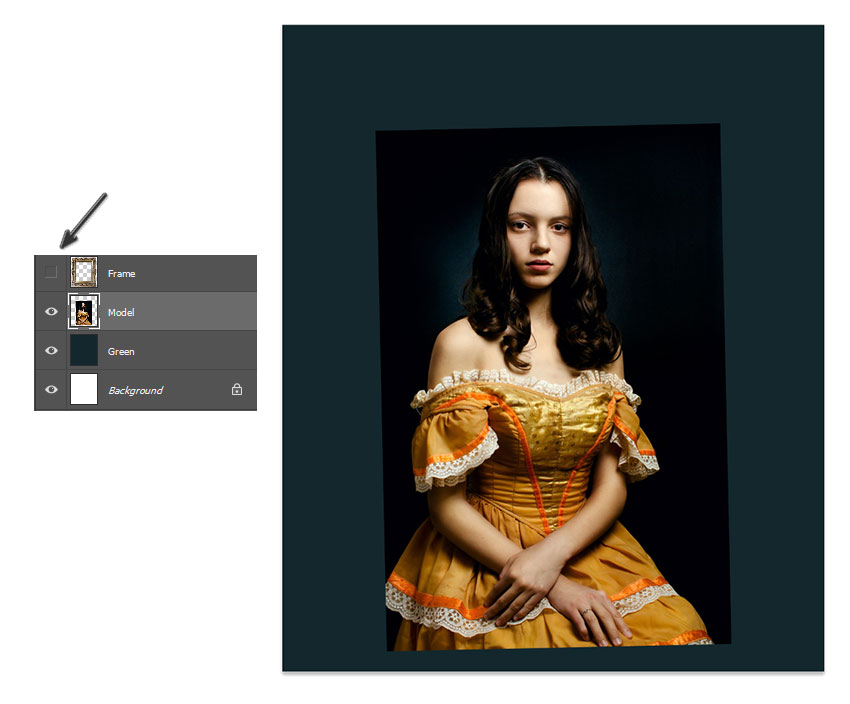
Now make a rough selection of the model to make a copy of her.
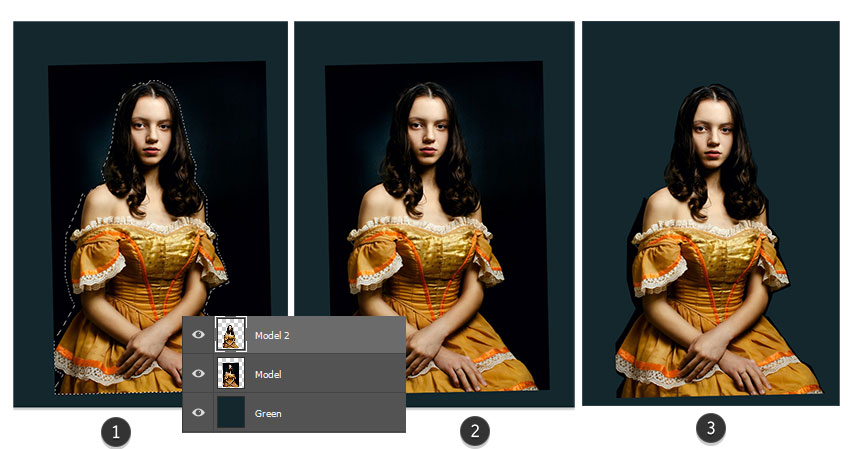
Use the Polygonal Lasso Tool (M) to create a selection around her; it doesn't have to be perfect.
With the model selected, hold Control-J to copy the selection onto a New Layer. Feel free to change the layer name to 'Model 2.'
Here is how the copy looks with the original model layer hidden. Don't delete the original.
Step 5
Refine the edges of the model's image. Temporarily Hide the Visibility of the first model layer.
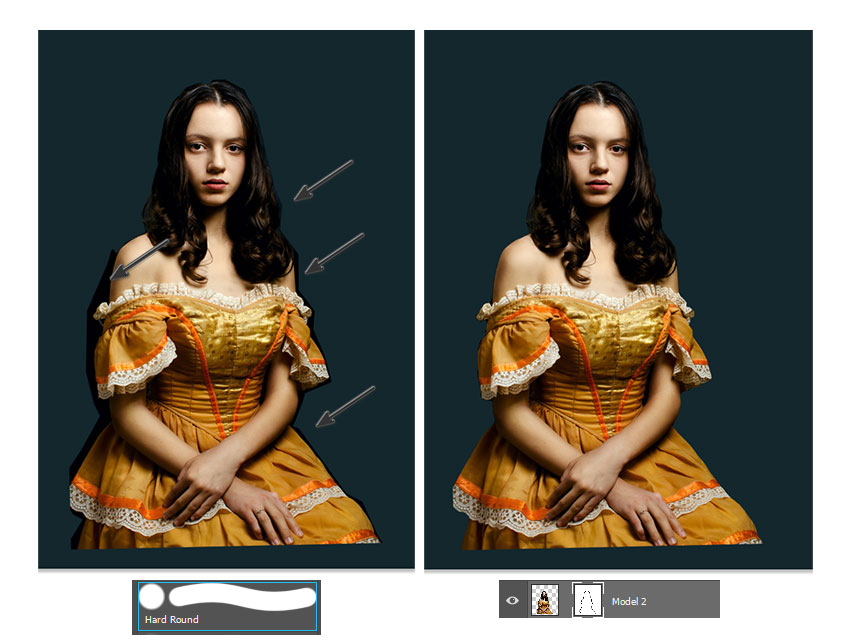
Then select Model 2 and add a Layer Mask. Paint black onto the mask with a Hard Round Brush (100% Hardness/100% Opacity) to help mask away the harsh edges.
Do this until you get a result like the one below, where the edges are much cleaner and the background is no longer visible.
 情非得已
情非得已
-
 Photoshop制作復古風格的老照片效果【英】2018-04-23
-
 Photoshop合成長著創意大樹的長頸鹿【英】2018-04-23
-
 Photoshop合成冰凍特效的金魚場景【英】2018-02-10
-
 Photoshop合成夢幻風格的森林場景【英】2018-02-10
-
 Photoshop合成正在施法的巫師【英】2018-02-10
-
 Photoshop制作金屬質感的3D立體字【英】2018-01-09
-
 Photoshop設計火焰燃燒藝術字教程【英】2018-01-09
-
 Photoshop制作黃金質感立體字【英】
相關文章7422018-02-10
Photoshop制作黃金質感立體字【英】
相關文章7422018-02-10
-
 Photoshop制作驚艷大氣的3D立體字
相關文章14682018-02-10
Photoshop制作驚艷大氣的3D立體字
相關文章14682018-02-10
-
Photoshop合成夢幻風格的森林場景【英】
相關文章24492018-02-10
-
 Photoshop制作復古雙重曝光字體
相關文章6532018-01-09
Photoshop制作復古雙重曝光字體
相關文章6532018-01-09
-
 Photoshop制作木地板LOGO刻印效果【英】
相關文章19272018-01-09
Photoshop制作木地板LOGO刻印效果【英】
相關文章19272018-01-09
-
Photoshop制作金屬質感的3D立體字【英】
相關文章4612018-01-09
-
 Photoshop制作復古花朵組成的藝術字【英】
相關文章3802018-01-09
Photoshop制作復古花朵組成的藝術字【英】
相關文章3802018-01-09
-
 Photoshop制作可愛的糖果餅干字【英】
相關文章6722017-12-25
Photoshop制作可愛的糖果餅干字【英】
相關文章6722017-12-25
