Photoshop合成夢幻風格的森林場景【英】(7)
文章來源于 Tutsplus.com,感謝作者 Jenny Le 給我們帶來經精彩的文章!Step 2
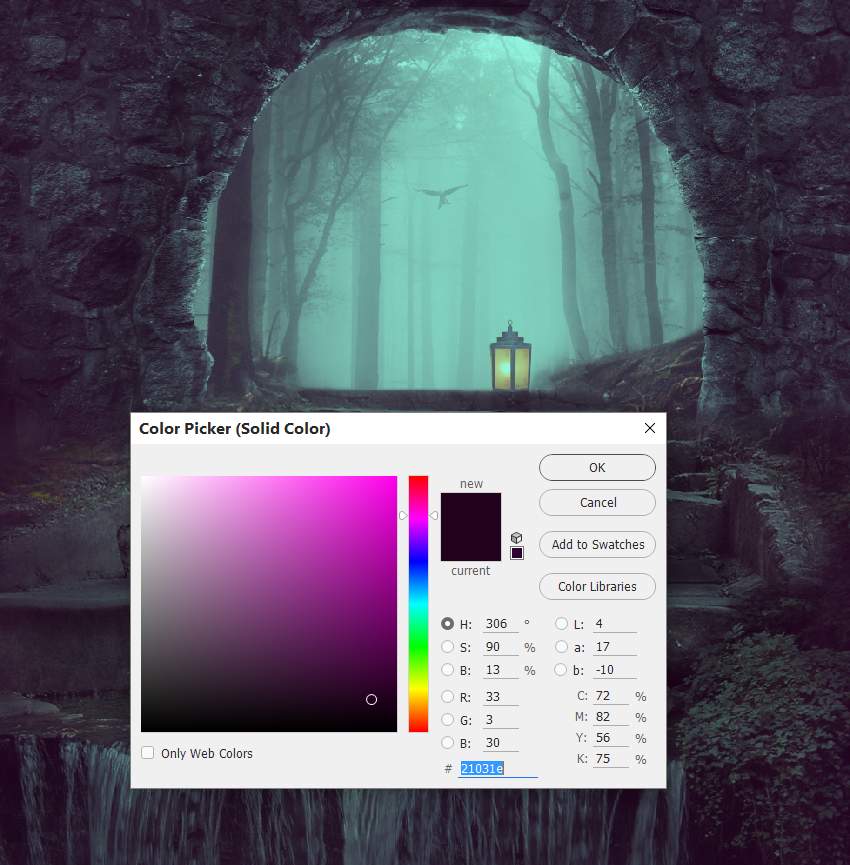
Make a Color Fill layer and pick the color #21031e. Alter this layer mode to Exclusion 100%.
Step 3
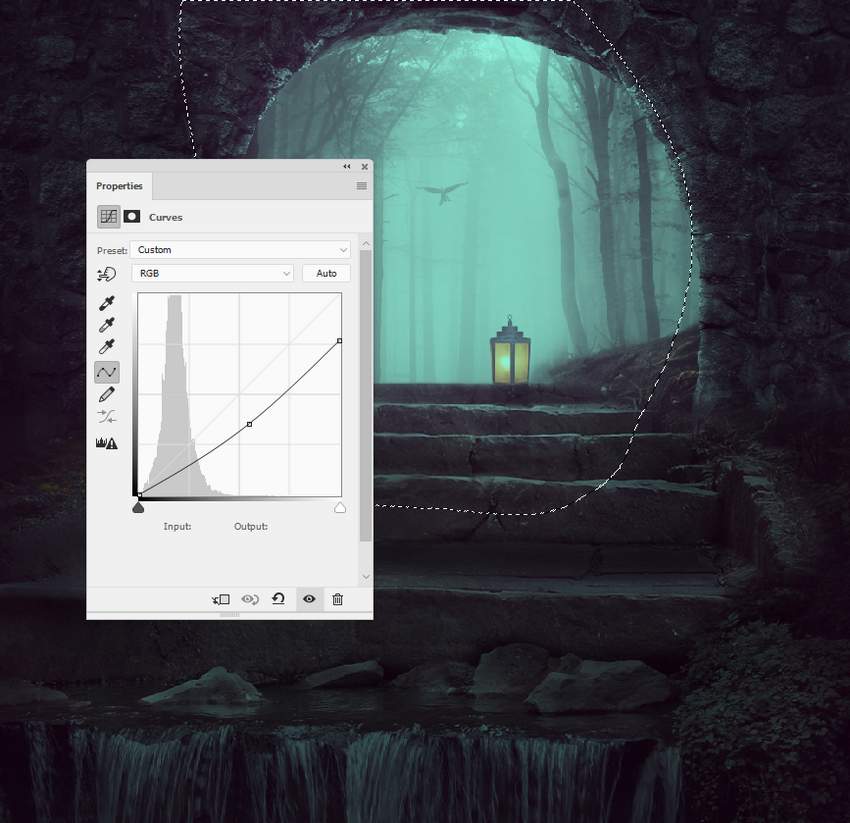
Add a Curves adjustment layer to give the edges and sides a stronger contrast. Paint around the entrance and foggy forest so it won't be darkened by this adjustment layer.
8. How to Paint the Light
Step 1
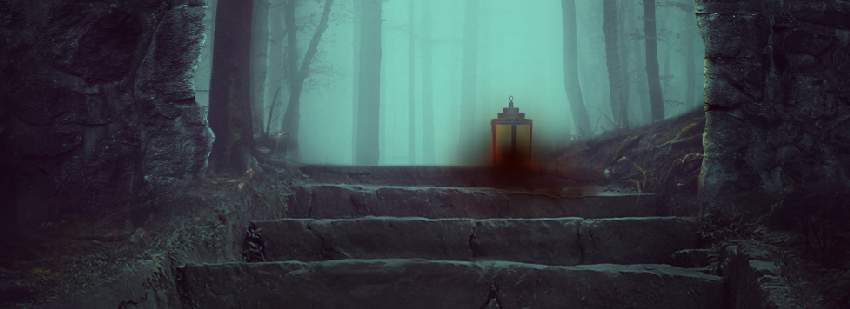
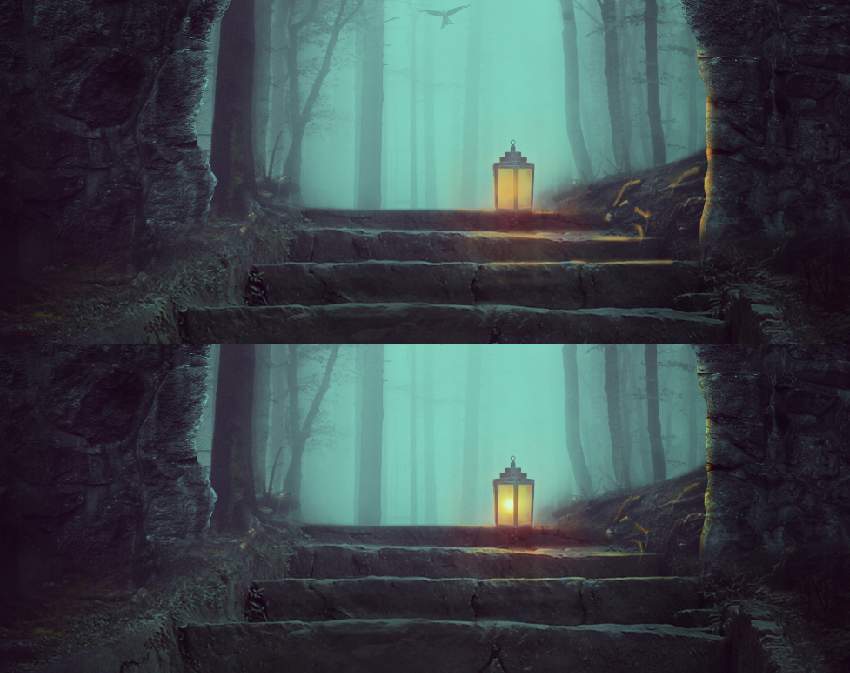
To paint more light for the lamp, create a new layer on top of the layers and use a soft brush with the color #210402 to paint on the lamp and the area around it. Change this layer mode to Linear Dodge 100%.
Step 2
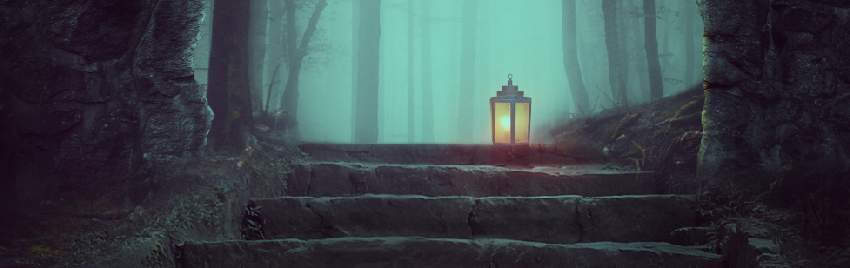
Use a new layer and a soft brush with the color #d7a650 to paint highlights for the lamp, steps, the details on the ground, and the contours of the arch. Alter this layer mode to Overlay 100%.
Advertisement
Step 3
On a new layer, use a soft brush with the color #ee9463 to make the highlight inside the lamp stronger. Set this layer mode to Hard Light 100%.

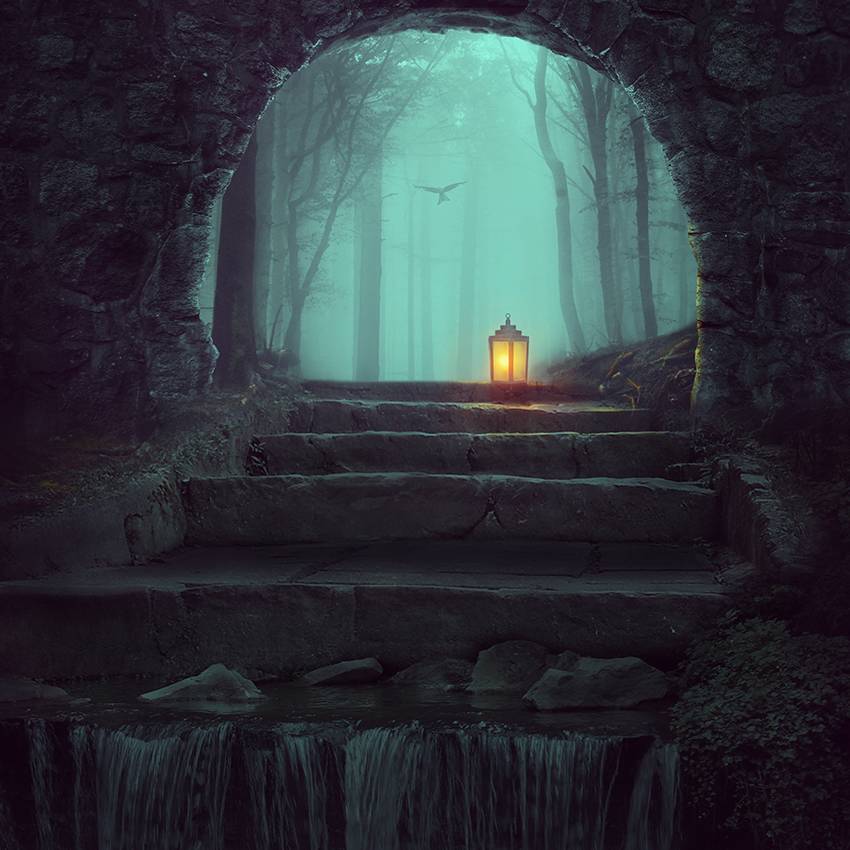
Congratulations, You're Done!
I hope that you've enjoyed the tutorial and learned something new for your own projects. Feel free to share your results or leave comments in the box below. Enjoy Photoshopping!
 情非得已
情非得已
-
 Photoshop制作復古風格的老照片效果【英】2018-04-23
-
 Photoshop合成長著創意大樹的長頸鹿【英】2018-04-23
-
 Photoshop合成冰凍特效的金魚場景【英】2018-02-10
-
 Photoshop合成夢幻風格的森林場景【英】2018-02-10
-
 Photoshop合成正在施法的巫師【英】2018-02-10
-
 Photoshop制作金屬質感的3D立體字【英】2018-01-09
-
 Photoshop設計火焰燃燒藝術字教程【英】2018-01-09
-
Photoshop制作復古風格的老照片效果【英】
相關文章11882018-04-23
-
Photoshop合成冰凍特效的金魚場景【英】
相關文章34052018-02-10
-
 Photoshop合成城市被流星攻擊場景【英】
相關文章7142017-12-12
Photoshop合成城市被流星攻擊場景【英】
相關文章7142017-12-12
-
 Photoshop合成創意的英雄戰斗場景教程【英】
相關文章5802017-12-12
Photoshop合成創意的英雄戰斗場景教程【英】
相關文章5802017-12-12
