Photoshop合成夢幻風格的森林場景【英】(6)
文章來源于 Tutsplus.com,感謝作者 Jenny Le 給我們帶來經精彩的文章!Step 2
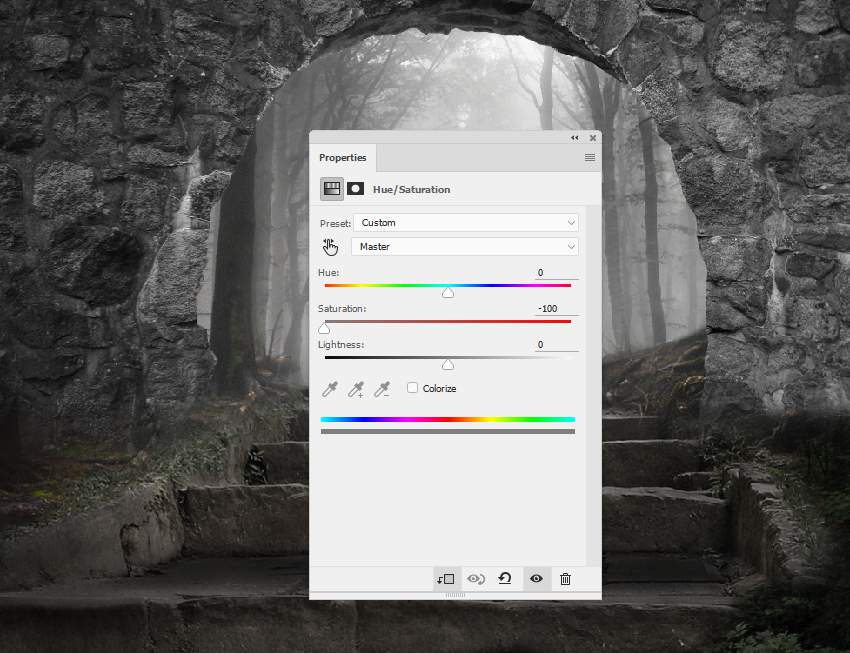
Make a Hue/Saturation and bring the Saturation value down to the minimum.
Step 3
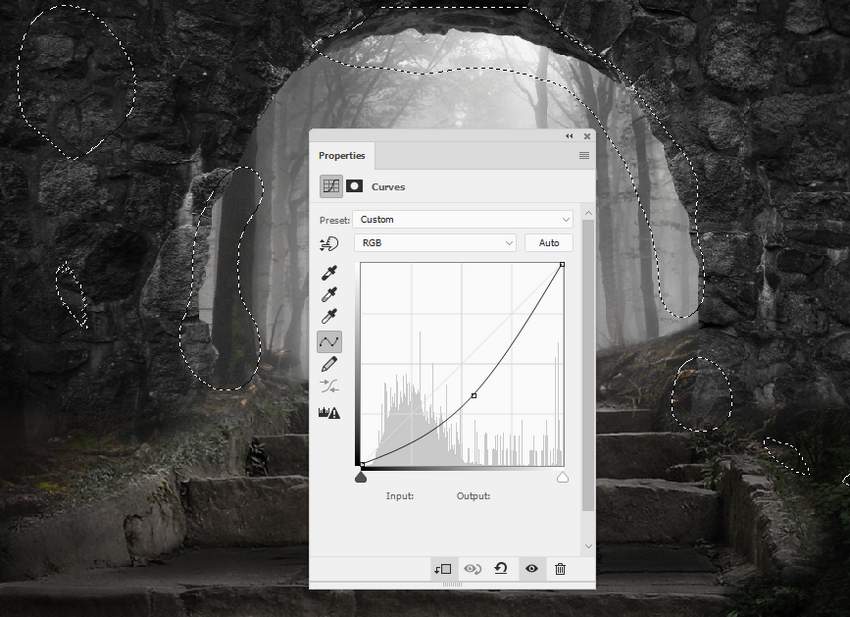
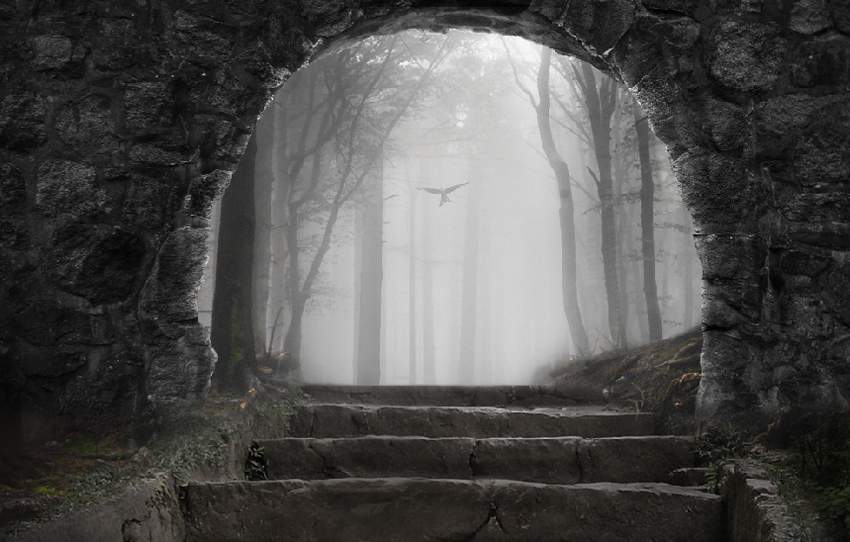
Create a Curves adjustment layer to decrease the light on the arch. On the layer mask, use a soft black brush to erase or reduce the dark effect on the areas which are dark enough.
Step 4
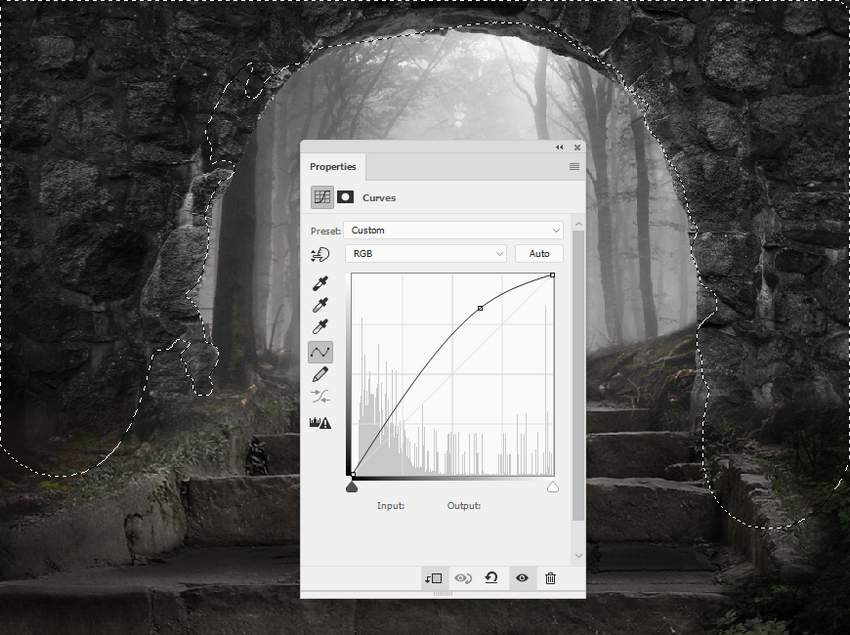
Add another Curves adjustment layer to bring more light to the arch's contour. Paint on the rest so it won't be affected by this adjustment layer.
Step 5
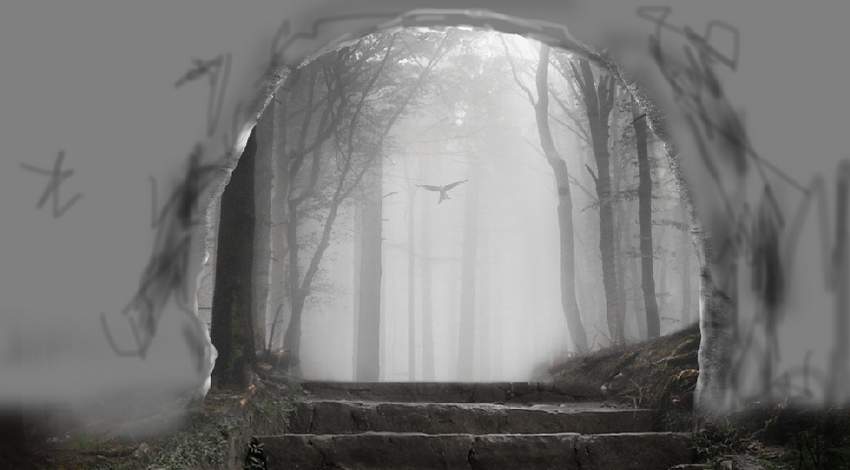
Create a new layer, change the mode to Overlay 100%, and fill with 50% gray. Use the Dodge Tool to paint more light for the contour and the Burn Tool to strengthen the shadow and details within the arch.
6. How to Add the Lantern
Step 1
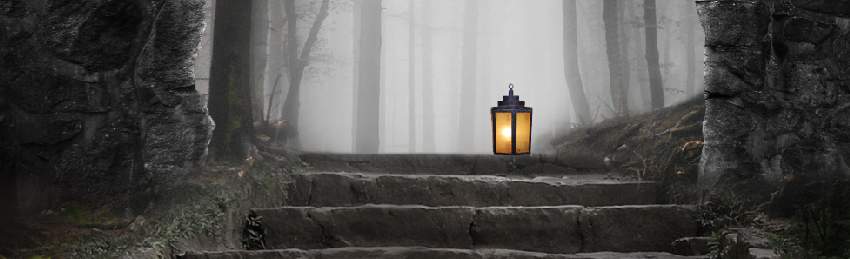
Isolate the lantern from the background and place it above the stairs.
Step 2
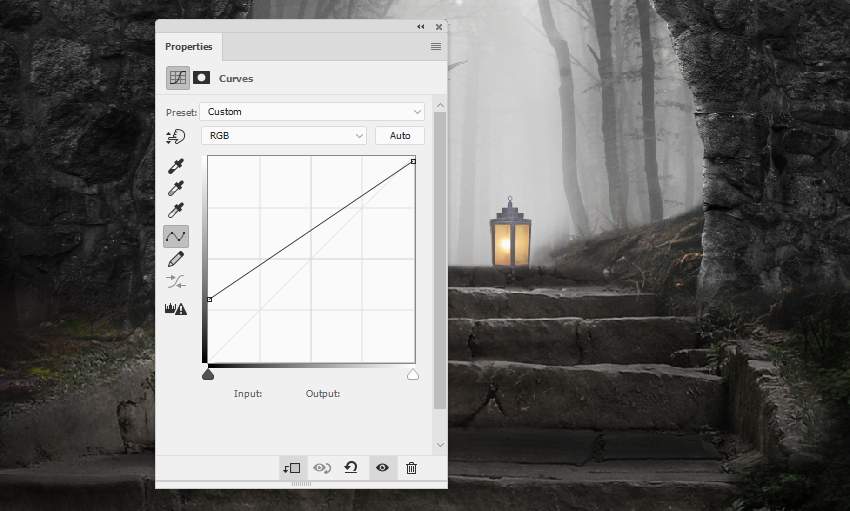
The lantern should be hazier to fit the foggy background. Create a Curves adjustment layer and decrease the contrast of the lamp.
Step 3
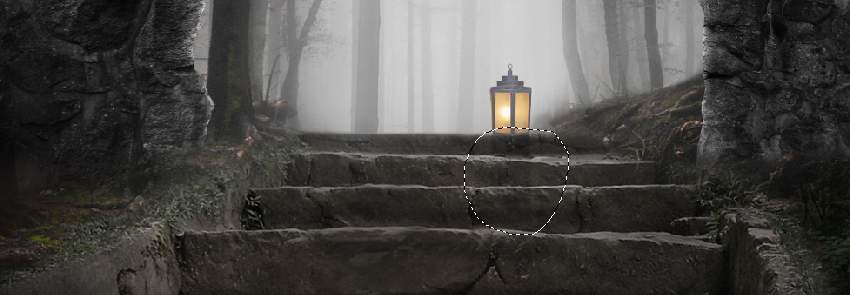
Make a new layer below the lamp layer, change the mode to Overlay 100%, and fill with 50% gray (non-Clipping Mask). Use the Burn Tool to paint a shadow for the lamp on the steps.
7. How to Do the Basic Adjustments
Step 1
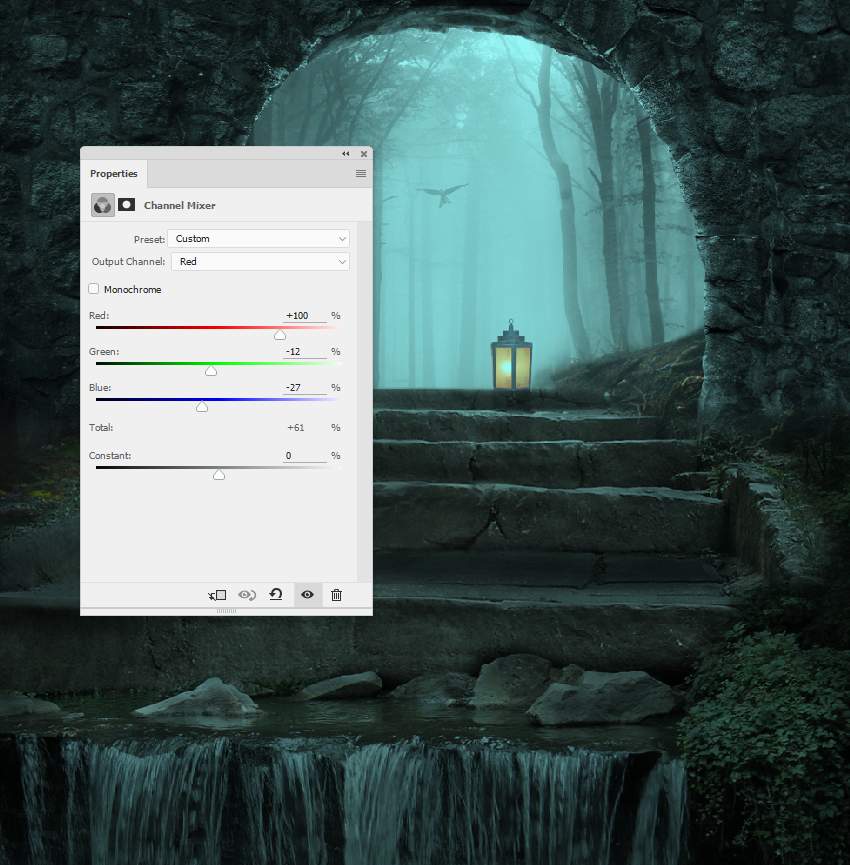
Create a Channel Mixer adjustment layer on top of the layers and change the Red settings:
 情非得已
情非得已
-
 Photoshop制作復古風格的老照片效果【英】2018-04-23
-
 Photoshop合成長著創意大樹的長頸鹿【英】2018-04-23
-
 Photoshop合成冰凍特效的金魚場景【英】2018-02-10
-
 Photoshop合成夢幻風格的森林場景【英】2018-02-10
-
 Photoshop合成正在施法的巫師【英】2018-02-10
-
 Photoshop制作金屬質感的3D立體字【英】2018-01-09
-
 Photoshop設計火焰燃燒藝術字教程【英】2018-01-09
-
Photoshop制作復古風格的老照片效果【英】
相關文章11882018-04-23
-
Photoshop合成冰凍特效的金魚場景【英】
相關文章34052018-02-10
-
 Photoshop合成城市被流星攻擊場景【英】
相關文章7142017-12-12
Photoshop合成城市被流星攻擊場景【英】
相關文章7142017-12-12
-
 Photoshop合成創意的英雄戰斗場景教程【英】
相關文章5802017-12-12
Photoshop合成創意的英雄戰斗場景教程【英】
相關文章5802017-12-12
