Photoshop合成夢幻風(fēng)格的森林場景【英】(4)
文章來源于 Tutsplus.com,感謝作者 Jenny Le 給我們帶來經(jīng)精彩的文章!Step 2
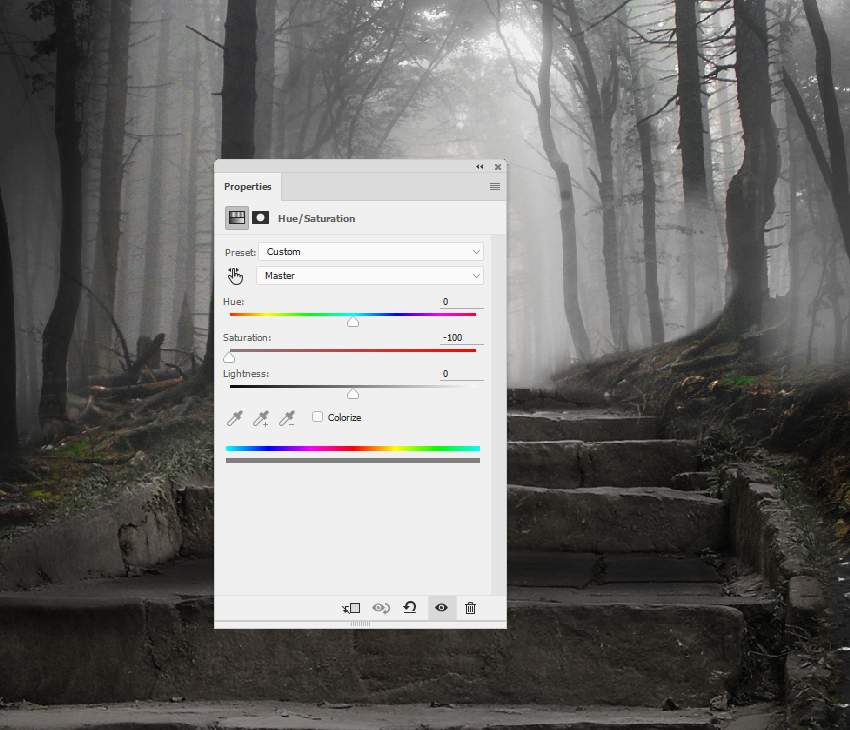
Add a Hue/Saturation adjustment layer and reduce the Saturation value to the maximum.
Step 3
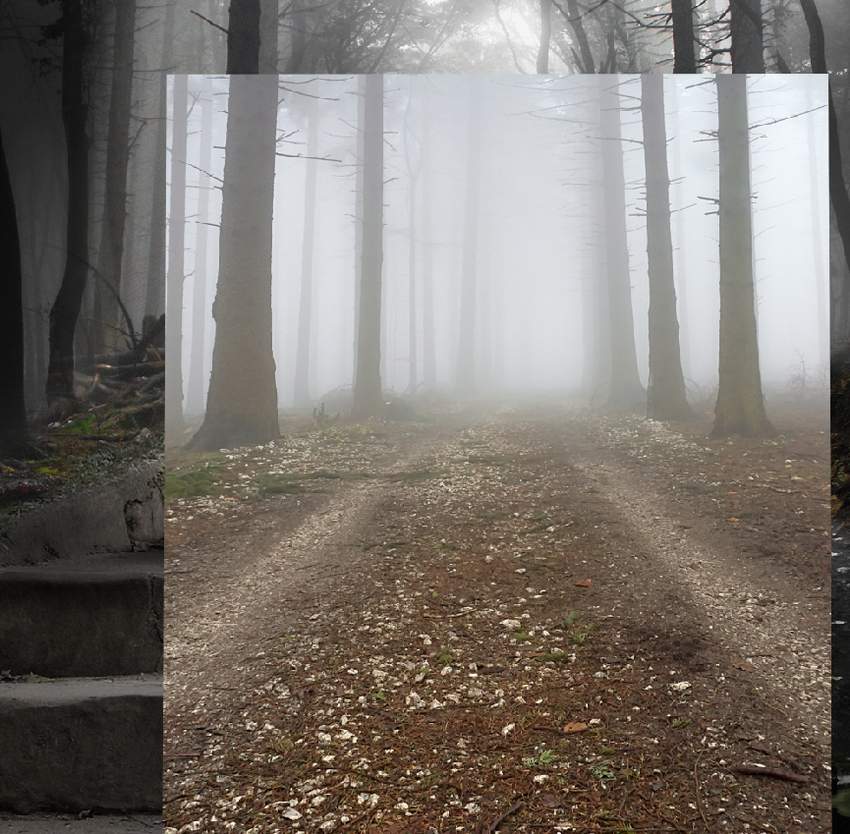
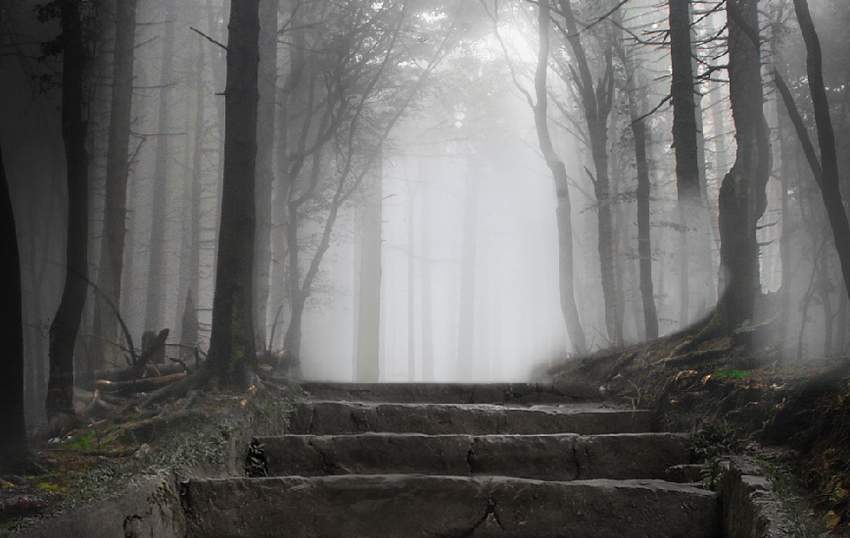
Add the forest 3 image to our canvas and set the far foggy background to the middle section of the existing forest. Use a layer mask to leave only the foggy area visible.
Step 4
Create a Hue/Saturation adjustment layer and bring the Saturation value down to -100:

Step 5
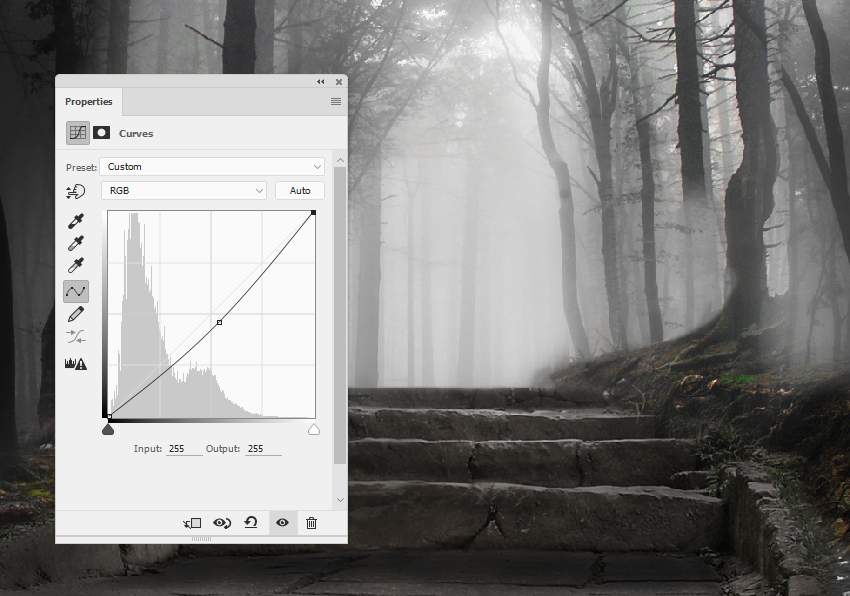
Make a Curves adjustment layer to darken this part of the forest a little.
3. How to Import the Stream
Step 1
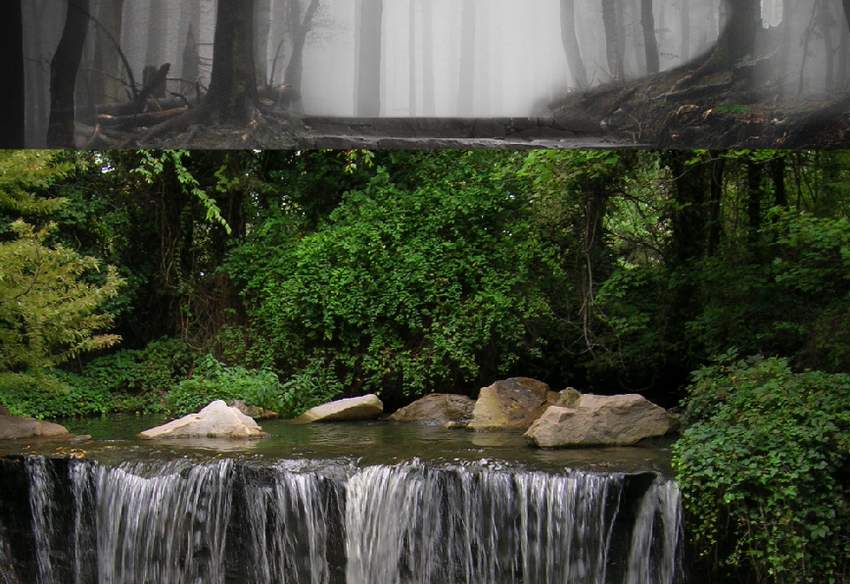
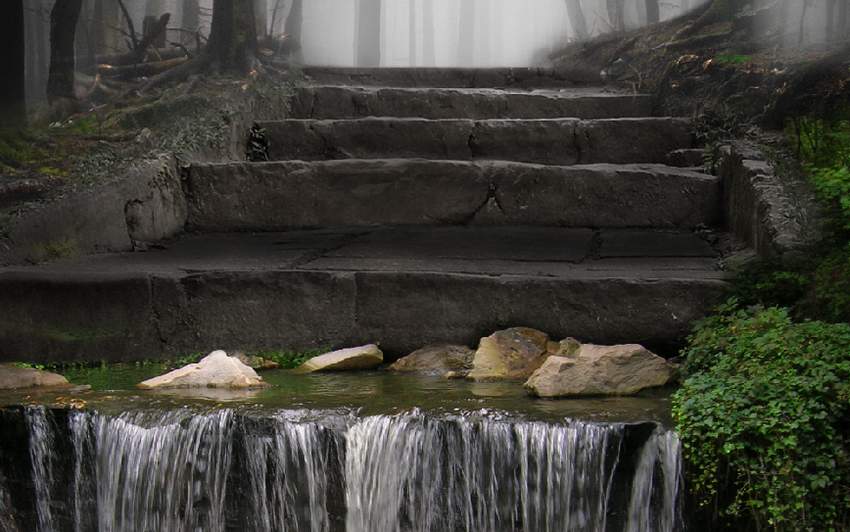
Add the stream image to the lowest area of the scene and flip it horizontally (Edit > Transform > Flip Horizontal). Use a layer mask to mask off the top, leaving the stream with the rocks and lower vines visible.
Step 2
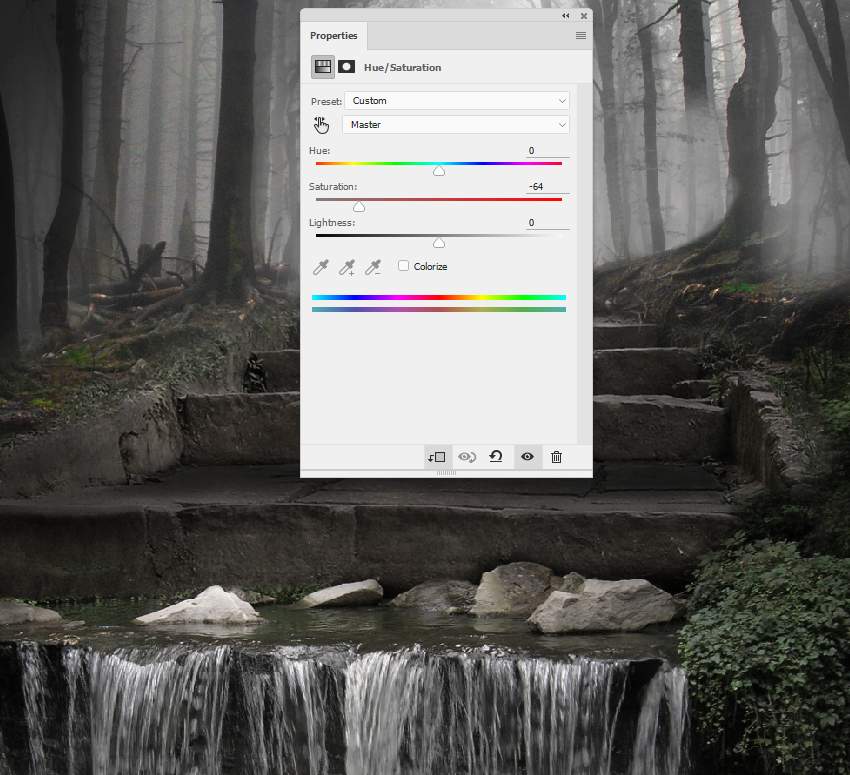
Create a Hue/Saturation adjustment layer to desaturate the stream, rocks, and vines.
Step 3
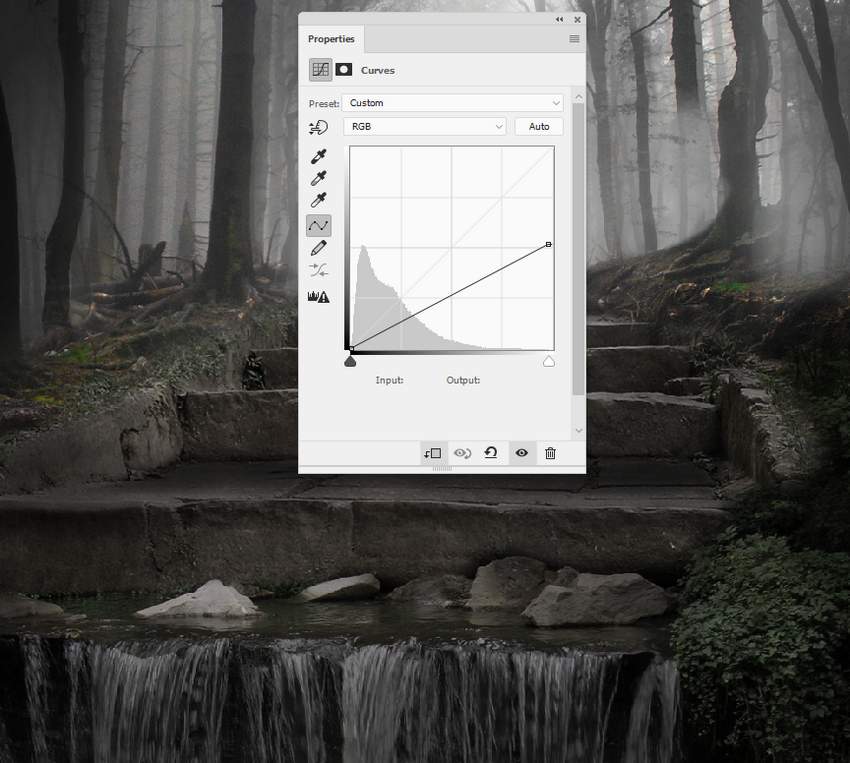
Make a Curves adjustment layer to reduce the lightness of the stream.
 情非得已
情非得已
-
 Photoshop制作復(fù)古風(fēng)格的老照片效果【英】2018-04-23
-
 Photoshop合成長著創(chuàng)意大樹的長頸鹿【英】2018-04-23
-
 Photoshop合成冰凍特效的金魚場景【英】2018-02-10
-
 Photoshop合成夢幻風(fēng)格的森林場景【英】2018-02-10
-
 Photoshop合成正在施法的巫師【英】2018-02-10
-
 Photoshop制作金屬質(zhì)感的3D立體字【英】2018-01-09
-
 Photoshop設(shè)計火焰燃燒藝術(shù)字教程【英】2018-01-09
-
Photoshop制作復(fù)古風(fēng)格的老照片效果【英】
相關(guān)文章11882018-04-23
-
Photoshop合成冰凍特效的金魚場景【英】
相關(guān)文章34052018-02-10
-
 Photoshop合成城市被流星攻擊場景【英】
相關(guān)文章7142017-12-12
Photoshop合成城市被流星攻擊場景【英】
相關(guān)文章7142017-12-12
-
 Photoshop合成創(chuàng)意的英雄戰(zhàn)斗場景教程【英】
相關(guān)文章5802017-12-12
Photoshop合成創(chuàng)意的英雄戰(zhàn)斗場景教程【英】
相關(guān)文章5802017-12-12
