Photoshop合成夢幻風格的森林場景【英】(2)
文章來源于 Tutsplus.com,感謝作者 Jenny Le 給我們帶來經精彩的文章!設計教程/國外教程/國外教程2018-02-10
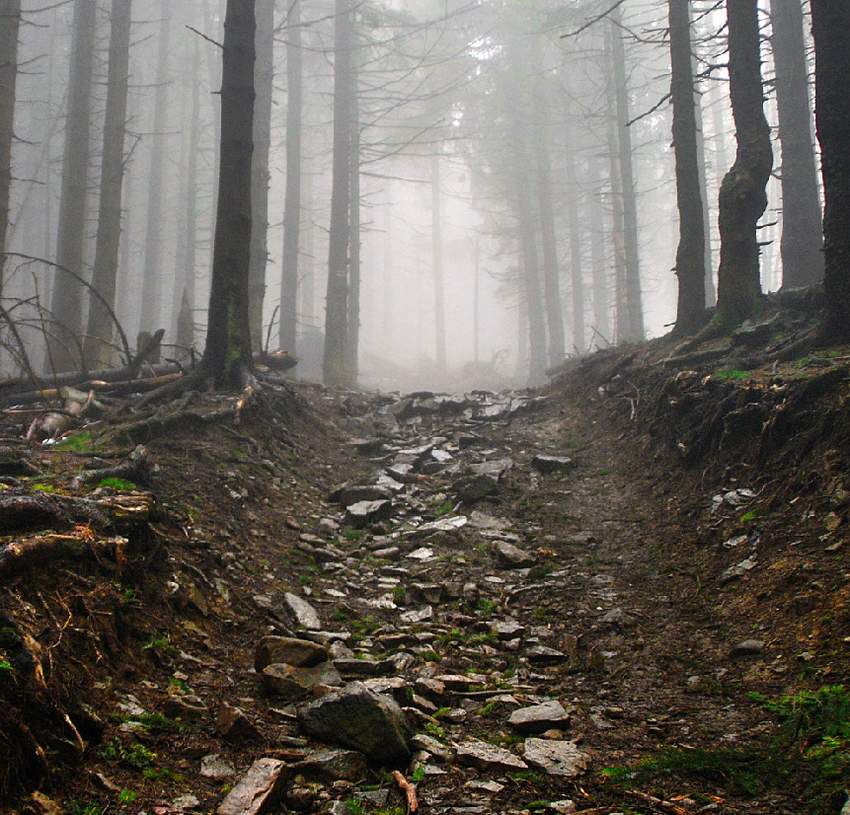
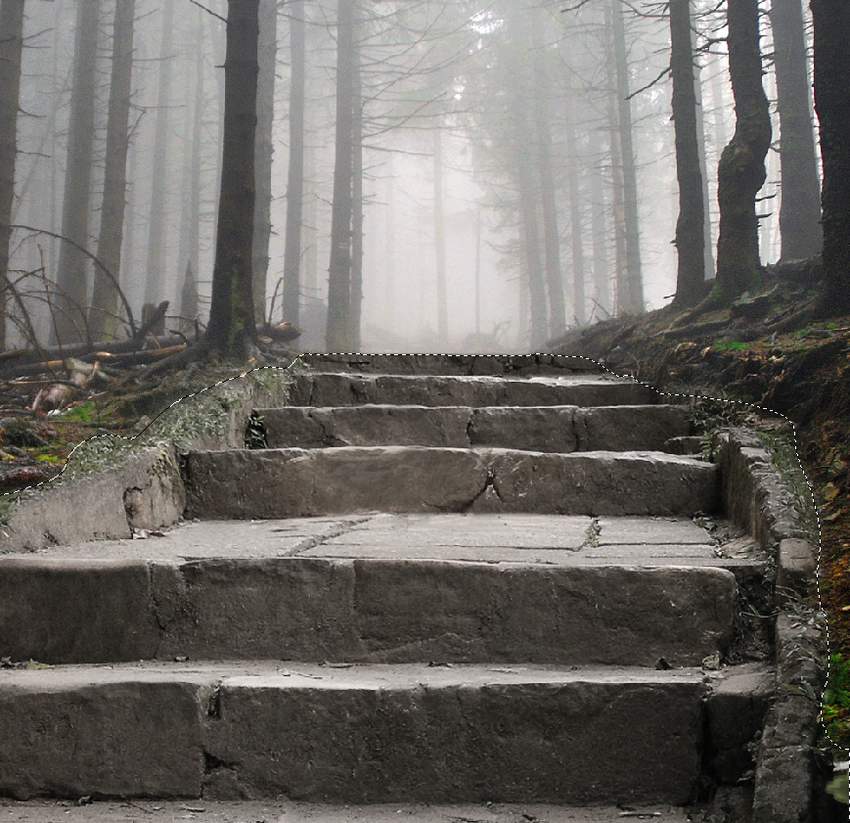
Step 5 Drag the forest 1 image into our main document using the Move Tool. Click the second icon at the bottom of the Layers panel to add a mask to this layer. Select a soft round brush with black co
Step 5
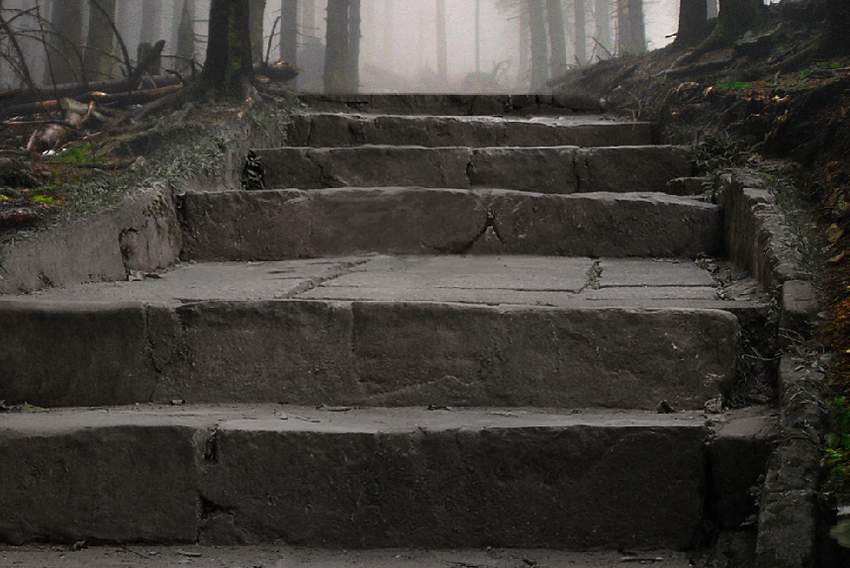
Drag the forest 1 image into our main document using the Move Tool. Click the second icon at the bottom of the Layers panel to add a mask to this layer. Select a soft round brush with black color (soft black brush) to erase the bottom and reveal the steps.
Step 6
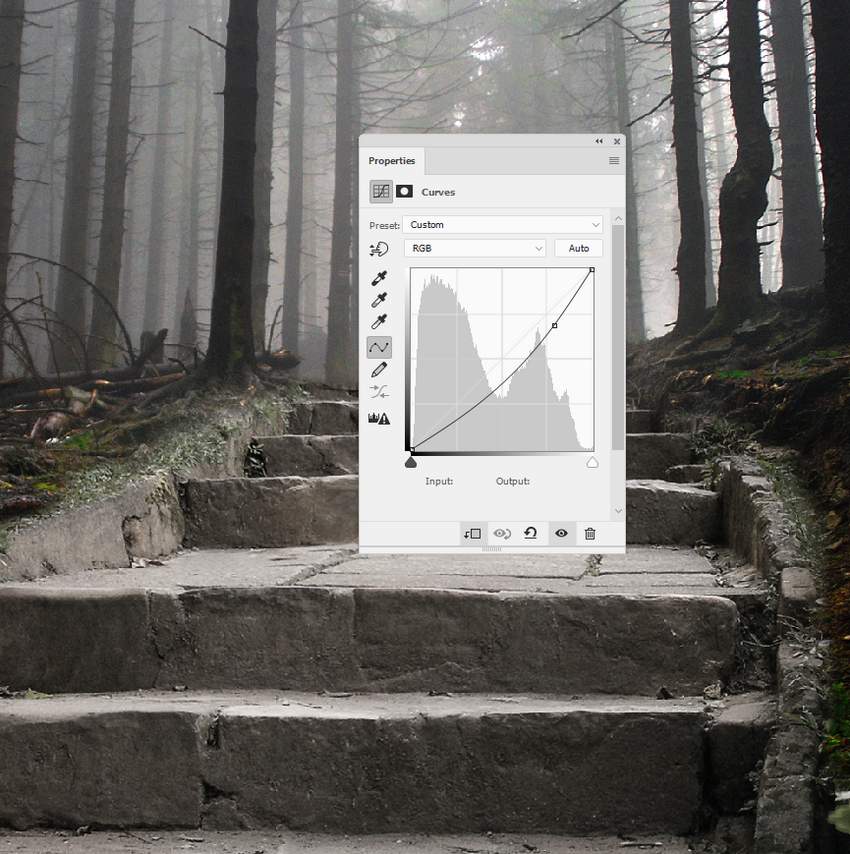
Make a Curves adjustment layer to darken the forest a little.
Step 7
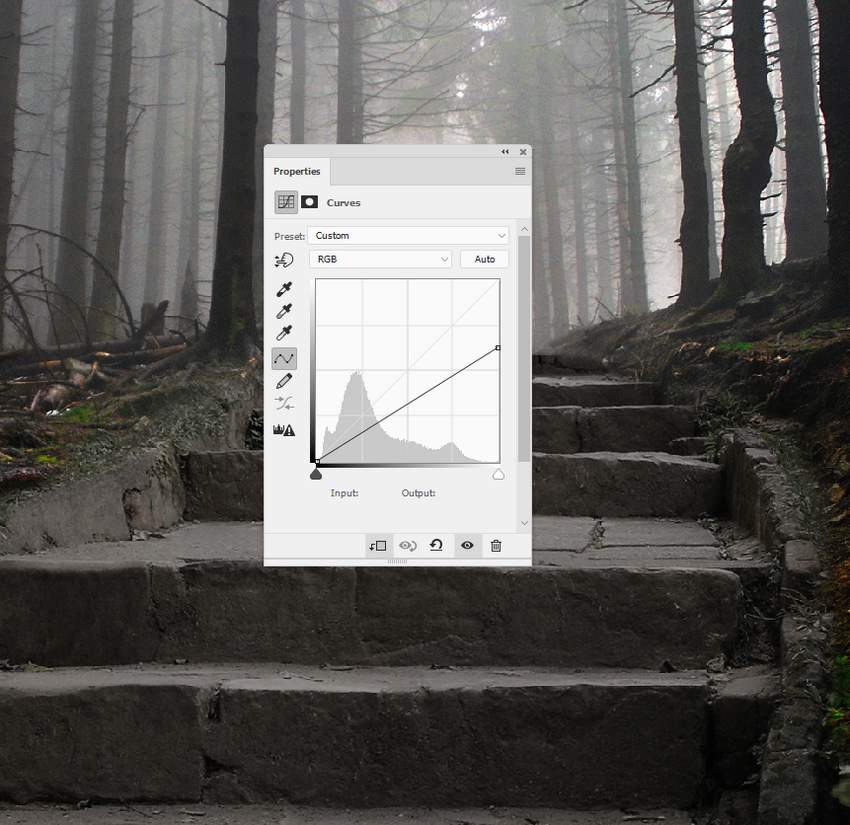
Go back to the stairs and create a Curves adjustment layer above the Hue/Saturation adjustment one. On this layer mask, use a soft black brush with a lowered opacity (about 15-30%) to refine the lightness on the steps. You can see the results on the mask and on the picture.

 情非得已
情非得已
推薦文章
-
 Photoshop制作復古風格的老照片效果【英】2018-04-23
-
 Photoshop合成長著創意大樹的長頸鹿【英】2018-04-23
-
 Photoshop合成冰凍特效的金魚場景【英】2018-02-10
-
 Photoshop合成夢幻風格的森林場景【英】2018-02-10
-
 Photoshop合成正在施法的巫師【英】2018-02-10
-
 Photoshop制作金屬質感的3D立體字【英】2018-01-09
-
 Photoshop設計火焰燃燒藝術字教程【英】2018-01-09
熱門文章
-
Photoshop制作復古風格的老照片效果【英】
相關文章11882018-04-23
-
Photoshop合成冰凍特效的金魚場景【英】
相關文章34052018-02-10
-
 Photoshop合成城市被流星攻擊場景【英】
相關文章7142017-12-12
Photoshop合成城市被流星攻擊場景【英】
相關文章7142017-12-12
-
 Photoshop合成創意的英雄戰斗場景教程【英】
相關文章5802017-12-12
Photoshop合成創意的英雄戰斗場景教程【英】
相關文章5802017-12-12
