Photoshop合成絢麗空中翱翔的仙子【英】(6)
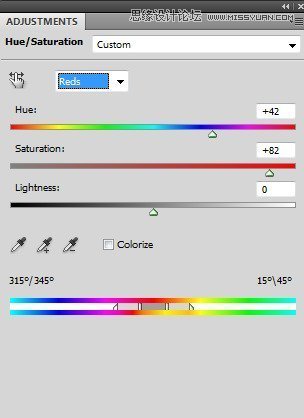
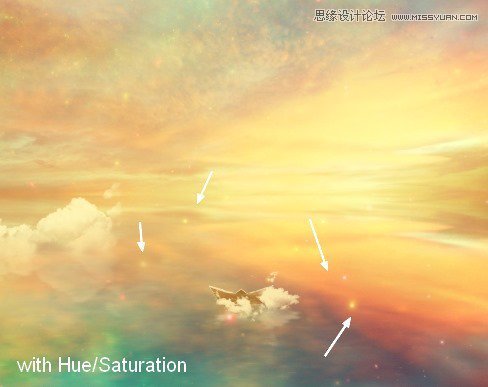
文章來源于 photoshoptutorials,感謝作者 Jenny Le 給我們帶來經精彩的文章!I used Hue/Saturation to turn the color into a bright yellow:
Step 44
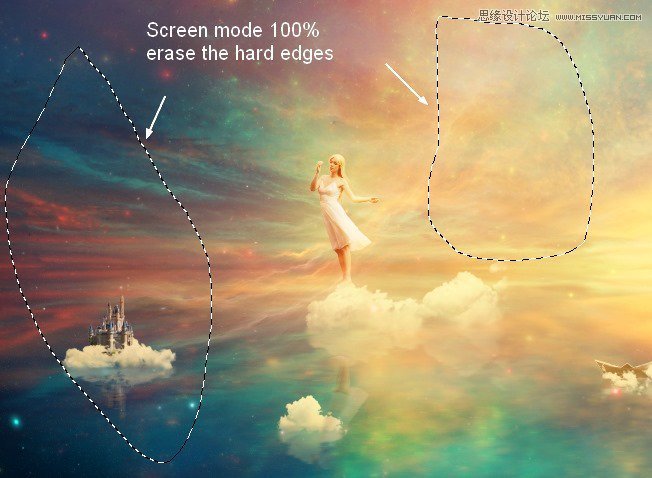
Place the nebula 2 image at the model position. Use the Warp Tool (Edit > Transform > Warp) to bend this image as shown below:

Change the mode to Screen 100% and use layer mask to remove the hard edges:
Step 45
Duplicate this layer and alter the mode to Color Dodge 100%. Here are the results of its layer mask and the picture:

Step 46
Open the light 2 images pack and choose number 38 (feel free to take the one you like). Press Cmd/Ctrl+J to duplicate this layer. Go to Filter > Liquify and choose the Forward Warp Tool with the settings below:
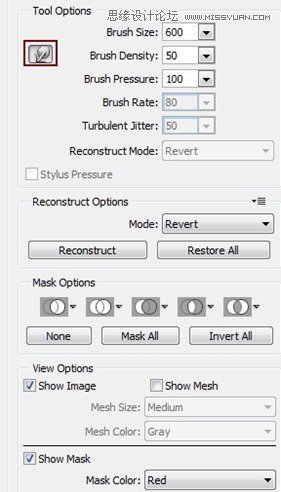
Use this tool to turn the form of this light into a curve:
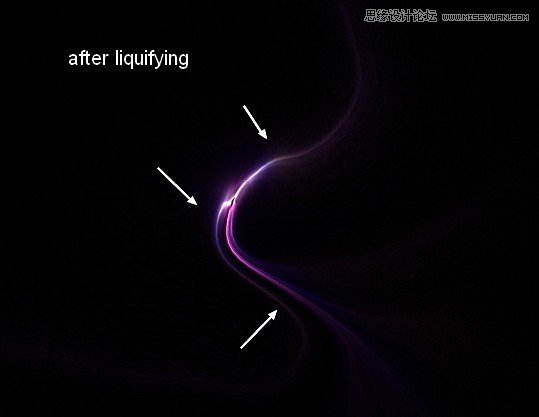
Step 47
Drag this result onto the model part and bend it a little with the Warp Tool:

Change the mode to Linear Dodge 100% and use layer mask to reduce the light effect:
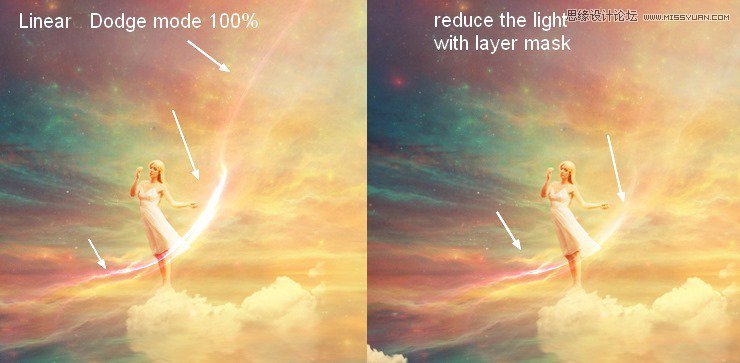
Step 48
Use Hue/Saturation to change the light color to a bright yellow:
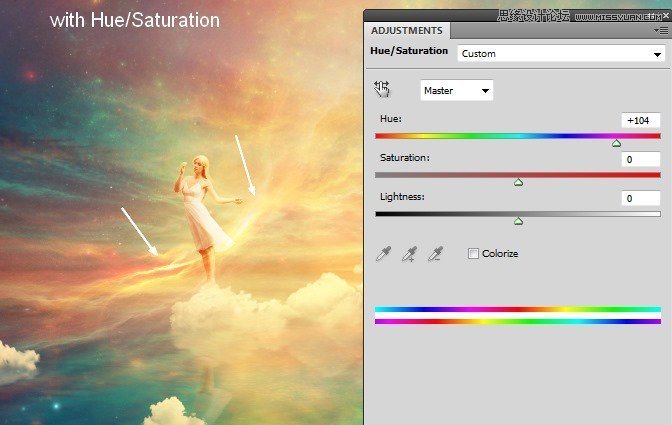
Step 49
Add a Vibrance adjustment layer to the top of the layers:
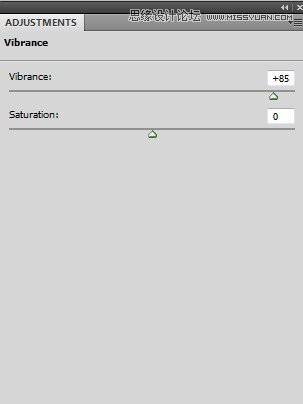
On this adjustment layer mask use a soft brush to reduce the effect on the following parts:
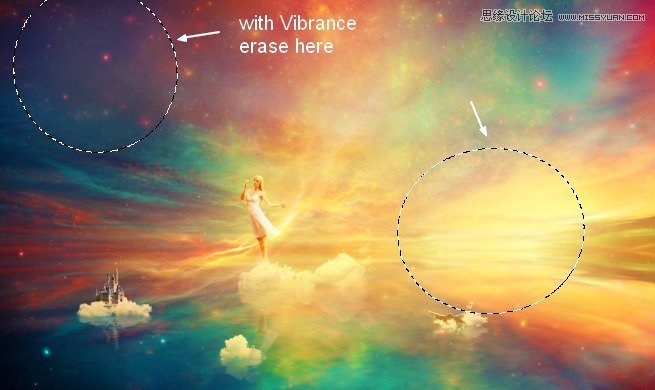
Final Results

 愛你不要你
愛你不要你
-
 Photoshop制作復古風格的老照片效果【英】2018-04-23
-
 Photoshop合成長著創意大樹的長頸鹿【英】2018-04-23
-
 Photoshop合成冰凍特效的金魚場景【英】2018-02-10
-
 Photoshop合成夢幻風格的森林場景【英】2018-02-10
-
 Photoshop合成正在施法的巫師【英】2018-02-10
-
 Photoshop制作金屬質感的3D立體字【英】2018-01-09
-
 Photoshop設計火焰燃燒藝術字教程【英】2018-01-09
-
Photoshop制作復古風格的老照片效果【英】
相關文章11882018-04-23
-
Photoshop合成長著創意大樹的長頸鹿【英】
相關文章13832018-04-23
-
Photoshop合成冰凍特效的金魚場景【英】
相關文章34052018-02-10
-
 Photoshop制作黃金質感立體字【英】
相關文章7422018-02-10
Photoshop制作黃金質感立體字【英】
相關文章7422018-02-10
-
 Photoshop制作驚艷大氣的3D立體字
相關文章14682018-02-10
Photoshop制作驚艷大氣的3D立體字
相關文章14682018-02-10
-
Photoshop合成夢幻風格的森林場景【英】
相關文章24492018-02-10
-
Photoshop合成正在施法的巫師【英】
相關文章8372018-02-10
-
 Photoshop制作復古雙重曝光字體
相關文章6532018-01-09
Photoshop制作復古雙重曝光字體
相關文章6532018-01-09
