Photoshop合成絢麗空中翱翔的仙子【英】(5)
文章來源于 photoshoptutorials,感謝作者 Jenny Le 給我們帶來經精彩的文章!Step 35
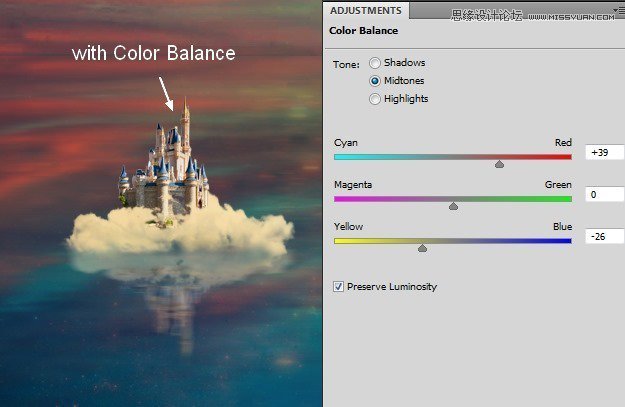
Group the castle and its reflection layers. Use Color Balance to add some warm color to them:
Step 36
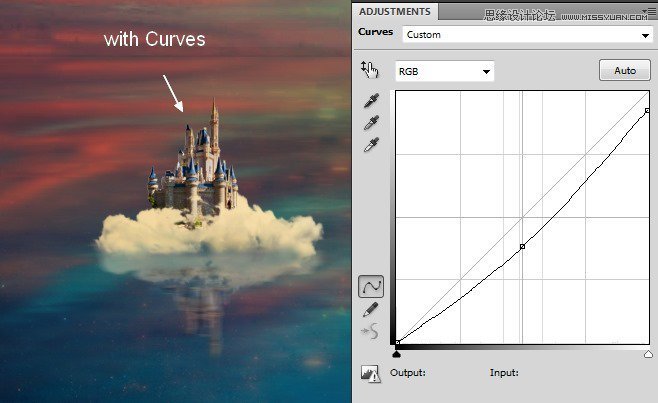
Use a Curves adjustment layer to darken them a little:
Step 37
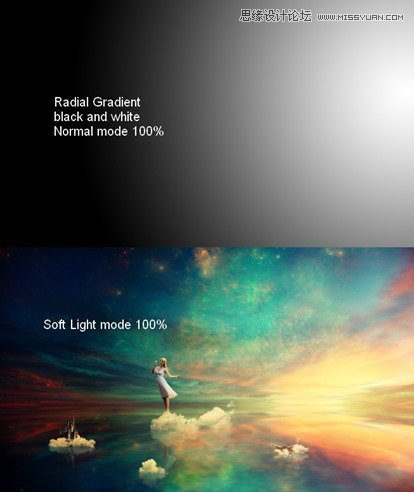
To change the contrast of the whole scene, make a new layer on the top . Active the Gradient Tool (G), choose Radial Gradient with default colors (black and white). Change the mode to Soft Light 100%:
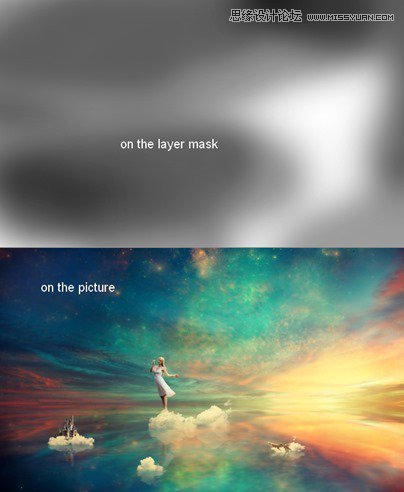
Apply layer mask to refine the contrast of the image:
Step 38
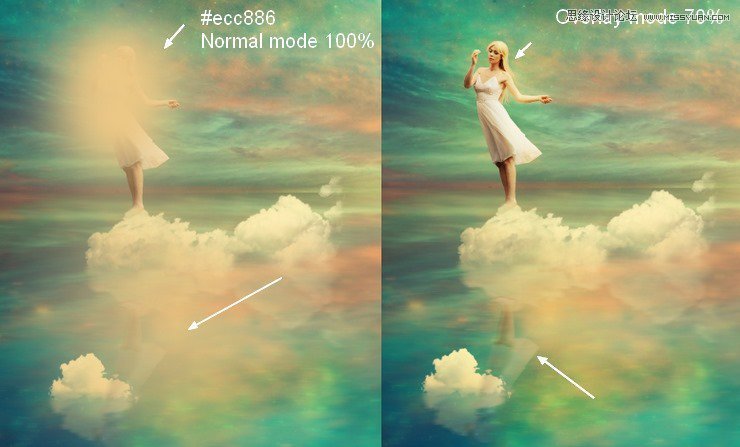
In this step I use a soft brush with the color #ecc886 to paint over the model and her reflection to give them a glowing effect. Change the mode to Overlay 70%:
Step 39
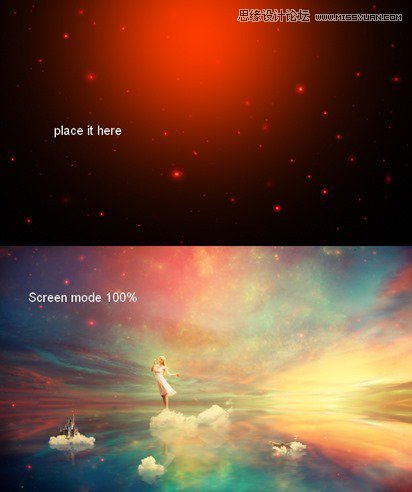
Open the light 1 images pack. I chose “starry4” to cover the working image then set the mode to Screen 100%:
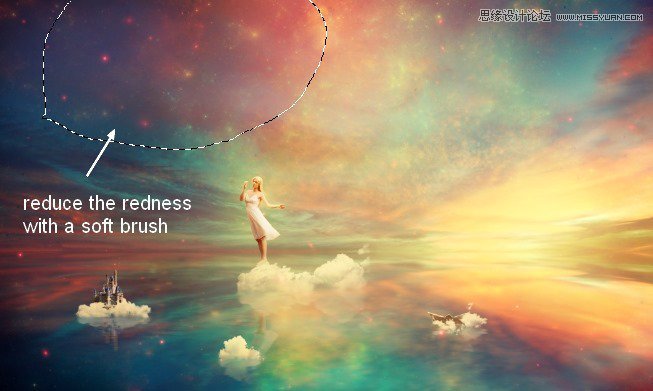
Use a soft brush with opacity about 20-25% to reduce the red effect on the top of the scene:
Step 40
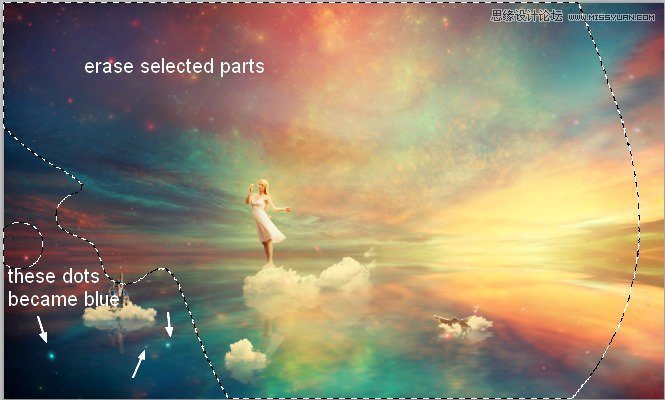
I used Hue/Saturation to turn some of the glowing dots on the lake into blue:
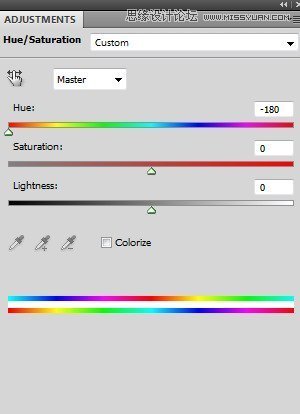
Erase the higher parts to keep their color as before adding Hue/Saturation:
Step 41
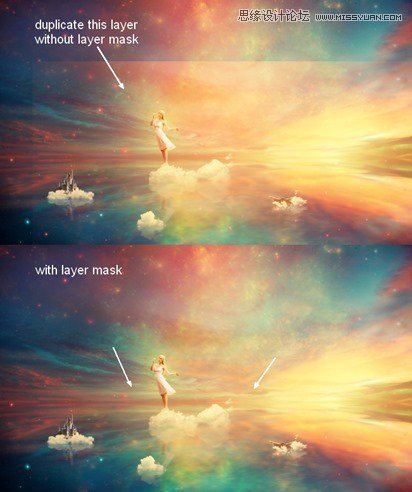
Duplicate this light layer and lower its position at the center. Apply layer mask to smoothly blend it with the scene: :
Step 42
After duplicating it again , move it to the top right and erase gently this effect with layer mask:
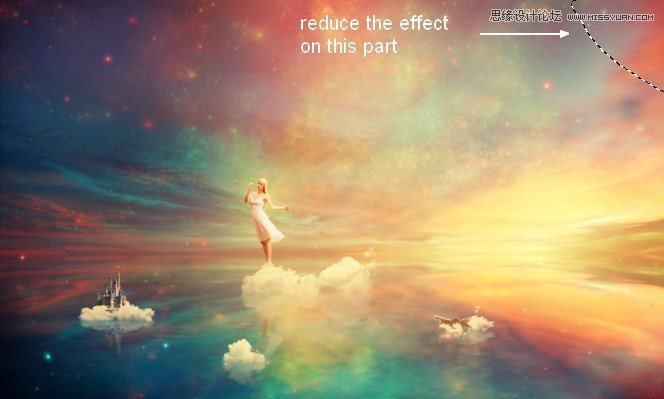
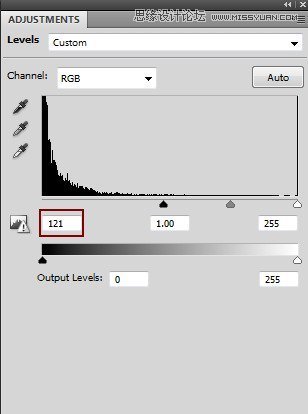
I used a Levels adjustment layer to reduce the saturation of this part:
On its layer mask use a soft brush to erase some of the glowing dots :
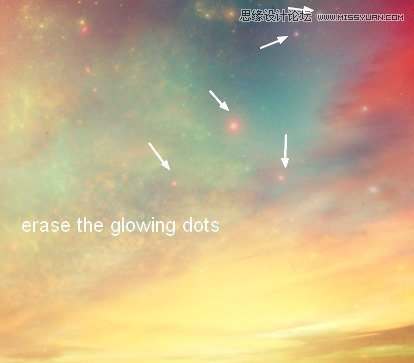
Step 43
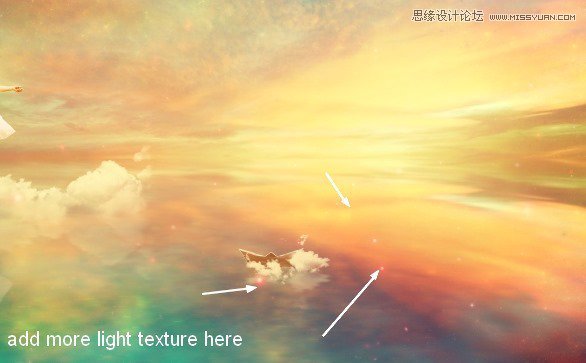
Add this texture to the part around the paper boat:
 愛你不要你
愛你不要你
-
 Photoshop制作復古風格的老照片效果【英】2018-04-23
-
 Photoshop合成長著創意大樹的長頸鹿【英】2018-04-23
-
 Photoshop合成冰凍特效的金魚場景【英】2018-02-10
-
 Photoshop合成夢幻風格的森林場景【英】2018-02-10
-
 Photoshop合成正在施法的巫師【英】2018-02-10
-
 Photoshop制作金屬質感的3D立體字【英】2018-01-09
-
 Photoshop設計火焰燃燒藝術字教程【英】2018-01-09
-
Photoshop制作復古風格的老照片效果【英】
相關文章11882018-04-23
-
Photoshop合成長著創意大樹的長頸鹿【英】
相關文章13832018-04-23
-
Photoshop合成冰凍特效的金魚場景【英】
相關文章34052018-02-10
-
 Photoshop制作黃金質感立體字【英】
相關文章7422018-02-10
Photoshop制作黃金質感立體字【英】
相關文章7422018-02-10
-
 Photoshop制作驚艷大氣的3D立體字
相關文章14682018-02-10
Photoshop制作驚艷大氣的3D立體字
相關文章14682018-02-10
-
Photoshop合成夢幻風格的森林場景【英】
相關文章24492018-02-10
-
Photoshop合成正在施法的巫師【英】
相關文章8372018-02-10
-
 Photoshop制作復古雙重曝光字體
相關文章6532018-01-09
Photoshop制作復古雙重曝光字體
相關文章6532018-01-09
