Photoshop合成絢麗空中翱翔的仙子【英】(4)
文章來源于 photoshoptutorials,感謝作者 Jenny Le 給我們帶來經(jīng)精彩的文章!Step 27
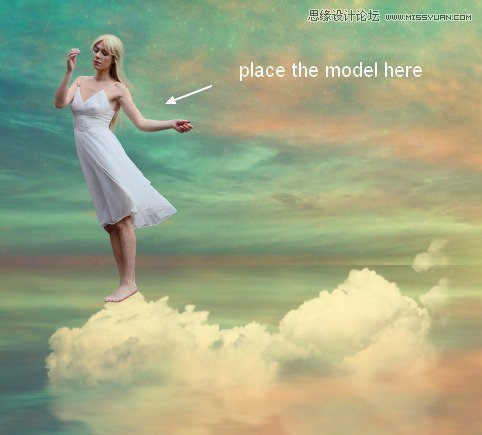
Place the model onto the biggest cloud (at the center):
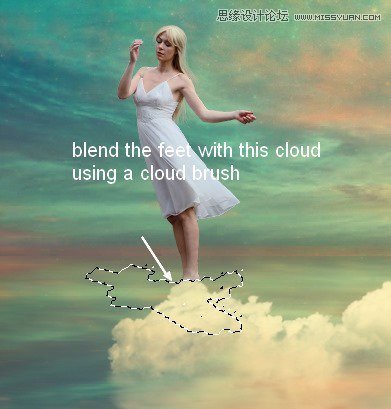
Use layer mask with a cloud brush to blend the model legs with this cloud:
Step 28
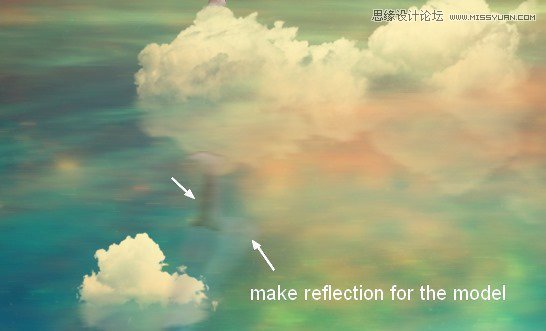
Make reflection for the model as done with the others.
Step 29
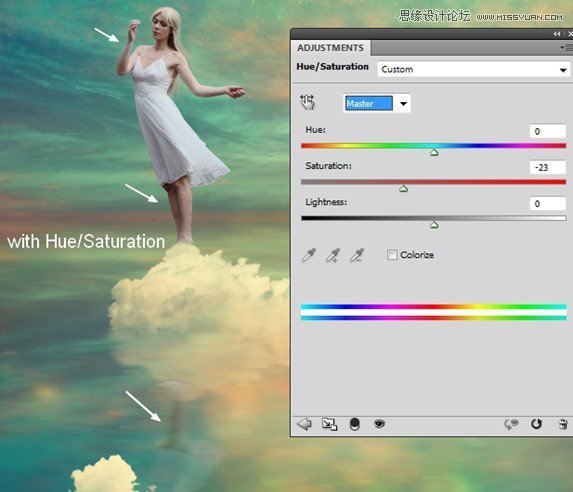
Group the model and her reflection layers. Make a Hue/Saturation adjustment layer within this group to reduce the redness on two these layers:
Step 30
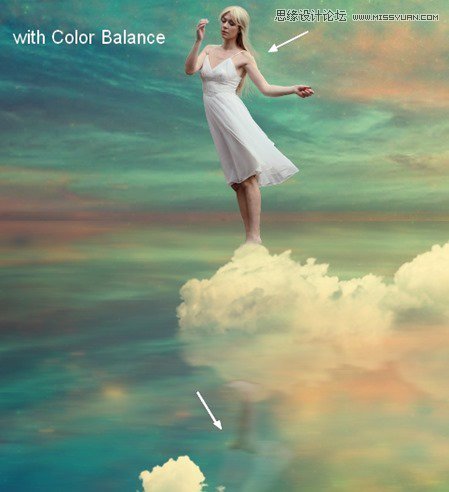
Use Color Balance to add some vibrant yellow to the model:

Step 31
I used Curves to darken the front of the model then erase the rest of hers to keep its brightness:

Step 32
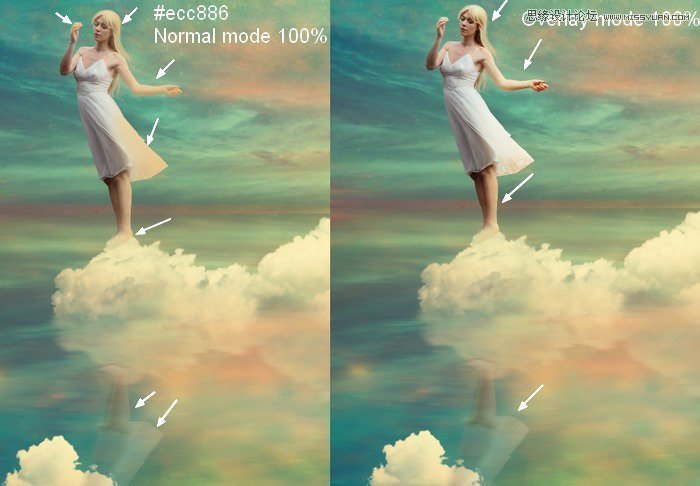
To add some bright yellow light of the scene reflected on the model and her reflection I made a new layer, used a soft brush with color #ecc886 to paint on the right of them. Change the mode of this layer to Overlay 100%:
Step 33
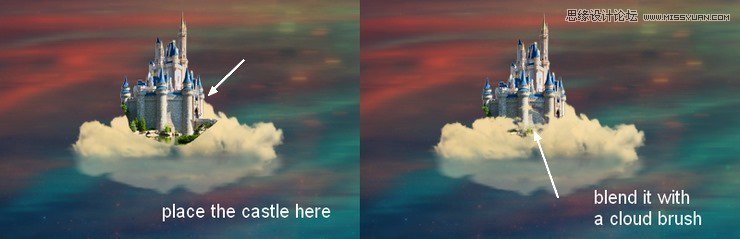
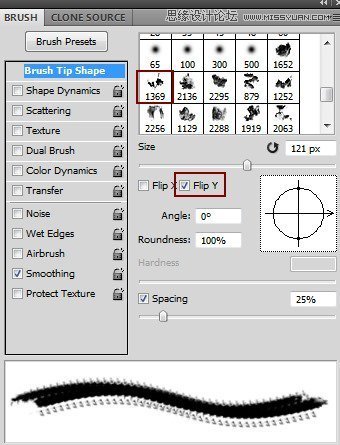
Cut out the castle and place it onto a left cloud. Pick a cloud brush (I chose the number 1369) to blend this castle with the cloud:
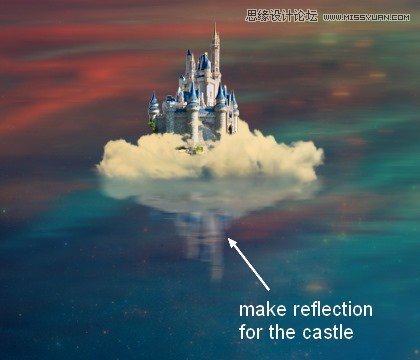
Make reflection for this castle as done with another elements:
Step 34
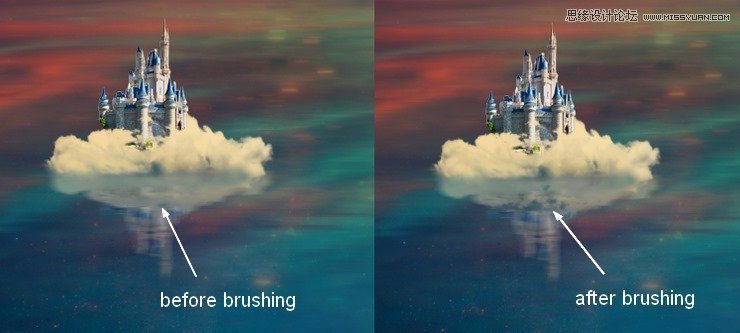
Now come back to the clouds group. Select the mask of the cloud’s reflection mentioned in previous step. Choose the cloud brush you used to mask off the castle and press F5 to flip its position:
Paint on the top of this reflection to create a likeness between this cloud and its reflection through the lake:
 愛你不要你
愛你不要你
-
 Photoshop制作復(fù)古風(fēng)格的老照片效果【英】2018-04-23
-
 Photoshop合成長著創(chuàng)意大樹的長頸鹿【英】2018-04-23
-
 Photoshop合成冰凍特效的金魚場景【英】2018-02-10
-
 Photoshop合成夢幻風(fēng)格的森林場景【英】2018-02-10
-
 Photoshop合成正在施法的巫師【英】2018-02-10
-
 Photoshop制作金屬質(zhì)感的3D立體字【英】2018-01-09
-
 Photoshop設(shè)計火焰燃燒藝術(shù)字教程【英】2018-01-09
-
Photoshop制作復(fù)古風(fēng)格的老照片效果【英】
相關(guān)文章11882018-04-23
-
Photoshop合成長著創(chuàng)意大樹的長頸鹿【英】
相關(guān)文章13832018-04-23
-
Photoshop合成冰凍特效的金魚場景【英】
相關(guān)文章34052018-02-10
-
 Photoshop制作黃金質(zhì)感立體字【英】
相關(guān)文章7422018-02-10
Photoshop制作黃金質(zhì)感立體字【英】
相關(guān)文章7422018-02-10
-
 Photoshop制作驚艷大氣的3D立體字
相關(guān)文章14682018-02-10
Photoshop制作驚艷大氣的3D立體字
相關(guān)文章14682018-02-10
-
Photoshop合成夢幻風(fēng)格的森林場景【英】
相關(guān)文章24492018-02-10
-
Photoshop合成正在施法的巫師【英】
相關(guān)文章8372018-02-10
-
 Photoshop制作復(fù)古雙重曝光字體
相關(guān)文章6532018-01-09
Photoshop制作復(fù)古雙重曝光字體
相關(guān)文章6532018-01-09
