Photoshop合成正在施法的巫師【英】(9)
文章來源于 photoshoptutorials.ws,感謝作者 MARIA SEMELEVICH 給我們帶來經精彩的文章!Step 147
Now add magic mandala! I drew it myself :) If you do not like it, replace. Go to File> Place. Select imedge of mandala. Mandala layer must be the topmost.
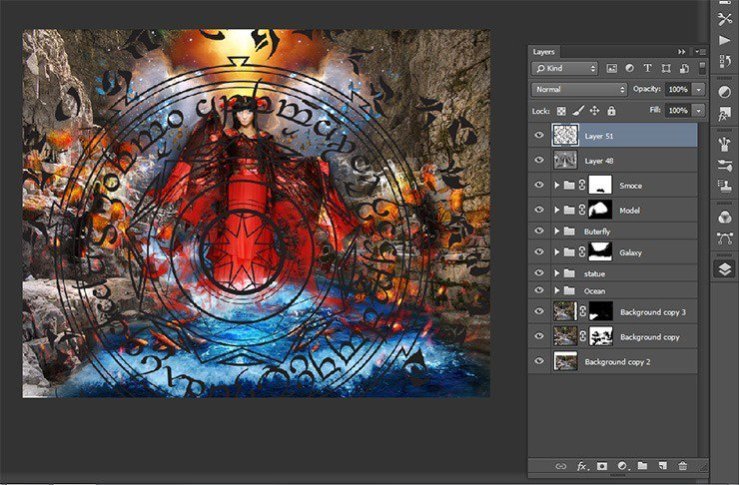
Step 148
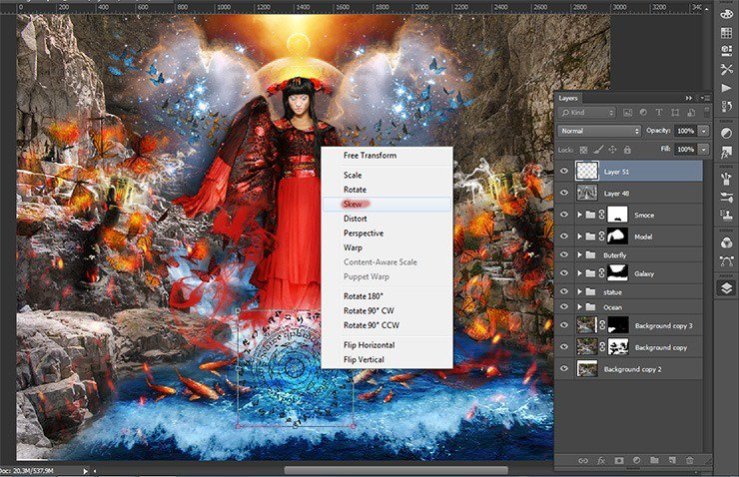
Transform the mandala. Please change the size, to reduce the size of the circle on the water left, and then tilt it in the plane
Step 149
After transformations, invert it the short key Ctrl+ Shift+ I. Duplicate the layer with the mandala the short key Ctrl+ J.
Step 150
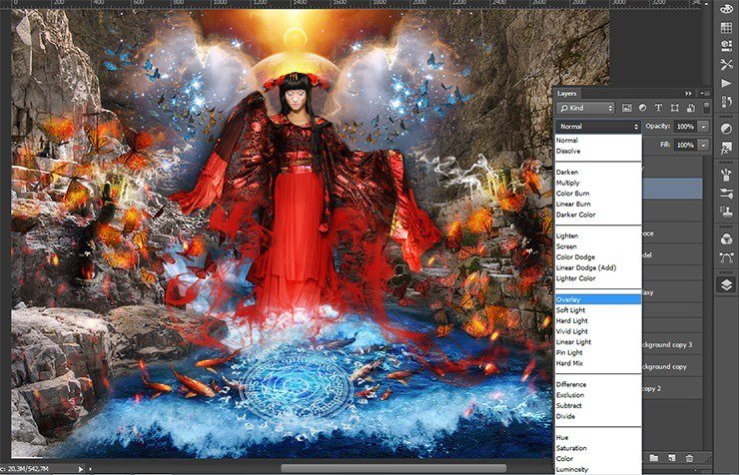
Change the blending mode for the first mandala to Overlay for a second Lighter Color.
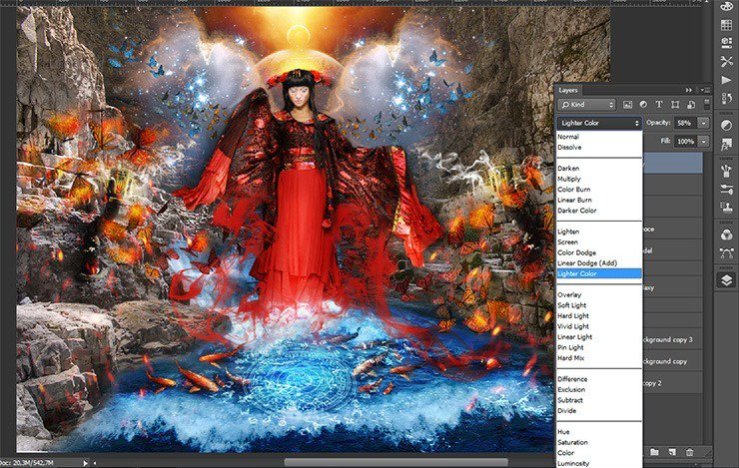
Step 151
Proceed to completion of the atmosphere. Create a new layer the short key Ctrl+ Shift+ N and fill it with black. Add a layer mask.
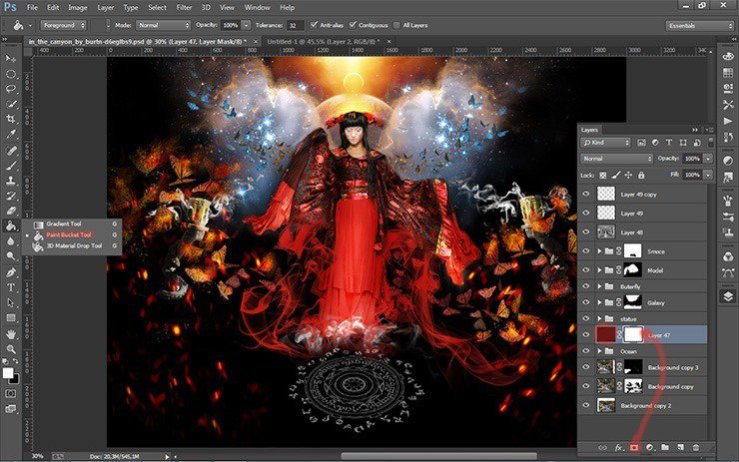
Step 152
Take Brush Tool (B). Set these settings: Size: 400px, Hardness: 0% Opacity: 60%, Flow: 100%. Remove from the middle part and of the landscape black.
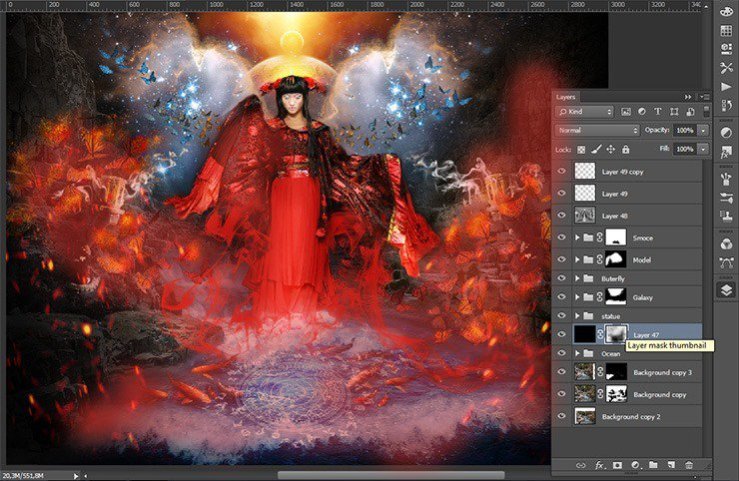
Step 153
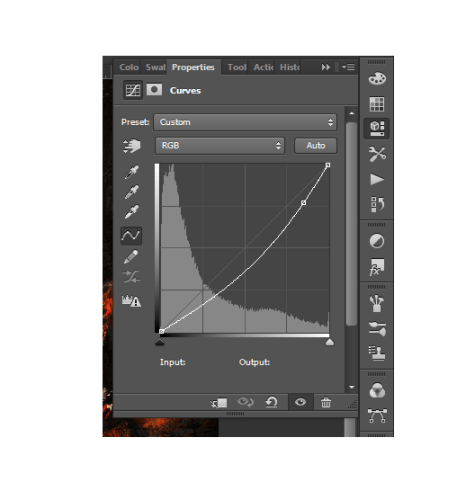
Proceed to the final part. Add two adjustment layers. The first is Curves.
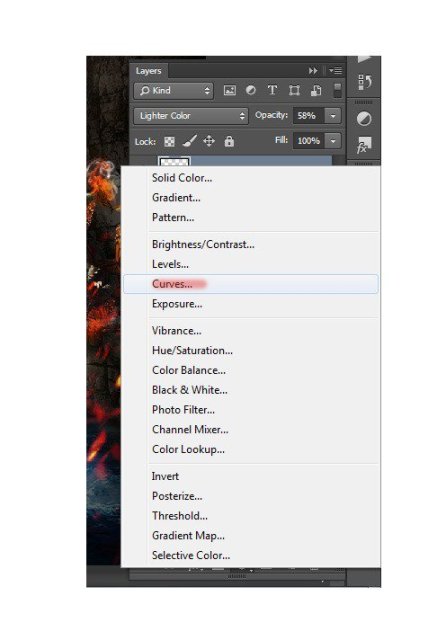
I wanted bright colors were much brighter, so set the curve as shown in the figure.
Step 154
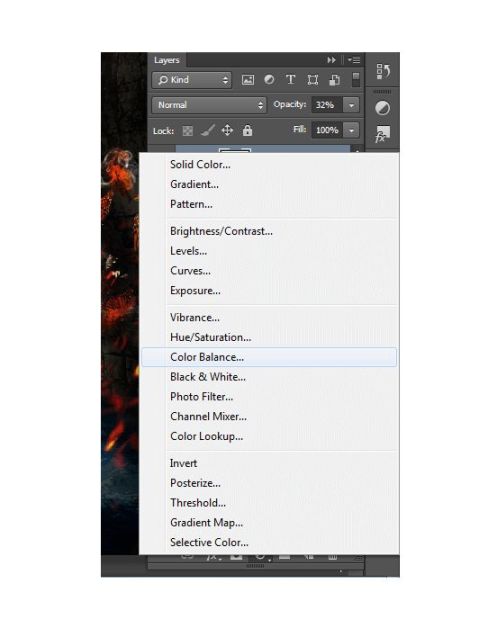
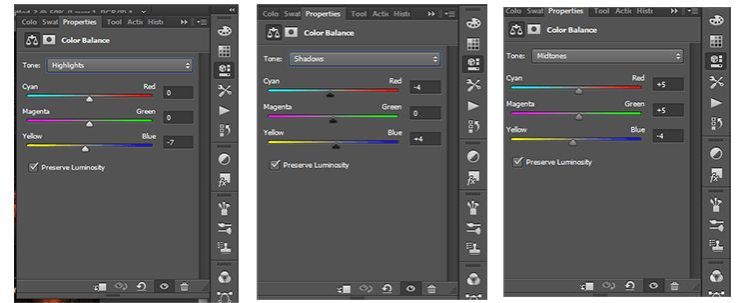
The second adjustment layer is Color Balance.
Step 155
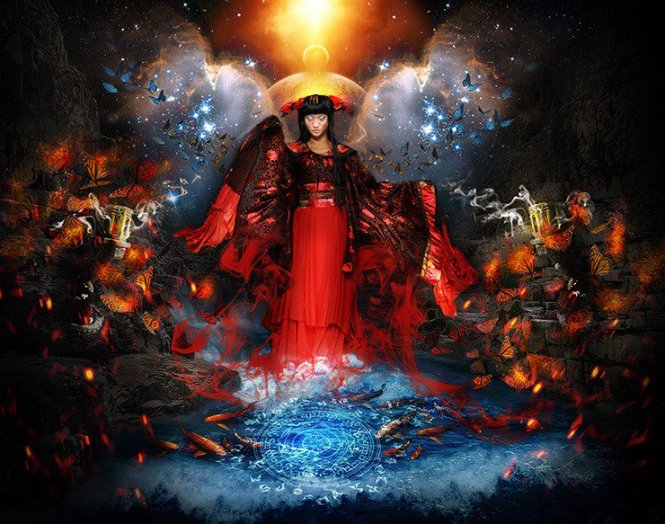
Here is the complete look of the final. Painting has done! You1 can see all the layers and their location.
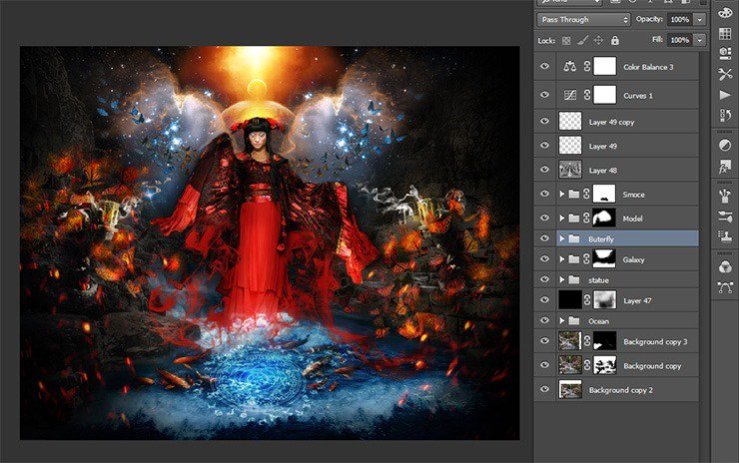
Final Results
 情非得已
情非得已
-
 Photoshop制作復古風格的老照片效果【英】2018-04-23
-
 Photoshop合成長著創意大樹的長頸鹿【英】2018-04-23
-
 Photoshop合成冰凍特效的金魚場景【英】2018-02-10
-
 Photoshop合成夢幻風格的森林場景【英】2018-02-10
-
 Photoshop合成正在施法的巫師【英】2018-02-10
-
 Photoshop制作金屬質感的3D立體字【英】2018-01-09
-
 Photoshop設計火焰燃燒藝術字教程【英】2018-01-09
-
Photoshop制作復古風格的老照片效果【英】
相關文章11882018-04-23
-
Photoshop合成長著創意大樹的長頸鹿【英】
相關文章13832018-04-23
-
Photoshop合成冰凍特效的金魚場景【英】
相關文章34052018-02-10
-
 Photoshop制作黃金質感立體字【英】
相關文章7422018-02-10
Photoshop制作黃金質感立體字【英】
相關文章7422018-02-10
-
 Photoshop制作驚艷大氣的3D立體字
相關文章14682018-02-10
Photoshop制作驚艷大氣的3D立體字
相關文章14682018-02-10
-
Photoshop合成夢幻風格的森林場景【英】
相關文章24492018-02-10
-
 Photoshop制作復古雙重曝光字體
相關文章6532018-01-09
Photoshop制作復古雙重曝光字體
相關文章6532018-01-09
-
 Photoshop制作木地板LOGO刻印效果【英】
相關文章19272018-01-09
Photoshop制作木地板LOGO刻印效果【英】
相關文章19272018-01-09
