Photoshop制作木地板LOGO刻印效果【英】(5)
文章來源于 Tutsplus,感謝作者 Tom Piccarreda 給我們帶來經精彩的文章!Step 11
Let's add a layer style to the "Effect 2" layer.
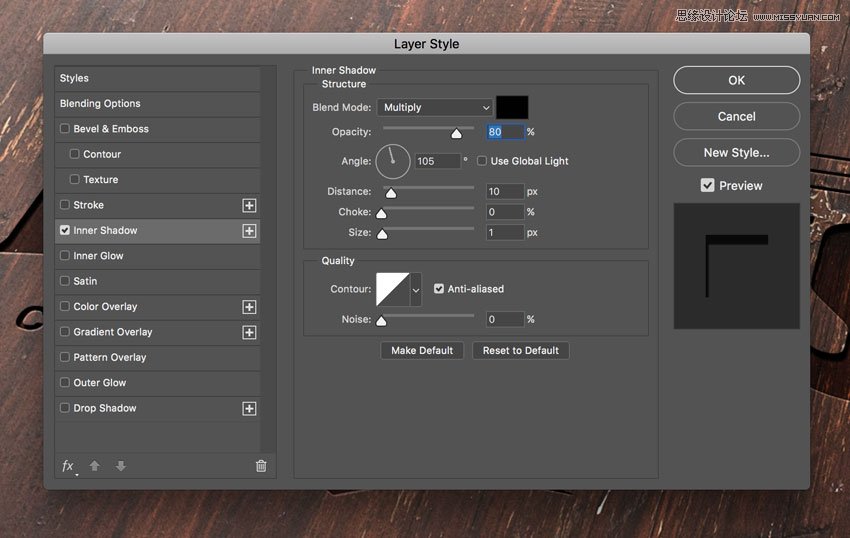
Open the Layer Style panel and add a new Inner Shadow effect, set the Blend Mode color to #000000, and set the rest as follows:
Step 12
Let's add a layer style to the "Effect 1" layer.
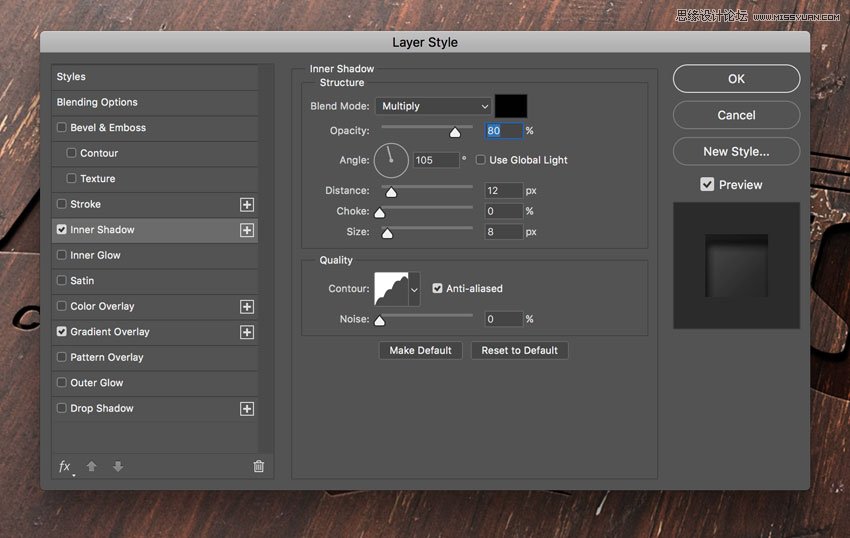
Open the Layer Style panel and add a new Inner Shadow effect, set the Blend Mode color to #000000, and set the rest as follows:
Advertisement
Step 13
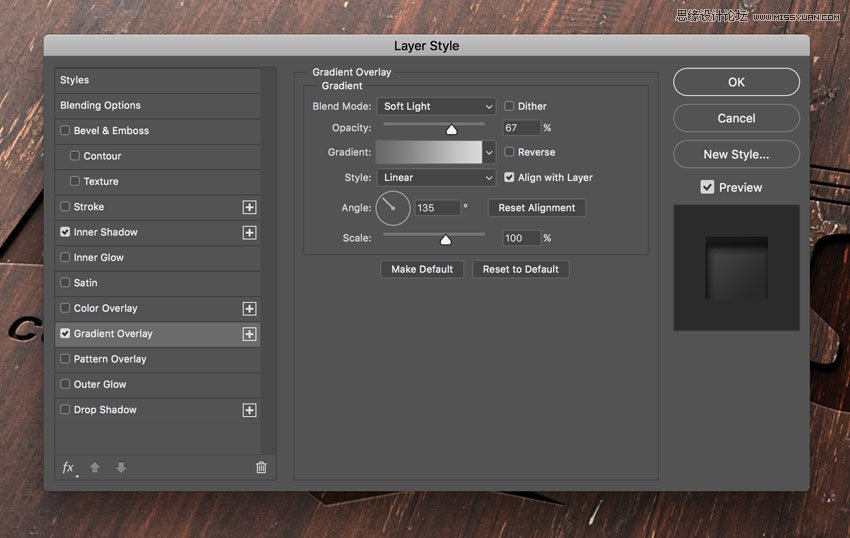
Add a new Gradient Overlay effect and set the options as follows:
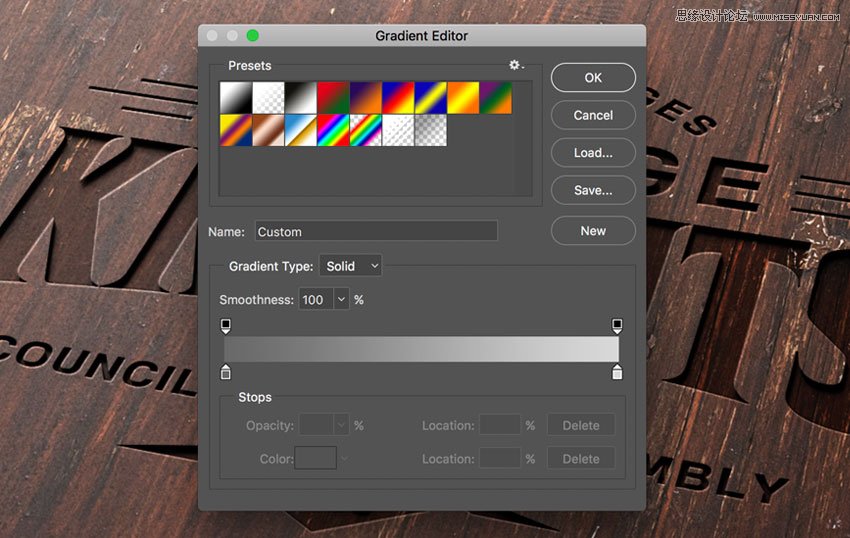
Click on the small gradient window to edit the gradient color.
Set the first color stop to Color #696969 and Location 0%.
Set the second color stop to Color #d9d9d9 and Location 100%.
Congratulations, You're Done!
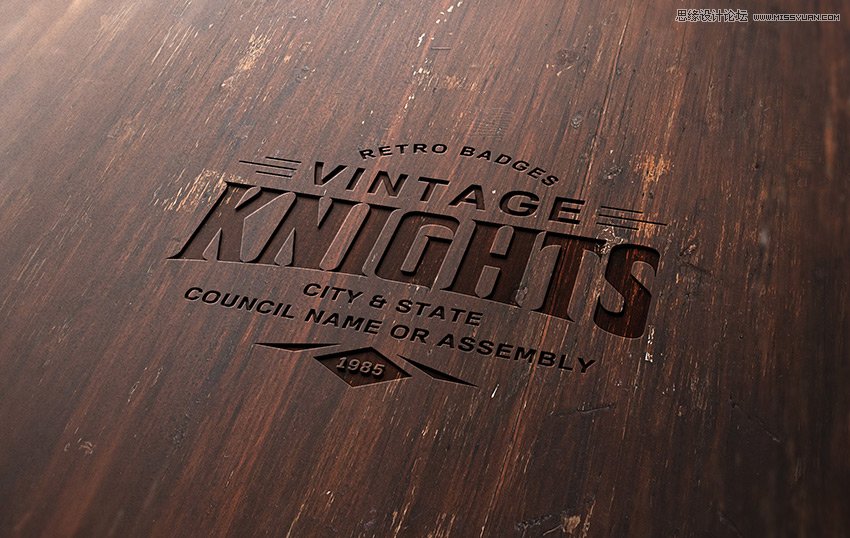
In this tutorial we learned how to create an engraved wood logo mockup with Adobe Photoshop!
I hope that you've enjoyed my tutorial and learned something new. Please feel free to leave your comments, suggestions, and outcomes below.
Enjoy Photoshopping!
 愛你不要你
愛你不要你
-
 Photoshop制作復古風格的老照片效果【英】2018-04-23
-
 Photoshop合成長著創意大樹的長頸鹿【英】2018-04-23
-
 Photoshop合成冰凍特效的金魚場景【英】2018-02-10
-
 Photoshop合成夢幻風格的森林場景【英】2018-02-10
-
 Photoshop合成正在施法的巫師【英】2018-02-10
-
 Photoshop制作金屬質感的3D立體字【英】2018-01-09
-
 Photoshop設計火焰燃燒藝術字教程【英】2018-01-09
-
Photoshop制作復古風格的老照片效果【英】
相關文章11882018-04-23
-
Photoshop合成長著創意大樹的長頸鹿【英】
相關文章13832018-04-23
-
Photoshop合成冰凍特效的金魚場景【英】
相關文章34052018-02-10
-
 Photoshop制作黃金質感立體字【英】
相關文章7422018-02-10
Photoshop制作黃金質感立體字【英】
相關文章7422018-02-10
-
 Photoshop制作驚艷大氣的3D立體字
相關文章14682018-02-10
Photoshop制作驚艷大氣的3D立體字
相關文章14682018-02-10
-
Photoshop合成夢幻風格的森林場景【英】
相關文章24492018-02-10
-
Photoshop合成正在施法的巫師【英】
相關文章8372018-02-10
-
 Photoshop制作復古雙重曝光字體
相關文章6532018-01-09
Photoshop制作復古雙重曝光字體
相關文章6532018-01-09
