Photoshop制作木地板LOGO刻印效果【英】(3)
文章來源于 Tutsplus,感謝作者 Tom Piccarreda 給我們帶來經精彩的文章!Step 7
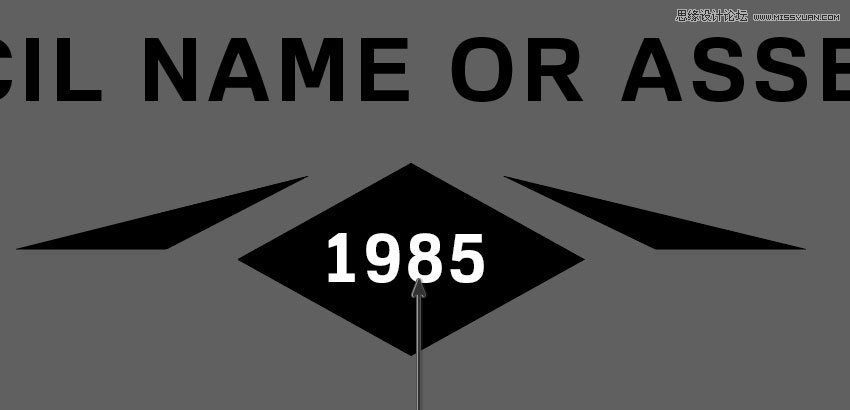
Now that the badge is 100% vector shapes, we can remove the white area. Choose the Magic Wand Tool, and move the cursor over a white area and click to select all the white areas of the badge. If you need, magnify the canvas by using the Zoom Tool (Z). When all the white areas of the badge are selected, remove them by choosing, in the top menu, Edit > Cut.
3. How to Include the Badge in the Scene
Step 1
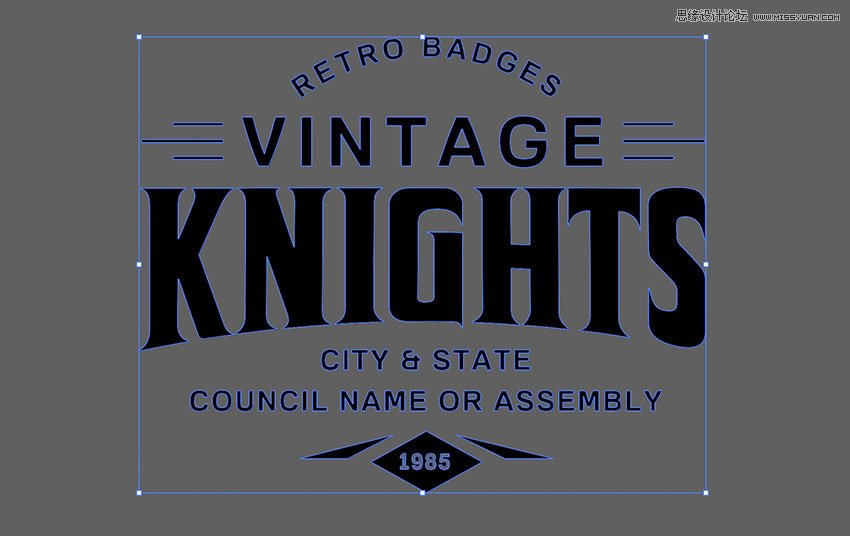
We're still in the Adobe Illustrator workspace. If the badge is not selected, select it by clicking on it with the Selection Tool (V). Copy the badge by going to Edit > Copy or pressing Command-C.
Step 2
Go back to Photoshop, and double-click on the Smart Objects thumbnail. This will open the content of the smart object in a new window of Photoshop. Here you can make any changes you like and, once you're satisfied, all you need to do is save the file and the Photoshop Smart Object will be updated when you return to it.
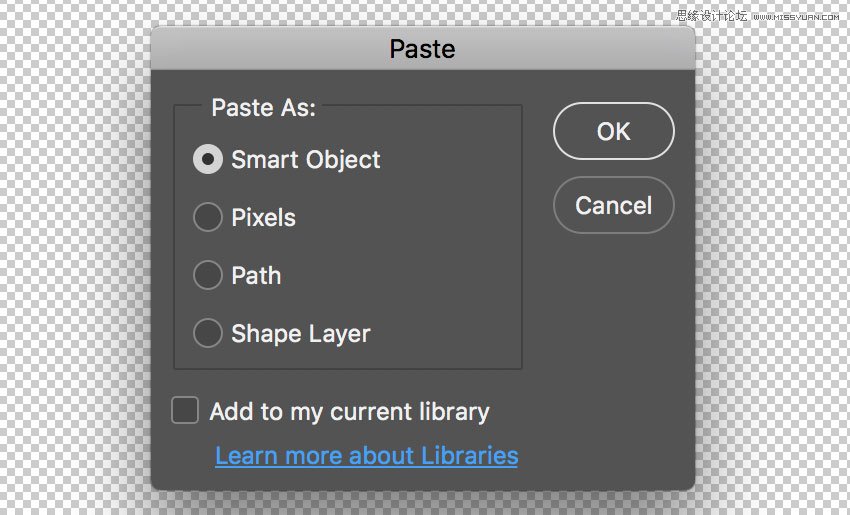
In the Layers panel, deactivate the visibility for the yellow rectangle layer, and paste the badge just copied by choosing Edit > Paste or pressing Command-V.
From the dialog box, choose Smart Object and press OK:
Step 3
Locate the top options bar and set the badge's position to 633.50 x 406.50 px and its dimension to 666% for both Width and Height fields. When you're done, press ENTER on your keyboard:

Step 4
Save the document by choosing File > Save or using the keyboard shortcut Command-S.
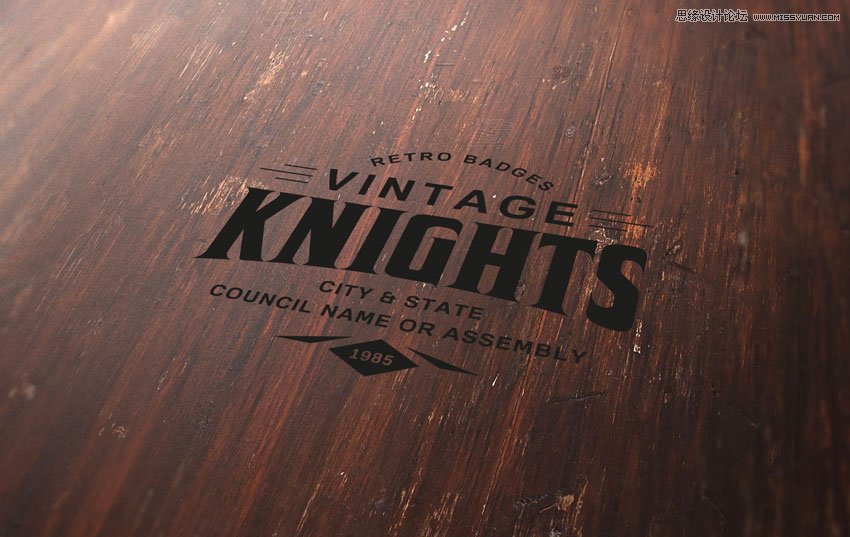
Go back to the main document and you'll notice that the smart object is now updated with the last changes. The badge, in fact, has taken the perspective of the smart object.
4. How to Engrave the Badge Into the Wood
Step 1
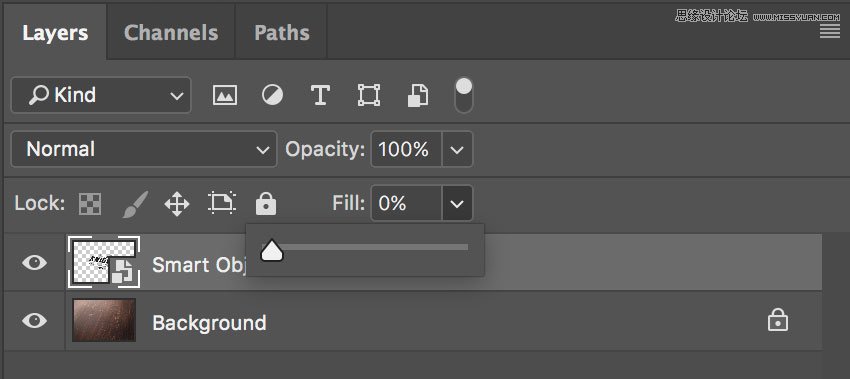
Set the Fill for the "Smart Object" layer to 0%:
Step 2
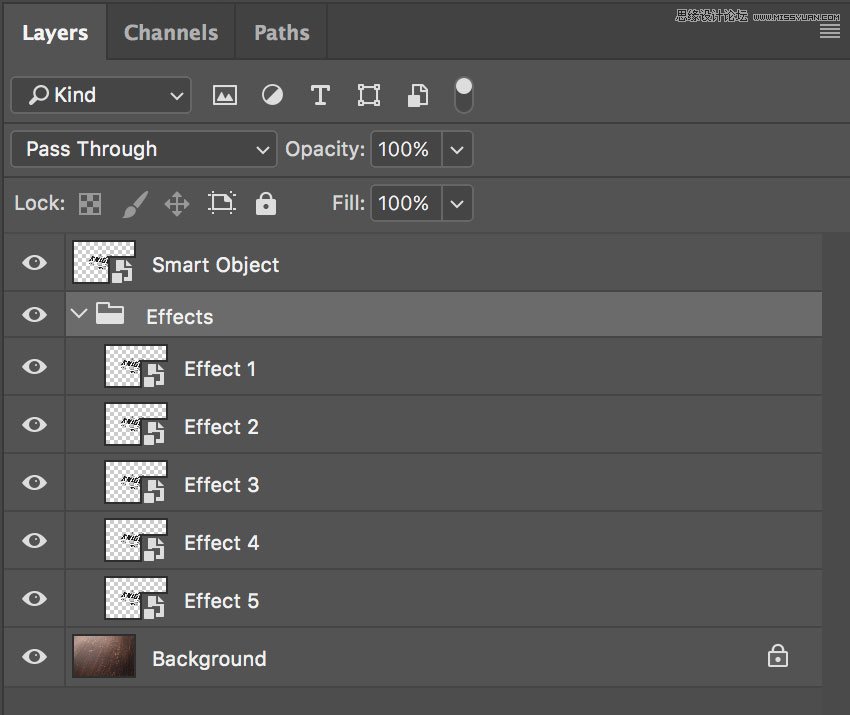
Duplicate the "Smart Object" layer five times by going to Layer > New > Layer Via Copy.
Now rename and group the layers as shown in the image below.
From now on, when you need to replace the badge in your smart object, you can use the "Smart Object" layer, by clicking on it and editing the content.
Step 3
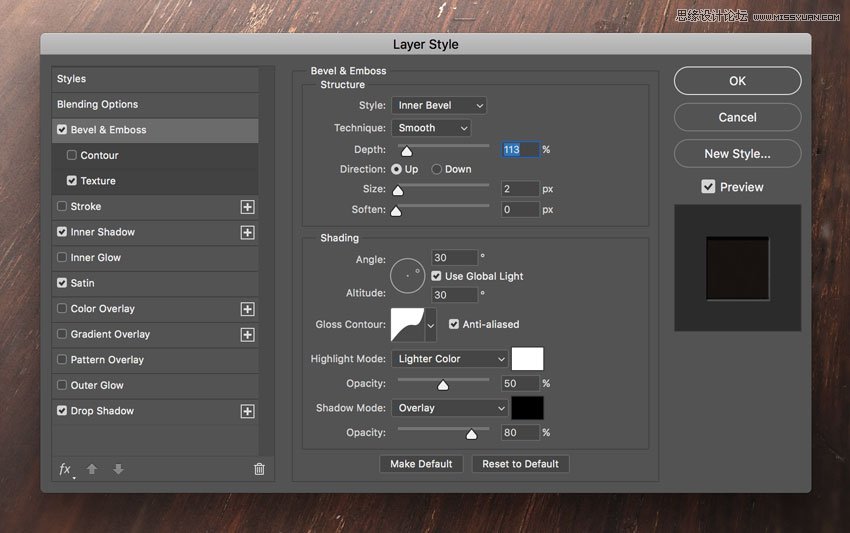
Let's start adding some layer styles to the "Effect 5" layer. Open the Layer Style panel and add a new Bevel & Embossed effect. Set the color for the Highlight Mode to #ffffff, the color for the Shadow Mode to #000000, and set the rest as follows:
Step 4
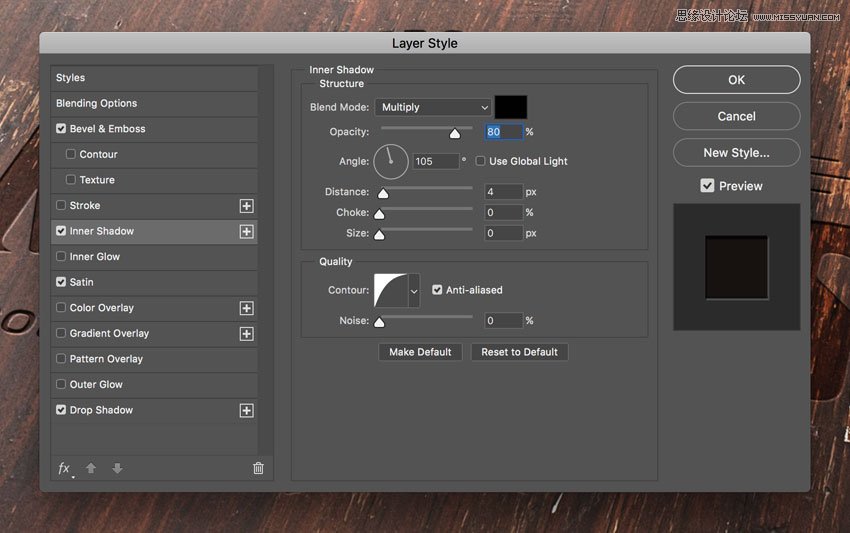
Add a new Inner Shadow effect, set the color for the Blend Mode to #000000, and set the rest as follows:
 愛你不要你
愛你不要你
-
 Photoshop制作復古風格的老照片效果【英】2018-04-23
-
 Photoshop合成長著創意大樹的長頸鹿【英】2018-04-23
-
 Photoshop合成冰凍特效的金魚場景【英】2018-02-10
-
 Photoshop合成夢幻風格的森林場景【英】2018-02-10
-
 Photoshop合成正在施法的巫師【英】2018-02-10
-
 Photoshop制作金屬質感的3D立體字【英】2018-01-09
-
 Photoshop設計火焰燃燒藝術字教程【英】2018-01-09
-
Photoshop制作復古風格的老照片效果【英】
相關文章11882018-04-23
-
Photoshop合成長著創意大樹的長頸鹿【英】
相關文章13832018-04-23
-
Photoshop合成冰凍特效的金魚場景【英】
相關文章34052018-02-10
-
 Photoshop制作黃金質感立體字【英】
相關文章7422018-02-10
Photoshop制作黃金質感立體字【英】
相關文章7422018-02-10
-
 Photoshop制作驚艷大氣的3D立體字
相關文章14682018-02-10
Photoshop制作驚艷大氣的3D立體字
相關文章14682018-02-10
-
Photoshop合成夢幻風格的森林場景【英】
相關文章24492018-02-10
-
Photoshop合成正在施法的巫師【英】
相關文章8372018-02-10
-
 Photoshop制作復古雙重曝光字體
相關文章6532018-01-09
Photoshop制作復古雙重曝光字體
相關文章6532018-01-09
