Photoshop制作木地板LOGO刻印效果【英】(4)
文章來(lái)源于 Tutsplus,感謝作者 Tom Piccarreda 給我們帶來(lái)經(jīng)精彩的文章!Step 5
Add a new Satin effect, set the color for the Blend Mode to #3b2b25, and set the rest as follows:

Step 6
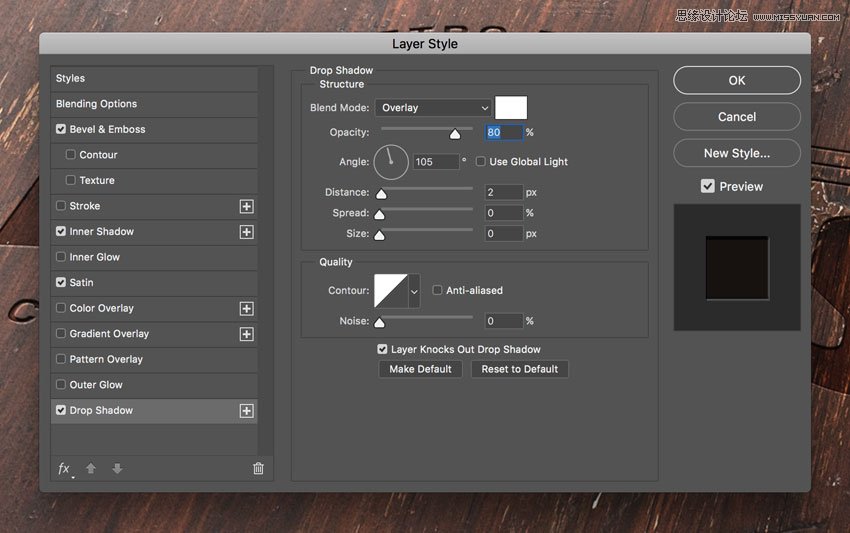
Add a new Drop Shadow effect, set the color for the Blend Mode to #ffffff, and set the rest as follows:
Step 7
Now let's add some layer styles to the "Effect 4" layer.
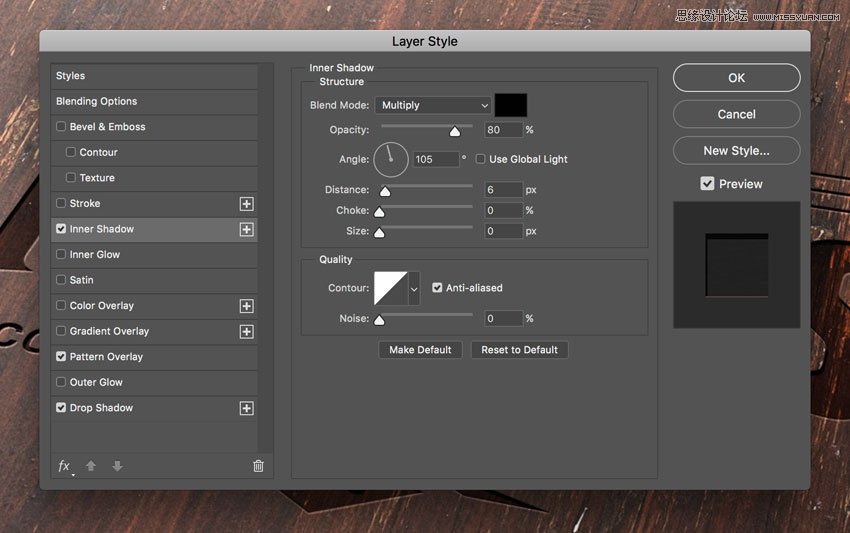
Open the Layer Style panel and add a new Inner Shadow effect, set the Blend Mode color to #000000, and set the rest as follows:
Step 8
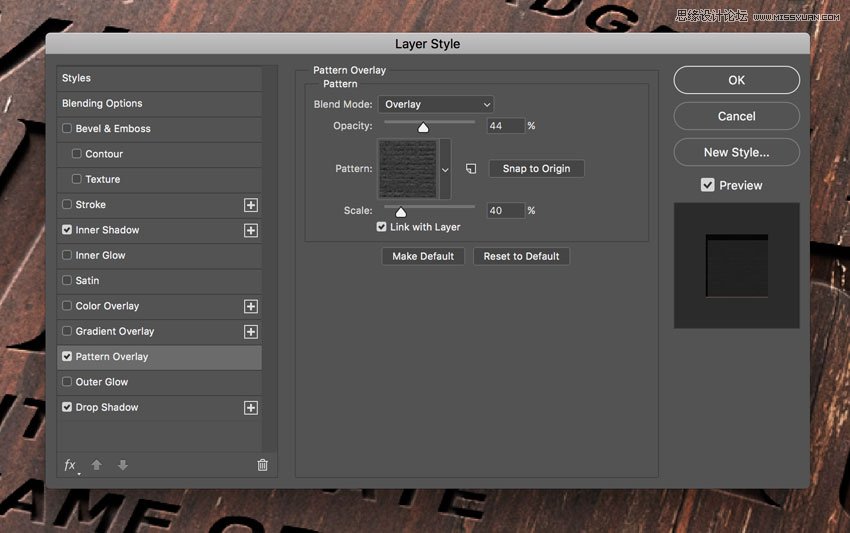
Add a new Pattern Overlay effect and set the options as shown in the image below:
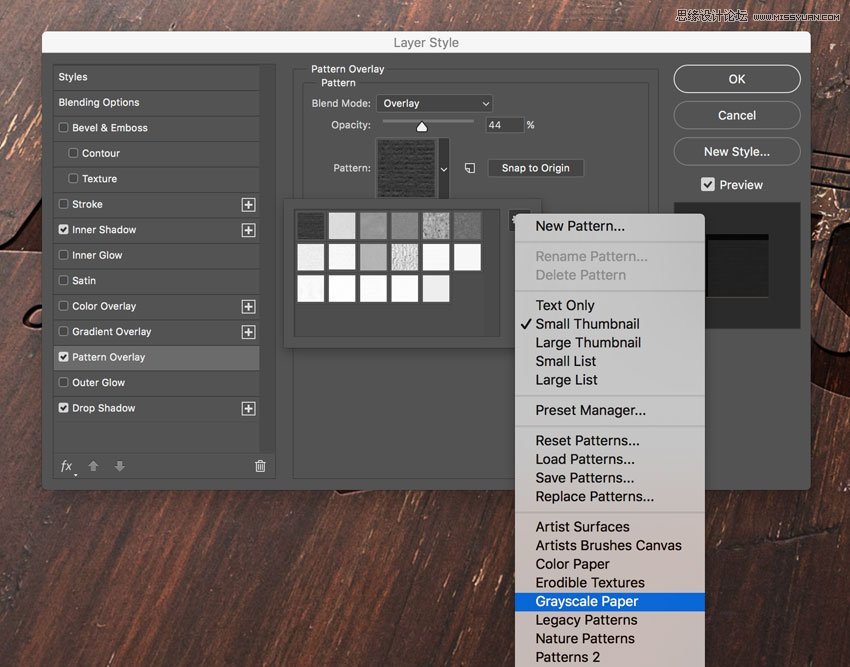
Click on the pattern thumbnail, and then click on the small gear to open the cascade menu. Choose Grayscale Paper and then click on the first pattern named Black Weaved.
Step 9
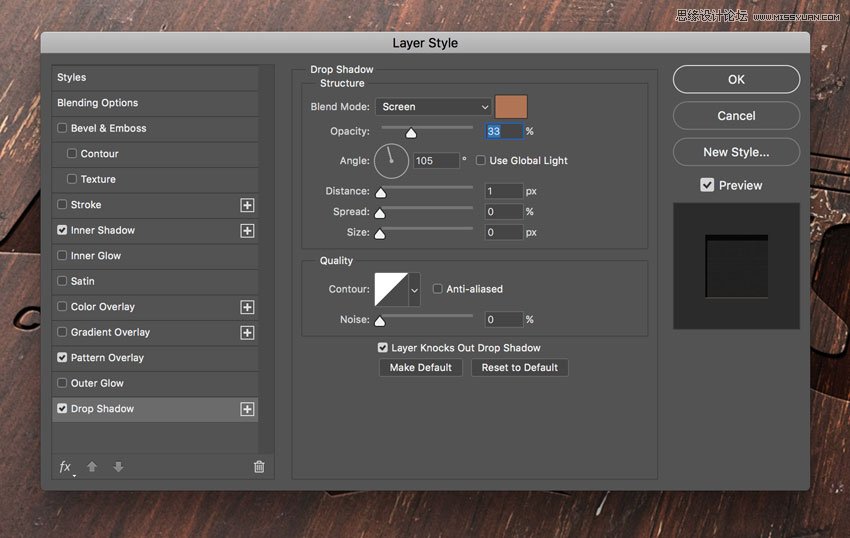
Add a new Drop Shadow effect, set the Blend Mode color to #b07555, and set the rest as follows:
Step 10
Let's add a layer style to the "Effect 3" layer.
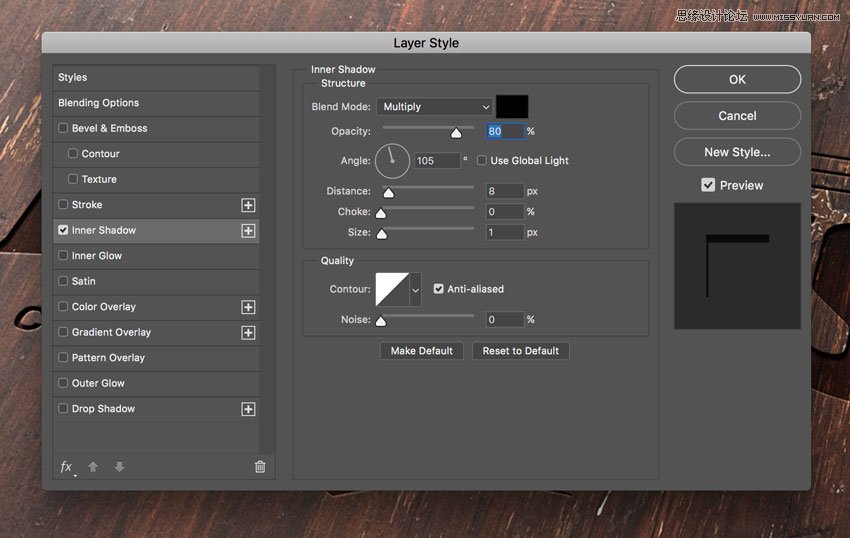
Open the Layer Style panel and add a new Inner Shadow effect, set the Blend Mode color to #000000, and set the rest as follows:
 愛你不要你
愛你不要你
-
 Photoshop制作復(fù)古風(fēng)格的老照片效果【英】2018-04-23
-
 Photoshop合成長(zhǎng)著創(chuàng)意大樹的長(zhǎng)頸鹿【英】2018-04-23
-
 Photoshop合成冰凍特效的金魚場(chǎng)景【英】2018-02-10
-
 Photoshop合成夢(mèng)幻風(fēng)格的森林場(chǎng)景【英】2018-02-10
-
 Photoshop合成正在施法的巫師【英】2018-02-10
-
 Photoshop制作金屬質(zhì)感的3D立體字【英】2018-01-09
-
 Photoshop設(shè)計(jì)火焰燃燒藝術(shù)字教程【英】2018-01-09
-
Photoshop制作復(fù)古風(fēng)格的老照片效果【英】
相關(guān)文章11882018-04-23
-
Photoshop合成長(zhǎng)著創(chuàng)意大樹的長(zhǎng)頸鹿【英】
相關(guān)文章13832018-04-23
-
Photoshop合成冰凍特效的金魚場(chǎng)景【英】
相關(guān)文章34052018-02-10
-
 Photoshop制作黃金質(zhì)感立體字【英】
相關(guān)文章7422018-02-10
Photoshop制作黃金質(zhì)感立體字【英】
相關(guān)文章7422018-02-10
-
 Photoshop制作驚艷大氣的3D立體字
相關(guān)文章14682018-02-10
Photoshop制作驚艷大氣的3D立體字
相關(guān)文章14682018-02-10
-
Photoshop合成夢(mèng)幻風(fēng)格的森林場(chǎng)景【英】
相關(guān)文章24492018-02-10
-
Photoshop合成正在施法的巫師【英】
相關(guān)文章8372018-02-10
-
 Photoshop制作復(fù)古雙重曝光字體
相關(guān)文章6532018-01-09
Photoshop制作復(fù)古雙重曝光字體
相關(guān)文章6532018-01-09
