Photoshop制作木地板LOGO刻印效果【英】(2)
文章來源于 Tutsplus,感謝作者 Tom Piccarreda 給我們帶來經精彩的文章!Step 7
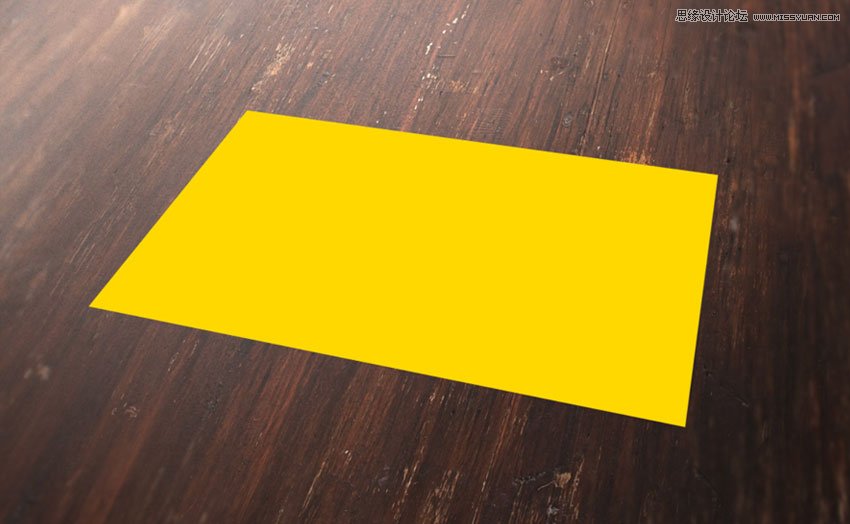
Now you can remove the "Perspective" layer by selecting it in the Layers panel and choosing Layer > Delete > Layer.
2. How to Prepare the Badge With Illustrator
Step 1
We need a logo or badge to complete the scene. This badge will be a prominent element that later will be engraved in the wood texture.
Fortunately, Envato Elements offers a wide range of high-quality badges and vector elements ready for use. Subscribe to unlock unlimited badges, templates, photos and more for one monthly fee!
In this tutorial we'll use a badge that comes from Badges and Logos Vol.01. Download it and open with Illustrator.

Step 2
Open the vector .ai file with Adobe Illustrator. While you open the file, a window may pop up alerting you that the document uses fonts that are currently not available on your computer. No worries about that—all the fonts are free for use, and you can find a text file inside the folder with all the references and links to download each font.
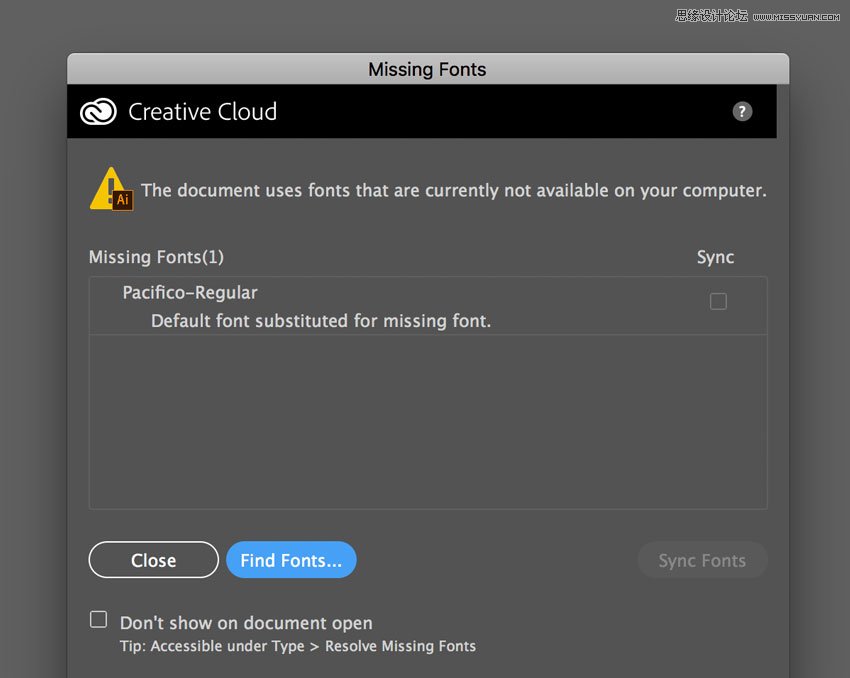
For the purpose of this tutorial, I used the following free fonts for the badge:
Familiar Pro Font
Corleone Font
Step 3
Once you're done with fonts, choose the Selection Tool (V). Now select the "Vintage Knights" badge (or whatever badge you like).
Copy the badge by going to Edit > Copy or pressing Command-C.
Create a new 350 x 350 px document in Adobe Illustrator.
Finally, paste the badge just copied by choosing Edit > Paste or pressing Command-V.

Step 4
With the Selection Tool (V), move the badge over the grey area, out of the white canvas.

Step 5
Before importing the badge into our scene in Photoshop, we need to expand the appearance, convert all the text to vector shapes, and remove the white area revealed now that we've moved the badge to the grey area.
If the badge is not selected, select it by clicking on it with the Selection Tool (V).
In the top menu, choose Object > Expand Appearance.
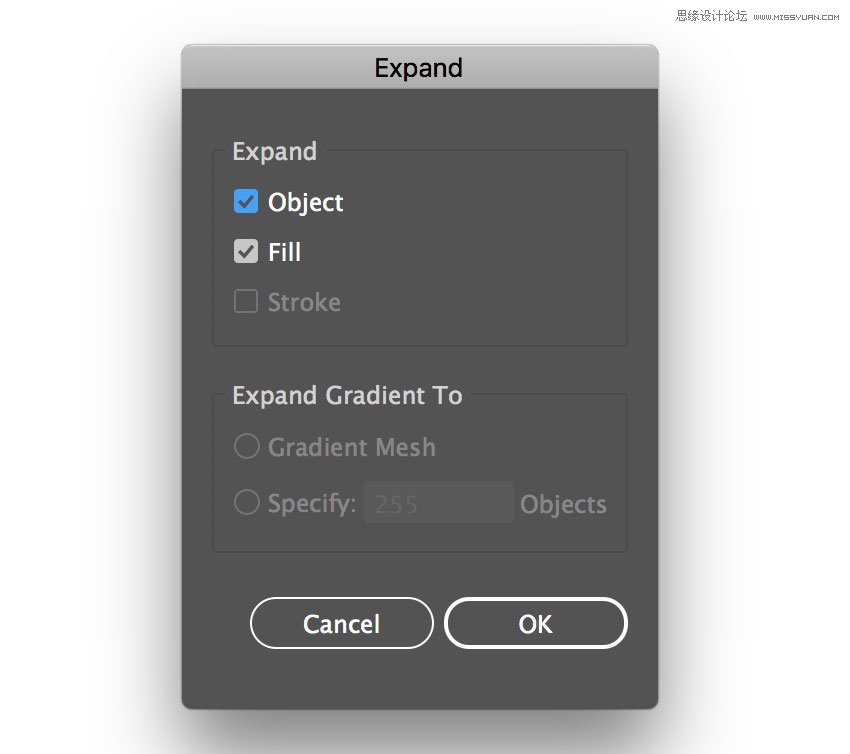
Again, choose Object > Expand. A dialog window will appear; select Object and Fill and press OK:
Step 6
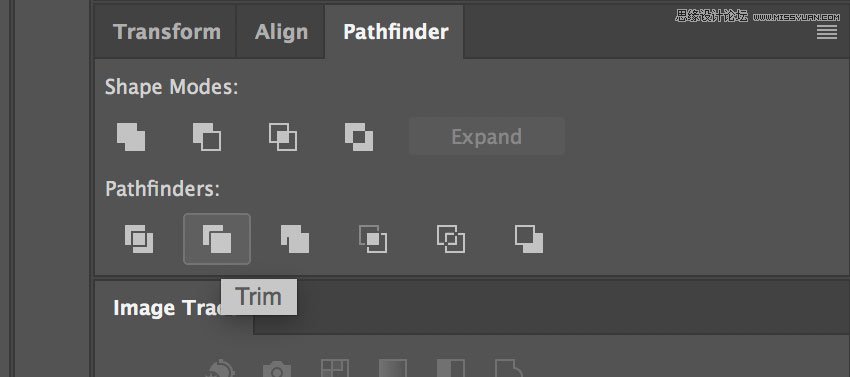
Locate the Pathfinder panel. If you can't see the panel, open it by choosing Window > Pathfinder.
Choose Trim.
 愛你不要你
愛你不要你
-
 Photoshop制作復古風格的老照片效果【英】2018-04-23
-
 Photoshop合成長著創意大樹的長頸鹿【英】2018-04-23
-
 Photoshop合成冰凍特效的金魚場景【英】2018-02-10
-
 Photoshop合成夢幻風格的森林場景【英】2018-02-10
-
 Photoshop合成正在施法的巫師【英】2018-02-10
-
 Photoshop制作金屬質感的3D立體字【英】2018-01-09
-
 Photoshop設計火焰燃燒藝術字教程【英】2018-01-09
-
Photoshop制作復古風格的老照片效果【英】
相關文章11882018-04-23
-
Photoshop合成長著創意大樹的長頸鹿【英】
相關文章13832018-04-23
-
Photoshop合成冰凍特效的金魚場景【英】
相關文章34052018-02-10
-
 Photoshop制作黃金質感立體字【英】
相關文章7422018-02-10
Photoshop制作黃金質感立體字【英】
相關文章7422018-02-10
-
 Photoshop制作驚艷大氣的3D立體字
相關文章14682018-02-10
Photoshop制作驚艷大氣的3D立體字
相關文章14682018-02-10
-
Photoshop合成夢幻風格的森林場景【英】
相關文章24492018-02-10
-
Photoshop合成正在施法的巫師【英】
相關文章8372018-02-10
-
 Photoshop制作復古雙重曝光字體
相關文章6532018-01-09
Photoshop制作復古雙重曝光字體
相關文章6532018-01-09
