Photoshop制作毛茸茸的圣誕節字體【英】(7)
文章來源于 Tutsplus.com,感謝作者 Rose 給我們帶來經精彩的文章!設計教程/國外教程/國外教程2017-12-16
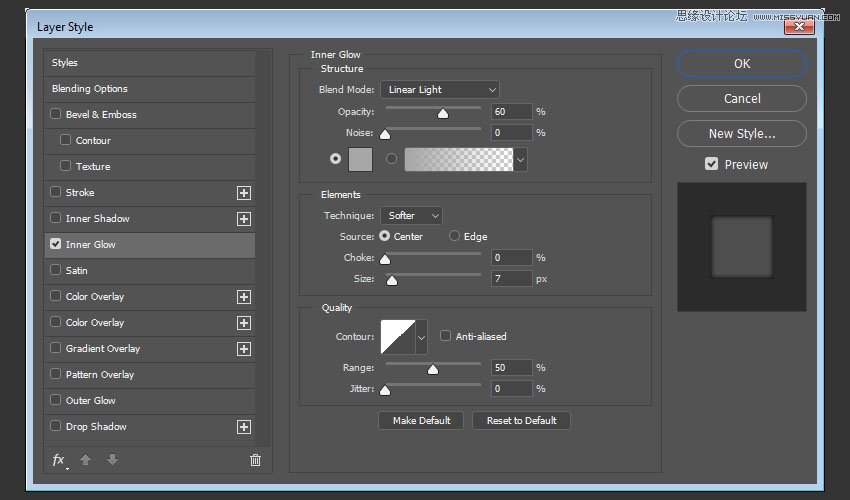
Step 6 Double-click the Center - Brush 01 - Desaturated layer to apply an Inner Glow effect with these settings: Blend Mode: Linear Light Opacity: 60% Color: #a7a7a7 Source: Center Size: 7 Step 7 Cha
Step 6
Double-click the Center - Brush 01 - Desaturated layer to apply an Inner Glow effect with these settings:
Blend Mode: Linear Light
Opacity: 60%
Color: #a7a7a7
Source: Center
Size: 7
Step 7
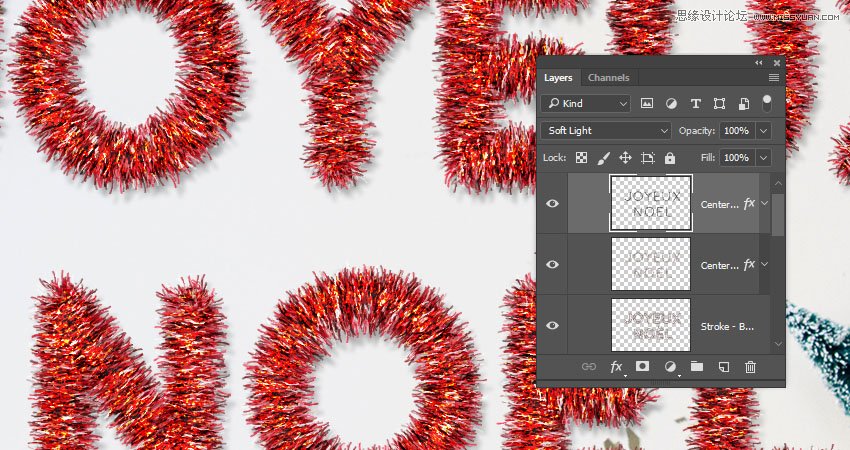
Change the Center - Brush 01 - Desaturated layer's Blend Mode to Soft Light.
8. How to Colorize a Layer Group
Double-click the Tinsel group to apply the following layer style:
Step 1
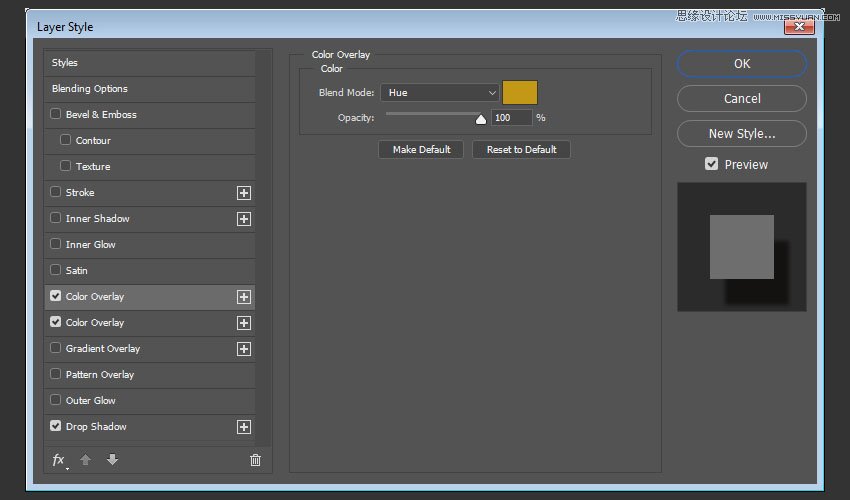
Add a Color Overlay with these settings:
Color: #c29816
Blend Mode: Hue
Step 2
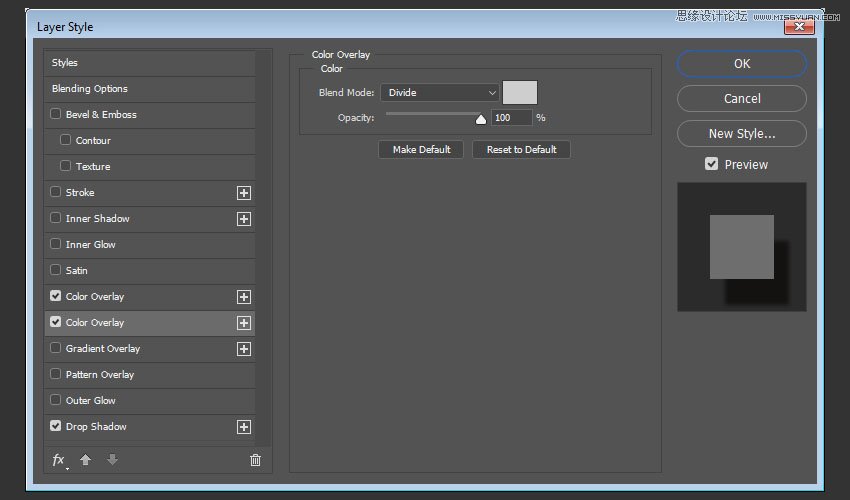
Add another Color Overlay effect instance with these settings:
Color: #cecece
Blend Mode: Divide
Step 3
Add a Drop Shadow with these settings:
Blend Mode: Linear Burn
Color: #1e0700
Opacity: 10%
Distance: 30
Size: 5
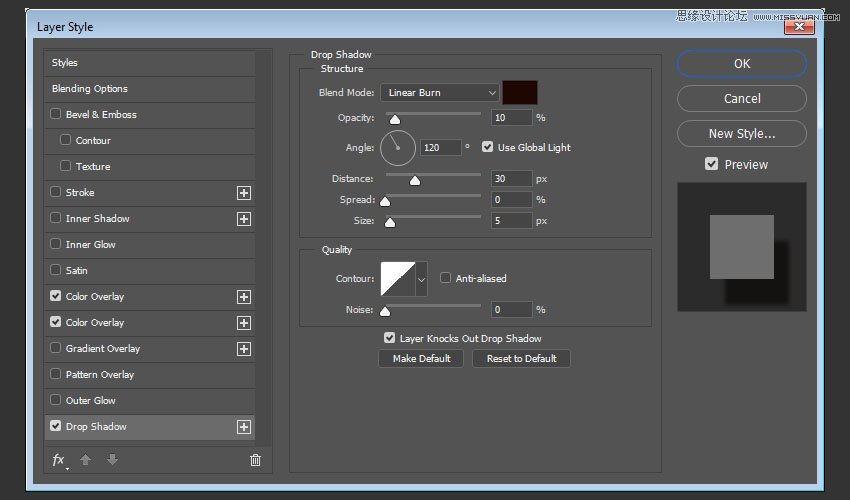
This will create the final tinsel effect.

 愛你不要你
愛你不要你
推薦文章
-
 Photoshop制作復古風格的老照片效果【英】2018-04-23
-
 Photoshop合成長著創意大樹的長頸鹿【英】2018-04-23
-
 Photoshop合成冰凍特效的金魚場景【英】2018-02-10
-
 Photoshop合成夢幻風格的森林場景【英】2018-02-10
-
 Photoshop合成正在施法的巫師【英】2018-02-10
-
 Photoshop制作金屬質感的3D立體字【英】2018-01-09
-
 Photoshop設計火焰燃燒藝術字教程【英】2018-01-09
熱門文章
-
Photoshop制作復古風格的老照片效果【英】
相關文章11882018-04-23
-
 Photoshop制作黃金質感立體字【英】
相關文章7422018-02-10
Photoshop制作黃金質感立體字【英】
相關文章7422018-02-10
-
 Photoshop制作驚艷大氣的3D立體字
相關文章14682018-02-10
Photoshop制作驚艷大氣的3D立體字
相關文章14682018-02-10
-
 Photoshop制作復古雙重曝光字體
相關文章6532018-01-09
Photoshop制作復古雙重曝光字體
相關文章6532018-01-09
-
 Photoshop制作木地板LOGO刻印效果【英】
相關文章19272018-01-09
Photoshop制作木地板LOGO刻印效果【英】
相關文章19272018-01-09
-
Photoshop制作金屬質感的3D立體字【英】
相關文章4612018-01-09
-
Photoshop設計火焰燃燒藝術字教程【英】
相關文章7612018-01-09
-
 Photoshop制作復古花朵組成的藝術字【英】
相關文章3802018-01-09
Photoshop制作復古花朵組成的藝術字【英】
相關文章3802018-01-09
