Photoshop制作毛茸茸的圣誕節(jié)字體【英】(11)
文章來源于 Tutsplus.com,感謝作者 Rose 給我們帶來經(jīng)精彩的文章!13. How to Add Finishing Touches
Step 1
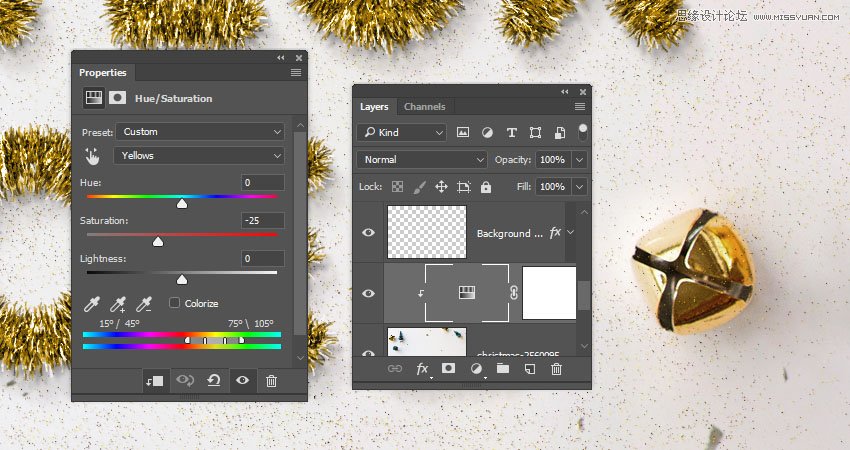
Add a Hue/Saturation adjustment layer and clip it to the Background Image layer.
Choose the Yellows channel, and change the Saturation value to -25.
Step 2
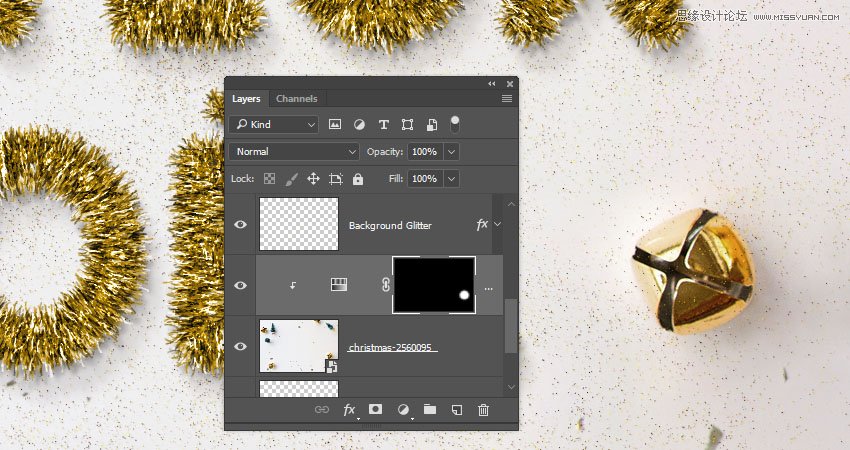
We need the Hue/Saturation layer to affect only the bells in the image.
So fill the Hue/Saturation layer mask with Black, set the Foreground Color to White, and use a soft round brush tip to brush over the bells.
Advertisement
Step 3
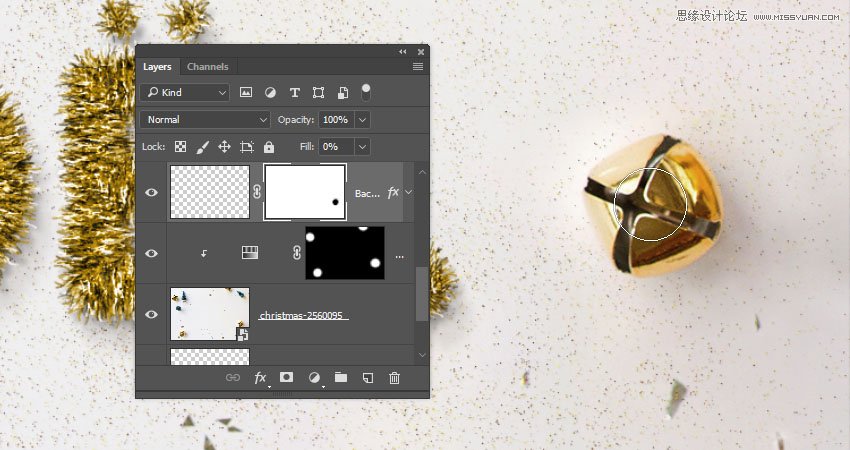
Select the Background Glitter layer and click the Add layer mask icon at the bottom of the Layers panel.
Set the Foreground Color to Black, and paint over the areas you want to remove the glitter from, like the bells and the trees, since the glitter is supposed to be under them.
Congratulations! You're Done
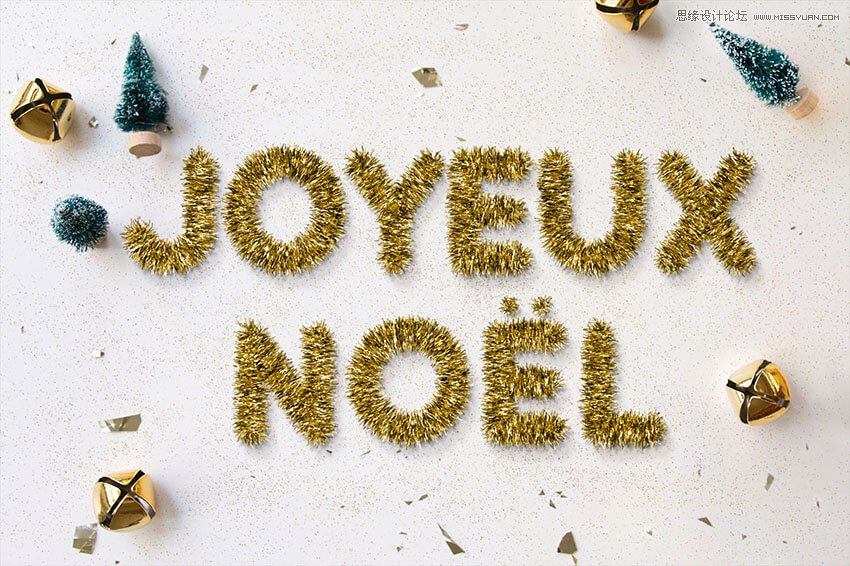
In this tutorial, we created a simple brush tip and adjusted its settings to create the main tinsel effect.
Then, we styled the many layers used in creating the effect to achieve the final result. After that, we added glitter, modified the background image, and added global adjustments to the effect.
Finally, we used some more adjustment layers and layer masks to add final touches.
Please feel free to leave your comments, suggestions, and outcomes below.
 愛你不要你
愛你不要你
-
 Photoshop制作復(fù)古風(fēng)格的老照片效果【英】2018-04-23
-
 Photoshop合成長著創(chuàng)意大樹的長頸鹿【英】2018-04-23
-
 Photoshop合成冰凍特效的金魚場景【英】2018-02-10
-
 Photoshop合成夢(mèng)幻風(fēng)格的森林場景【英】2018-02-10
-
 Photoshop合成正在施法的巫師【英】2018-02-10
-
 Photoshop制作金屬質(zhì)感的3D立體字【英】2018-01-09
-
 Photoshop設(shè)計(jì)火焰燃燒藝術(shù)字教程【英】2018-01-09
-
Photoshop制作復(fù)古風(fēng)格的老照片效果【英】
相關(guān)文章11882018-04-23
-
 Photoshop制作黃金質(zhì)感立體字【英】
相關(guān)文章7422018-02-10
Photoshop制作黃金質(zhì)感立體字【英】
相關(guān)文章7422018-02-10
-
 Photoshop制作驚艷大氣的3D立體字
相關(guān)文章14682018-02-10
Photoshop制作驚艷大氣的3D立體字
相關(guān)文章14682018-02-10
-
 Photoshop制作復(fù)古雙重曝光字體
相關(guān)文章6532018-01-09
Photoshop制作復(fù)古雙重曝光字體
相關(guān)文章6532018-01-09
-
 Photoshop制作木地板LOGO刻印效果【英】
相關(guān)文章19272018-01-09
Photoshop制作木地板LOGO刻印效果【英】
相關(guān)文章19272018-01-09
-
Photoshop制作金屬質(zhì)感的3D立體字【英】
相關(guān)文章4612018-01-09
-
Photoshop設(shè)計(jì)火焰燃燒藝術(shù)字教程【英】
相關(guān)文章7612018-01-09
-
 Photoshop制作復(fù)古花朵組成的藝術(shù)字【英】
相關(guān)文章3802018-01-09
Photoshop制作復(fù)古花朵組成的藝術(shù)字【英】
相關(guān)文章3802018-01-09
