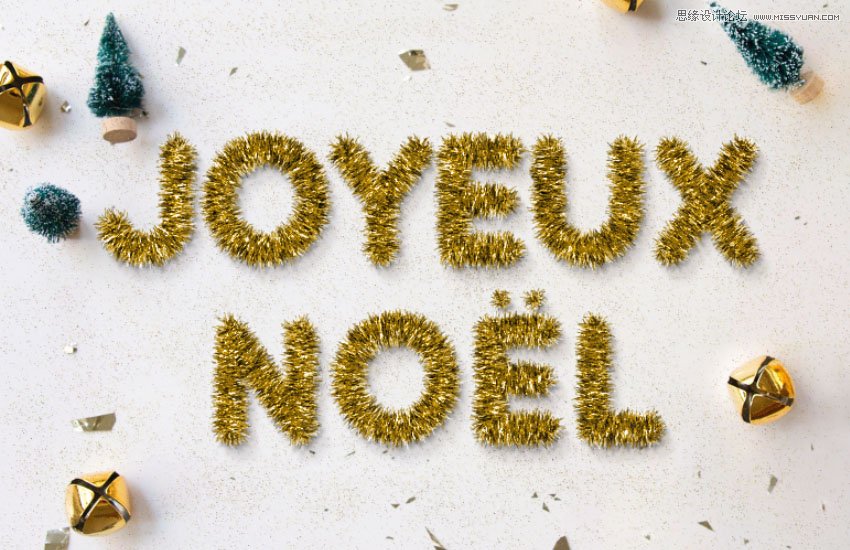
Photoshop制作毛茸茸的圣誕節字體【英】(10)
文章來源于 Tutsplus.com,感謝作者 Rose 給我們帶來經精彩的文章!12. How to Modify a Background Image
Step 1
Double-click the Background Image Smart Object's thumbnail to open its file.
Pick the Content-Aware Move Tool, and set the Mode to Move in the Options bar.
Select the object you want to move and place somewhere else, and make sure to include some empty space around it within the selection.
You can check the Transform on Drop box if you want to transform the object after moving it.

Step 2
Move the selected object to its new position, transform it if needed, and then hit Return.
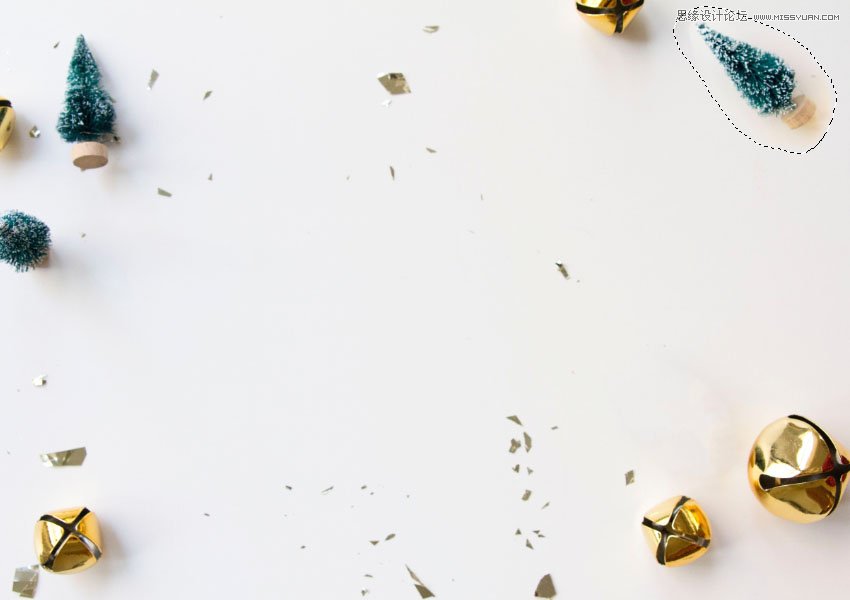
Step 3
After that, you can use any of the other Healing Tools to better blend the object's edges with the new background.
You can also use the Dodge, Burn, and Sponge Tools wherever needed.
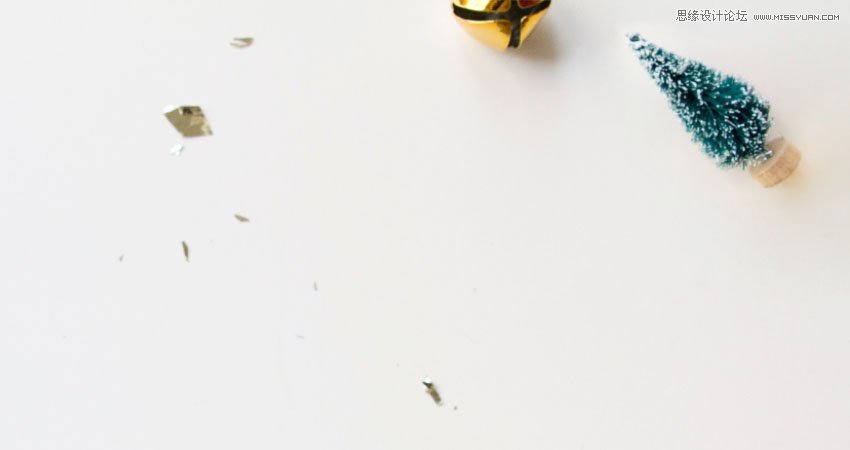
Step 4
If there are any parts you want to remove completely, select them using any selection tool, and go to Edit > Fill and choose Content-Aware from the Content menu.

Step 5
Again, use the Healing Tools to make any further adjustment to the area after removing the object.
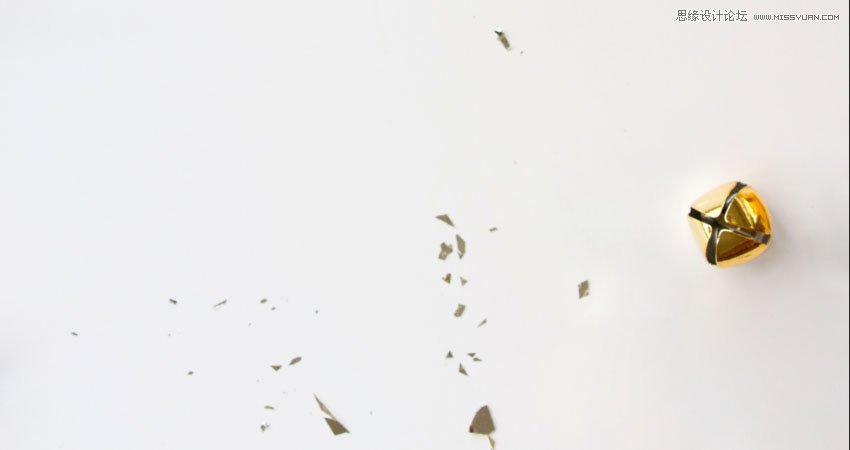
Step 6
Make any other adjustment needed to the background using the same tools.
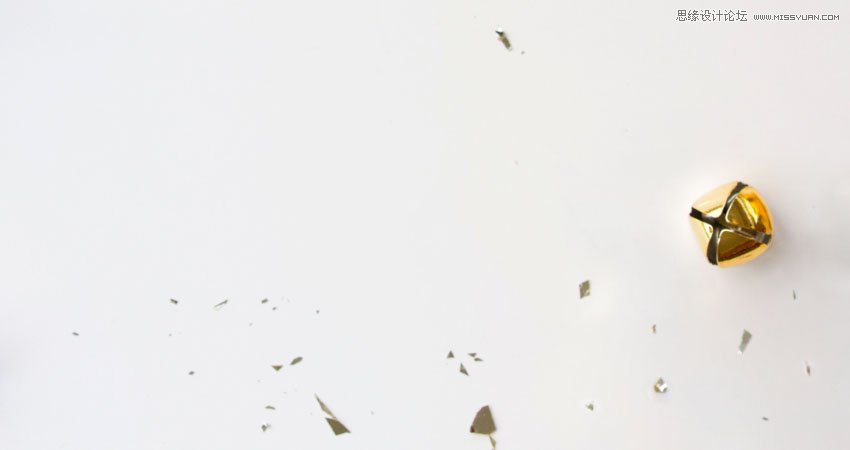
Step 7
You can save the file and go back to the original document to see the changes there and make any necessary adjustments.
 愛你不要你
愛你不要你
-
 Photoshop制作復古風格的老照片效果【英】2018-04-23
-
 Photoshop合成長著創意大樹的長頸鹿【英】2018-04-23
-
 Photoshop合成冰凍特效的金魚場景【英】2018-02-10
-
 Photoshop合成夢幻風格的森林場景【英】2018-02-10
-
 Photoshop合成正在施法的巫師【英】2018-02-10
-
 Photoshop制作金屬質感的3D立體字【英】2018-01-09
-
 Photoshop設計火焰燃燒藝術字教程【英】2018-01-09
-
Photoshop制作復古風格的老照片效果【英】
相關文章11882018-04-23
-
 Photoshop制作黃金質感立體字【英】
相關文章7422018-02-10
Photoshop制作黃金質感立體字【英】
相關文章7422018-02-10
-
 Photoshop制作驚艷大氣的3D立體字
相關文章14682018-02-10
Photoshop制作驚艷大氣的3D立體字
相關文章14682018-02-10
-
 Photoshop制作復古雙重曝光字體
相關文章6532018-01-09
Photoshop制作復古雙重曝光字體
相關文章6532018-01-09
-
 Photoshop制作木地板LOGO刻印效果【英】
相關文章19272018-01-09
Photoshop制作木地板LOGO刻印效果【英】
相關文章19272018-01-09
-
Photoshop制作金屬質感的3D立體字【英】
相關文章4612018-01-09
-
Photoshop設計火焰燃燒藝術字教程【英】
相關文章7612018-01-09
-
 Photoshop制作復古花朵組成的藝術字【英】
相關文章3802018-01-09
Photoshop制作復古花朵組成的藝術字【英】
相關文章3802018-01-09
