Photoshop制作復古風格的老照片效果【英】(2)
文章來源于 站酷,感謝作者 Melody Nieves 給我們帶來經精彩的文章!Step 6
Now open the Painting image in a separate document.
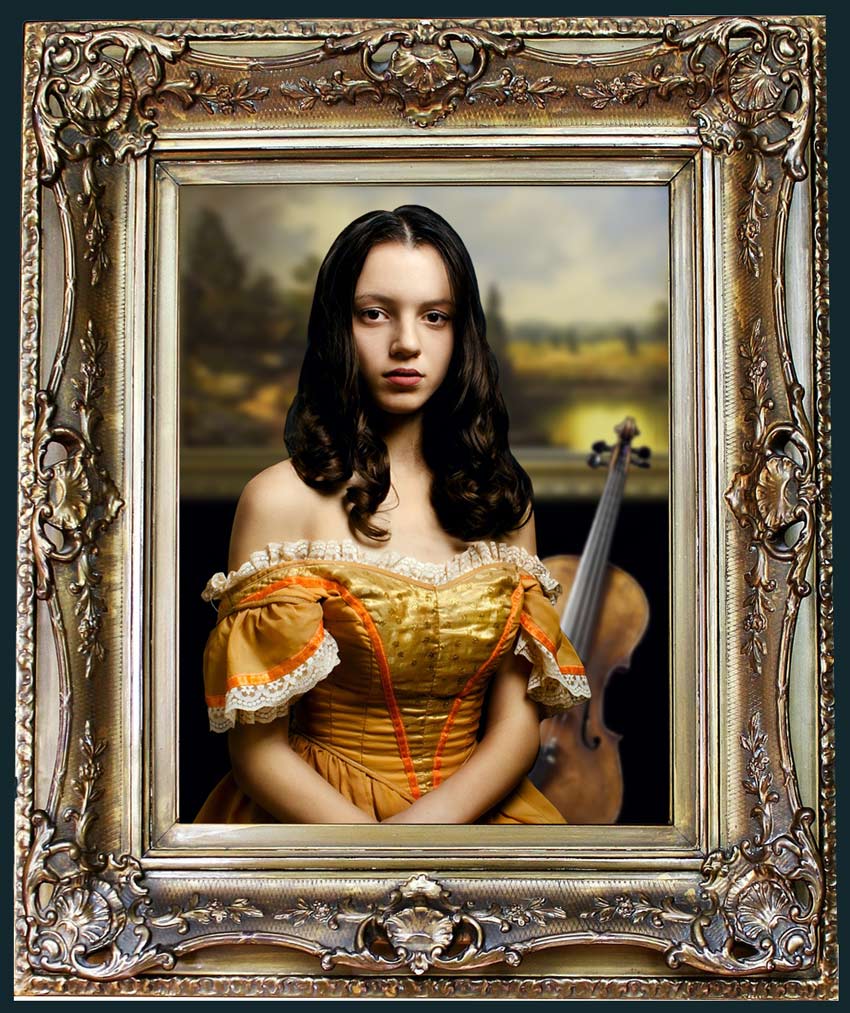
Unhide the Visibility of the picture frame and model layers.
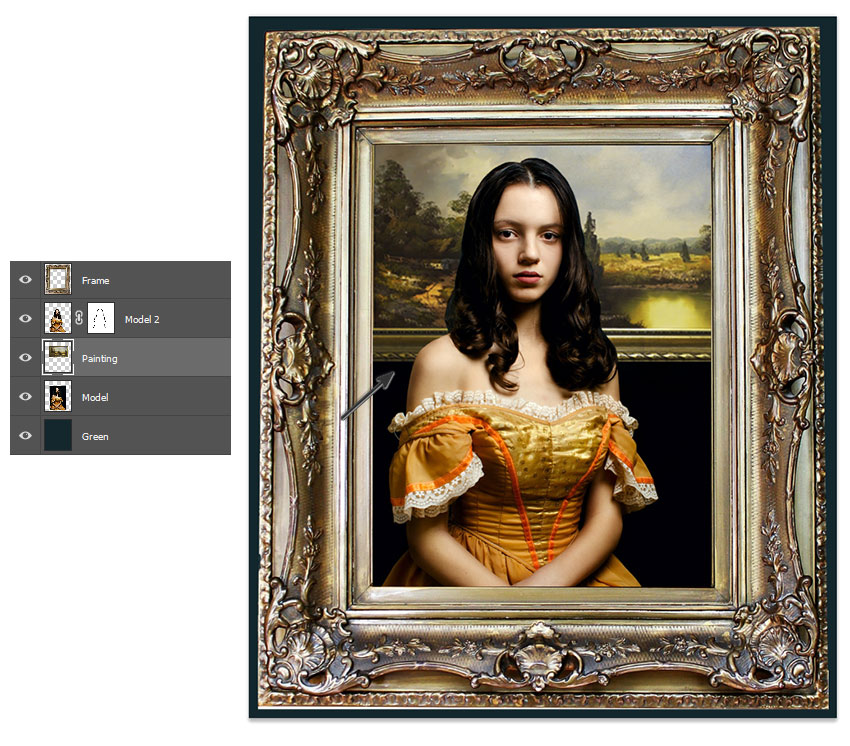
Use the Rectangular Marquee Tool (M) to select the painting image. Then Copy and Paste it onto a New Layer beneath the Model 2 layer.
Use the Free Transform Tool (Control-T) to resize the painting and place it behind her as shown above. She should now appear in front of it to help build the scene.
Step 7
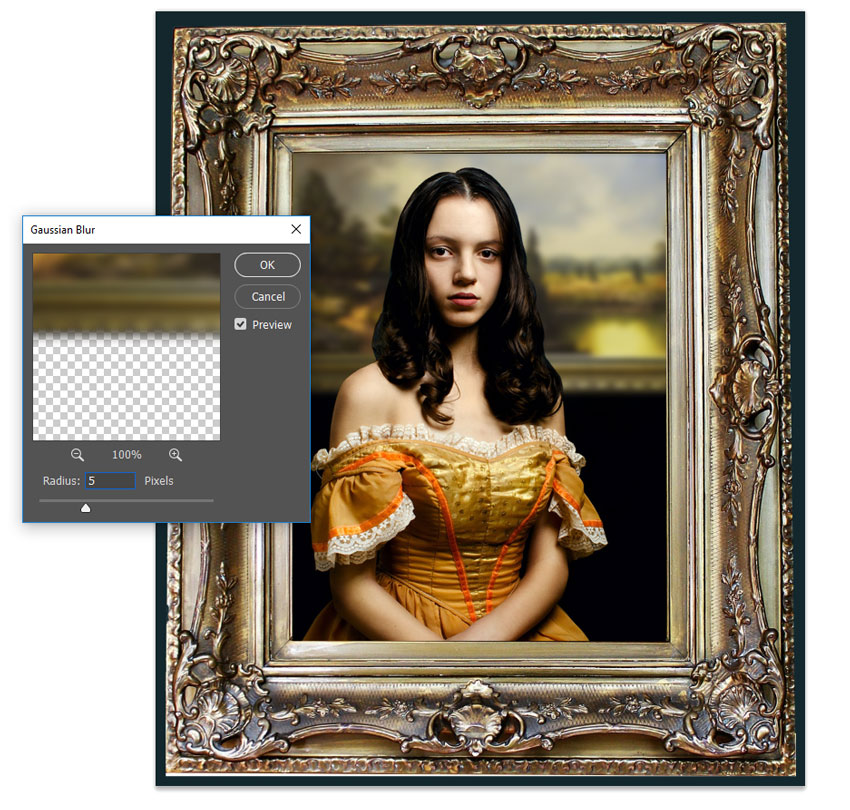
For more depth, let's blur the painting.
Select the painting layer and go to Filter > Blur > Gaussian Blur.
Add a Radius of 5 pixels and hit OK.
Step 8
Looking great so far!
Now let's add the violin.
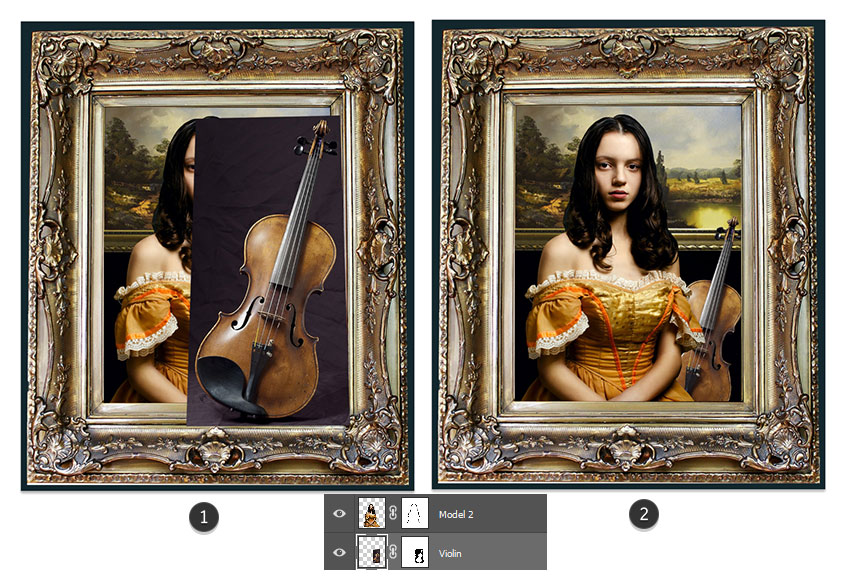
Create a rough extraction of the violin with the Polygonal Lasso Tool (L). Copy and Paste it onto a New Layer.
Position this layer beneath the model 2 layer but above the painting layer. Add a Layer Mask to the violin and follow the same step as before to mask out the background using a Hard Round Brush (100% Hardness/100% Opacity).
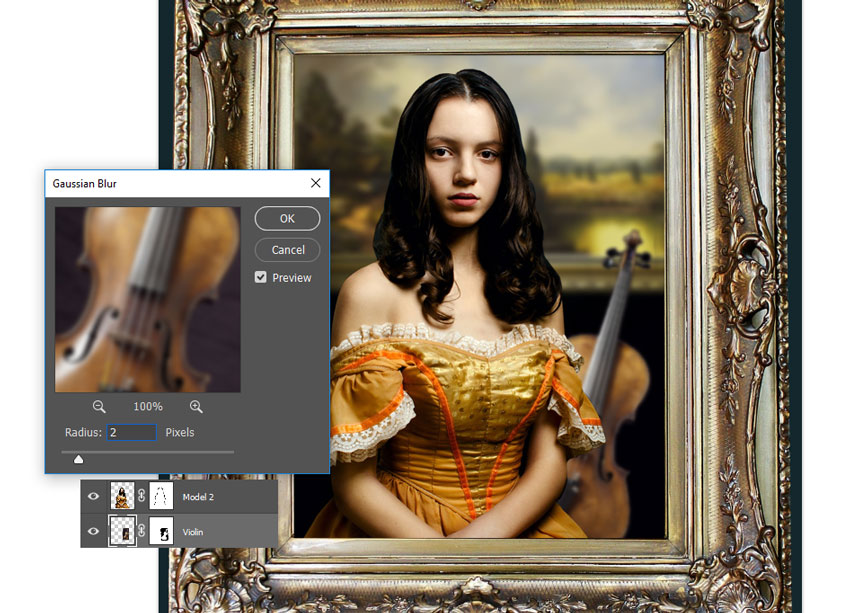
Let's blur the violin.
With the violin layer selected, go to Filter > Blur > Gaussian Blur.
Add a Radius of 2 pixels and hit OK.
2. How to Add Shadow and Vintage Coloring
The next part of this tutorial will focus on aging the photo and creating dramatic lighting. Then we'll finish by adding more shadow and texture to the entire scene.
Here is what we have so far for this composition.
Let's take a look!
 情非得已
情非得已
-
 Photoshop制作復古風格的老照片效果【英】2018-04-23
-
 Photoshop合成長著創意大樹的長頸鹿【英】2018-04-23
-
 Photoshop合成冰凍特效的金魚場景【英】2018-02-10
-
 Photoshop合成夢幻風格的森林場景【英】2018-02-10
-
 Photoshop合成正在施法的巫師【英】2018-02-10
-
 Photoshop制作金屬質感的3D立體字【英】2018-01-09
-
 Photoshop設計火焰燃燒藝術字教程【英】2018-01-09
-
 Photoshop制作黃金質感立體字【英】
相關文章7422018-02-10
Photoshop制作黃金質感立體字【英】
相關文章7422018-02-10
-
 Photoshop制作驚艷大氣的3D立體字
相關文章14682018-02-10
Photoshop制作驚艷大氣的3D立體字
相關文章14682018-02-10
-
Photoshop合成夢幻風格的森林場景【英】
相關文章24492018-02-10
-
 Photoshop制作復古雙重曝光字體
相關文章6532018-01-09
Photoshop制作復古雙重曝光字體
相關文章6532018-01-09
-
 Photoshop制作木地板LOGO刻印效果【英】
相關文章19272018-01-09
Photoshop制作木地板LOGO刻印效果【英】
相關文章19272018-01-09
-
Photoshop制作金屬質感的3D立體字【英】
相關文章4612018-01-09
-
 Photoshop制作復古花朵組成的藝術字【英】
相關文章3802018-01-09
Photoshop制作復古花朵組成的藝術字【英】
相關文章3802018-01-09
-
 Photoshop制作可愛的糖果餅干字【英】
相關文章6722017-12-25
Photoshop制作可愛的糖果餅干字【英】
相關文章6722017-12-25
