Photoshop合成被樹妖困住的女孩【英】(6)
文章來源于 photoshoptutorials,感謝作者 ANTAKA NGUYEN 給我們帶來經精彩的文章!Step 24
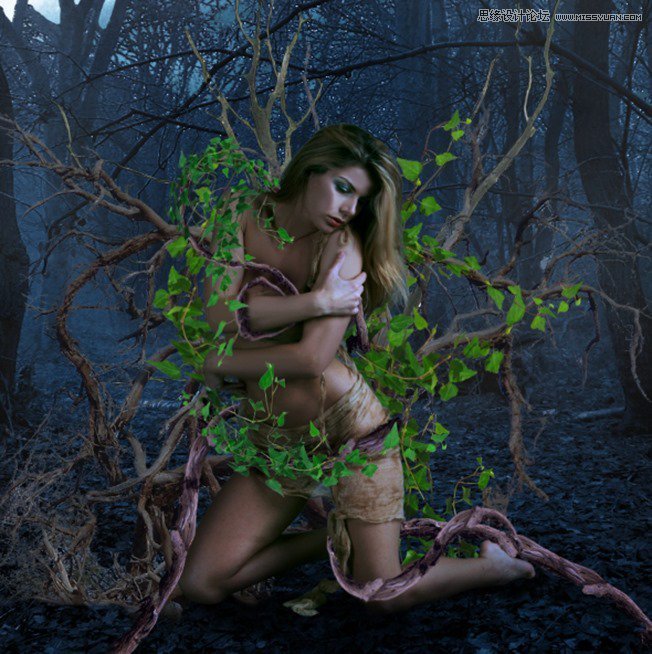
With the appearance of the branches and ivies, we will need to some extra shadow to the ground since the current shadow is a little weak.
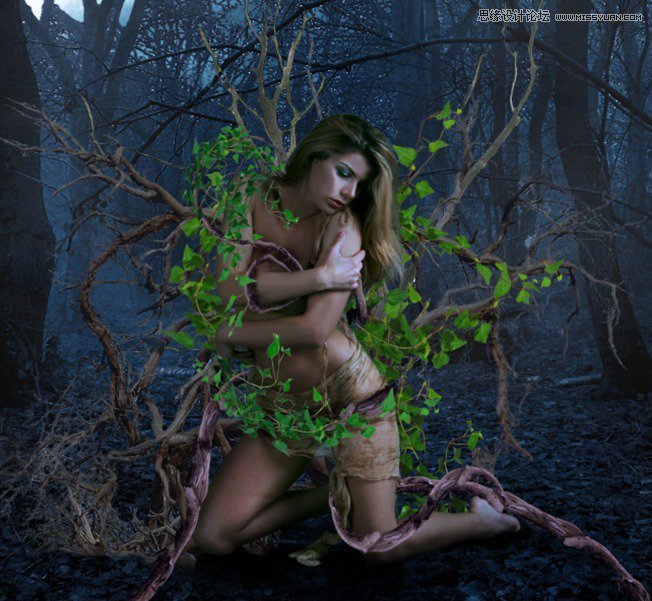
The method is similar to the way we create shadow in the previous step. Change the Blend Mode to Soft Light.
Step 25
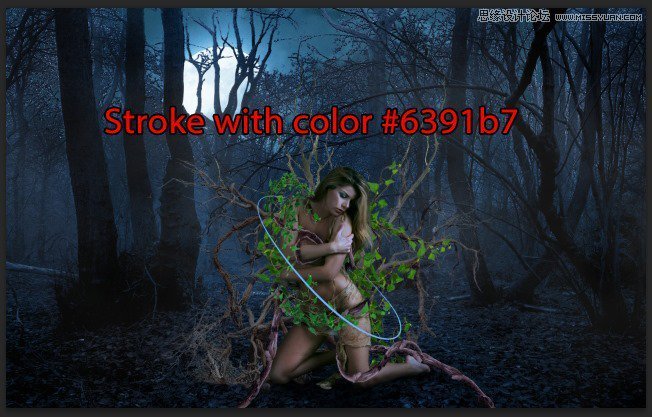
Now we will create a simple yet special effect for the model so the piece looks more…magical. Create a new layer , grab the Pen Tool and draw a curve line around her body like this :
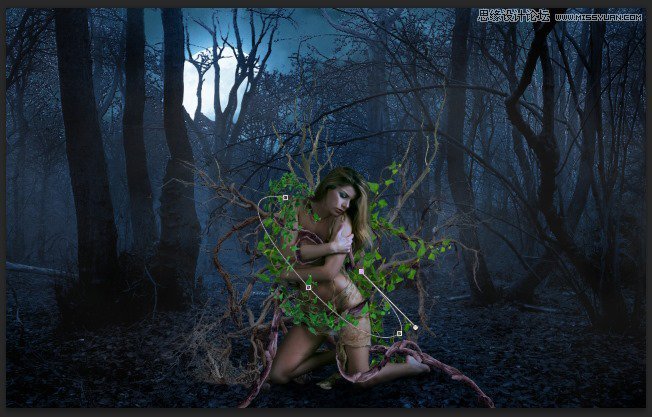
Before continue please go to the Brush Tool, choose a 5px round brush with 100% Hardness.
Back to the Pen Tool, right click on the curve line you just drew and chooseStroke Path. Choose Brush as Tool, tick on the Simulate Pressure.
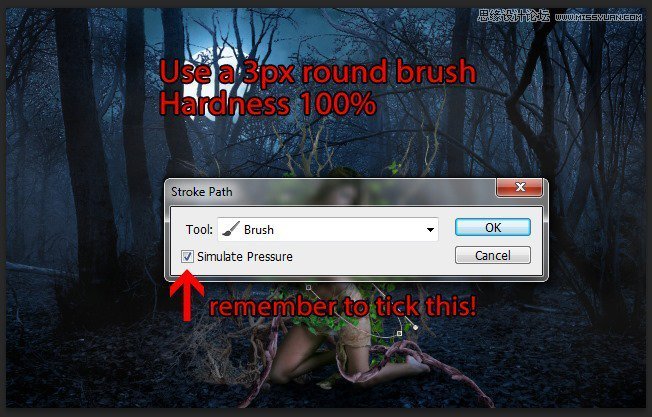
The Stroke Path option will use your Foreground color as the stroke color so set the Foreground color as #6391b7 then click OK. Here’s what we will have :
Step 26
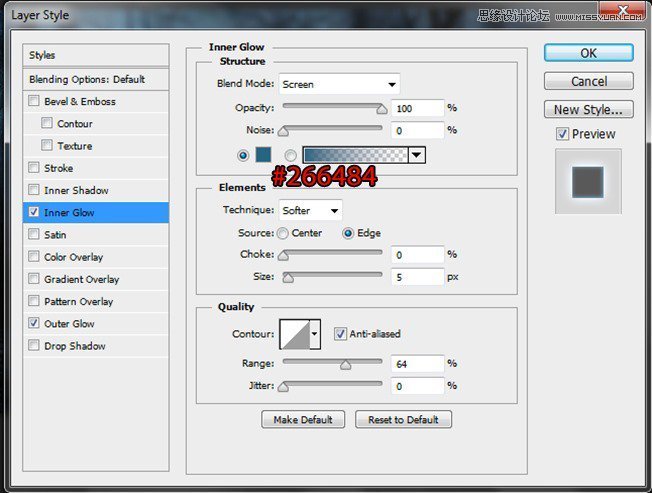
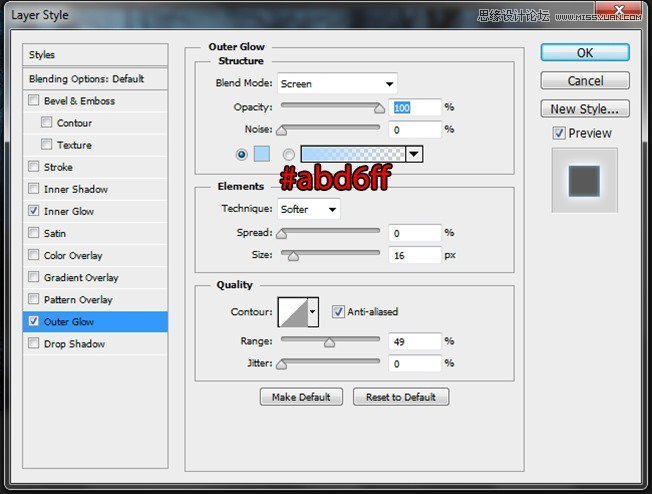
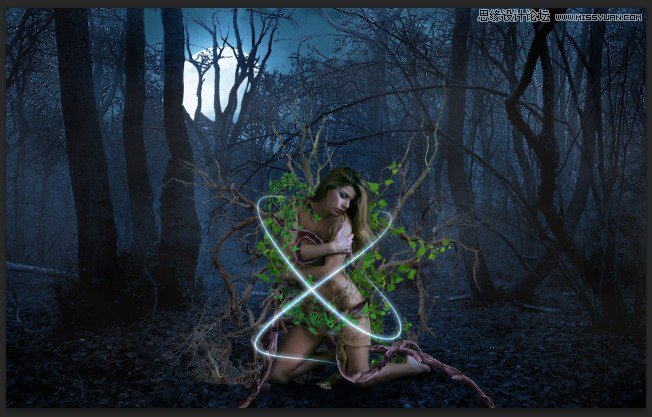
Apply these setting for the Curve Line layer’s Blending Option :
Change the Blend Mode to Linear Dodge and we will have a nice glowing line!
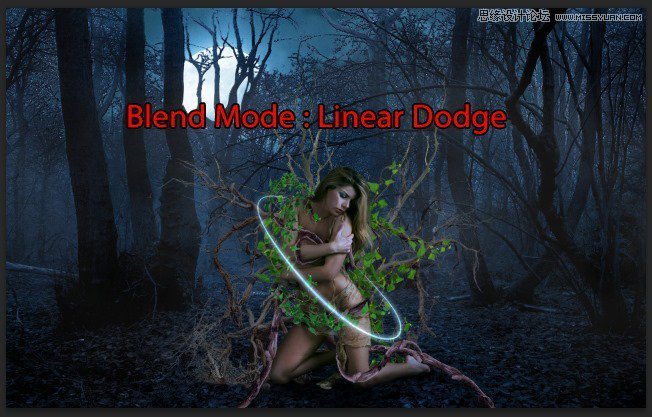
Do the same with another line.
Step 27
Create another new layer, use 7px round brush, 100% Hardness.
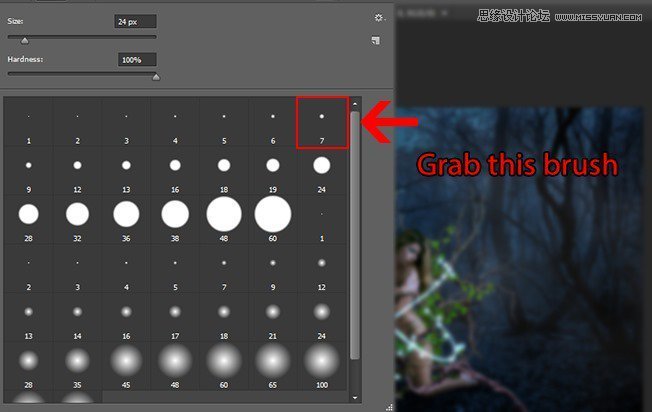
Open the Brush Panel (shortcut : F5) and adjust the setting like this :
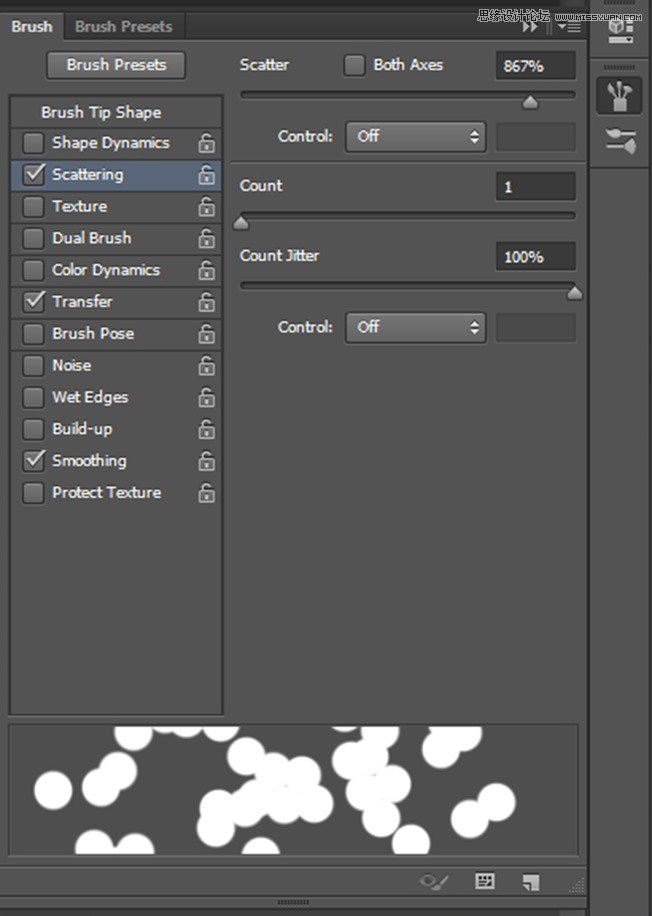
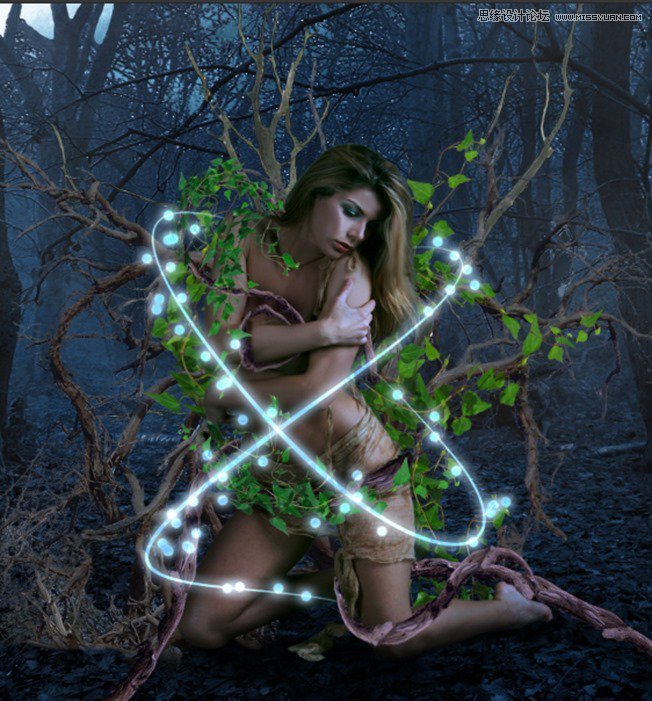
Now paint around the model, with the setting we just had, the round will be scattered as we paint, create a bokeh-like effect. Apply the same Blending Option and color like we did with the Curve Lines.
 愛你不要你
愛你不要你
-
 Photoshop制作復古風格的老照片效果【英】2018-04-23
-
 Photoshop合成長著創意大樹的長頸鹿【英】2018-04-23
-
 Photoshop合成冰凍特效的金魚場景【英】2018-02-10
-
 Photoshop合成夢幻風格的森林場景【英】2018-02-10
-
 Photoshop合成正在施法的巫師【英】2018-02-10
-
 Photoshop制作金屬質感的3D立體字【英】2018-01-09
-
 Photoshop設計火焰燃燒藝術字教程【英】2018-01-09
-
Photoshop制作復古風格的老照片效果【英】
相關文章11882018-04-23
-
Photoshop合成長著創意大樹的長頸鹿【英】
相關文章13832018-04-23
-
Photoshop合成冰凍特效的金魚場景【英】
相關文章34052018-02-10
-
 Photoshop制作黃金質感立體字【英】
相關文章7422018-02-10
Photoshop制作黃金質感立體字【英】
相關文章7422018-02-10
-
 Photoshop制作驚艷大氣的3D立體字
相關文章14682018-02-10
Photoshop制作驚艷大氣的3D立體字
相關文章14682018-02-10
-
Photoshop合成夢幻風格的森林場景【英】
相關文章24492018-02-10
-
Photoshop合成正在施法的巫師【英】
相關文章8372018-02-10
-
 Photoshop制作復古雙重曝光字體
相關文章6532018-01-09
Photoshop制作復古雙重曝光字體
相關文章6532018-01-09
