Photoshop合成被樹妖困住的女孩【英】(2)
文章來源于 photoshoptutorials,感謝作者 ANTAKA NGUYEN 給我們帶來經精彩的文章!Step 6 – Adding Base Fog
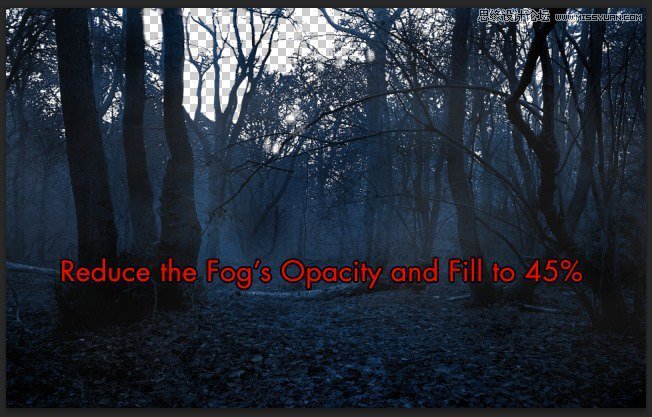
Download the Fog Brush in the Resources list, open it and grab any fog brush you want and start painting.
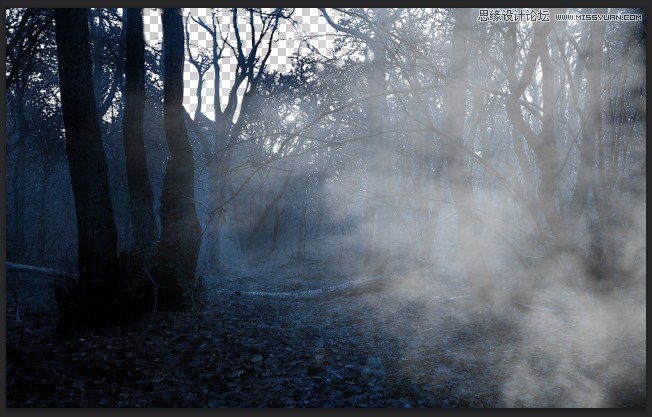
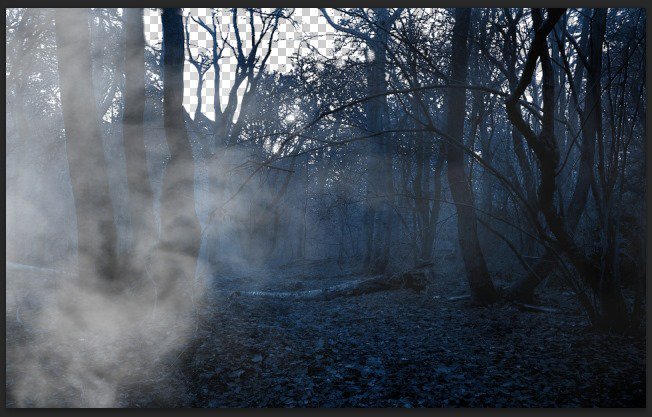
Layer Mask on these fog layers as we only want some subtle fog effect to spice up the atmosphere of the image.
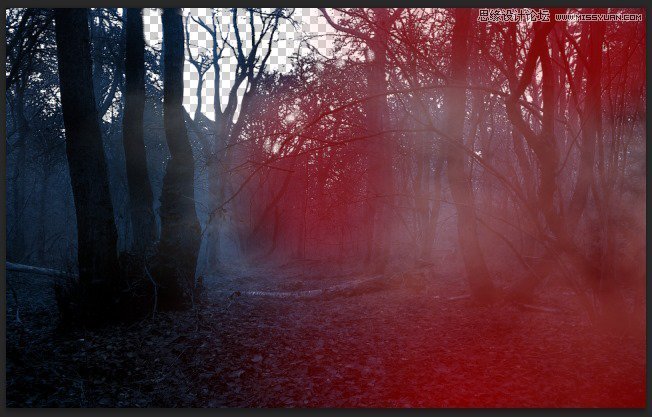
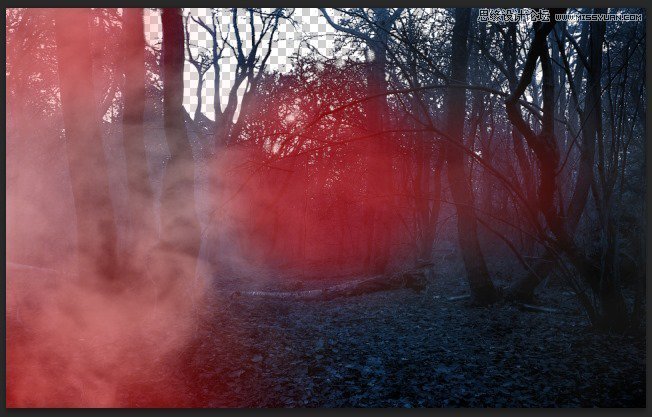
Reduce the fog layer Opacity and Fill to 45%. The number can be changed as you desire, depends on how strong you want the fog to be.
Step 7 – Extracting The Model
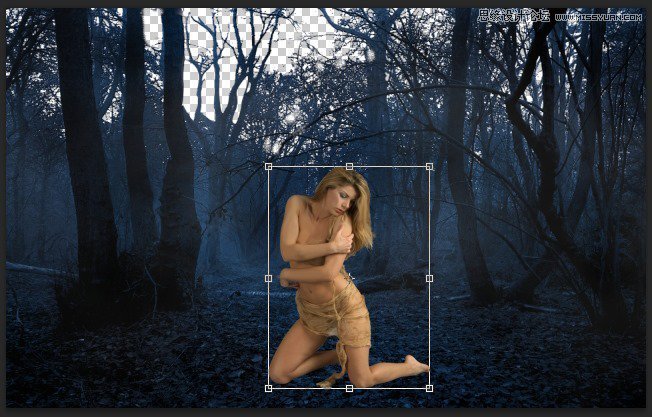
Open the Model stock photo and start extracting her, you can use Quick Selection Tool to do so as the photo’s quality is high and the contrast is enough for Quick Selection Tool to do its work. Otherwise you can use Pen Toolfor a better result but more time-consuming, its up to you!
Place the model into our document after you’ve done the extracting.
Step 8 – First Model Blending Process
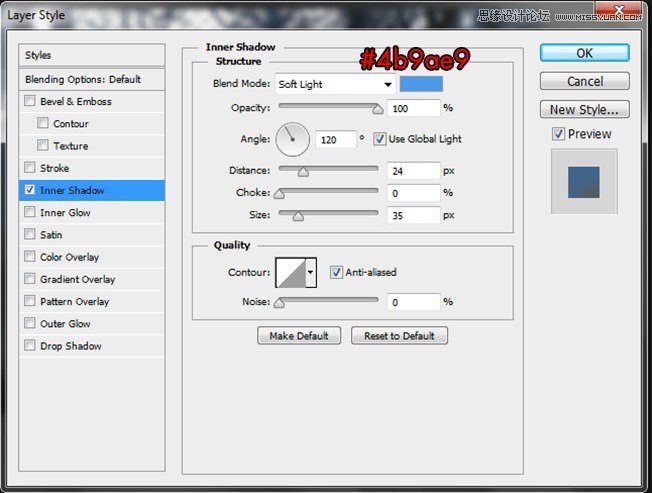
Access to the Model’s Blending Option -> Inner Shadow and adjust the attribute like this :
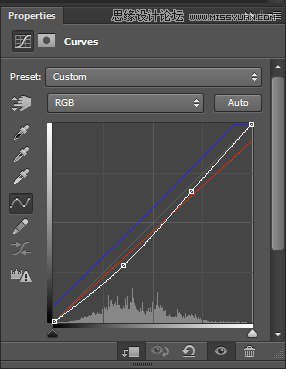
Continue adding these following adjustment layers :
Curves -> Brightness/Contrast -> Photo Filter -> Color Balance -> Exposure
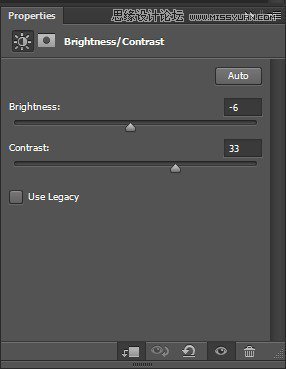
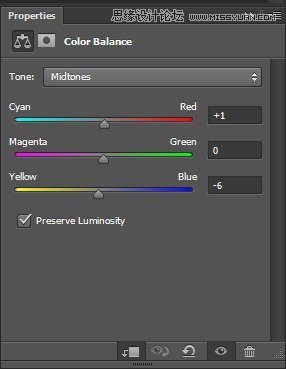
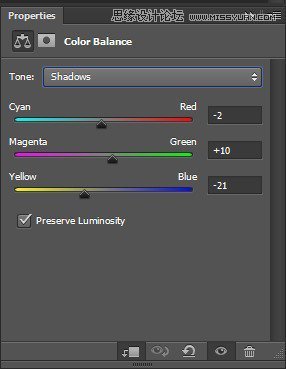
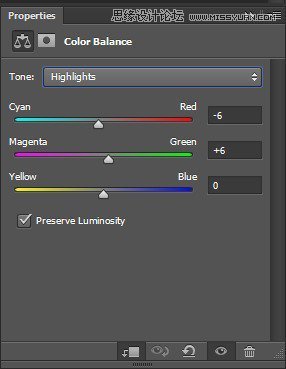
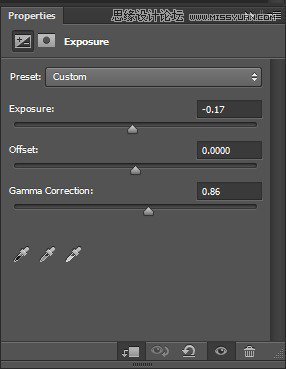
And here is the result :
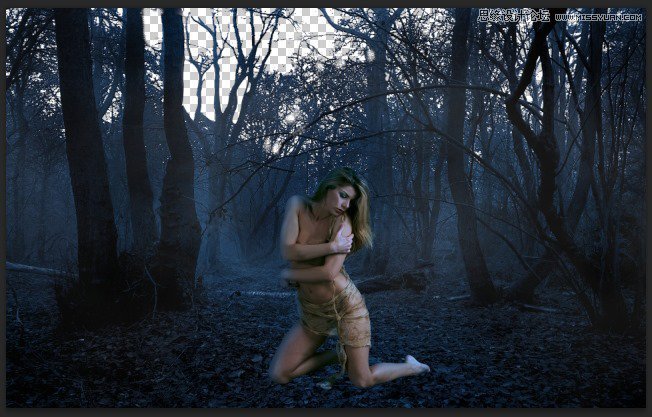
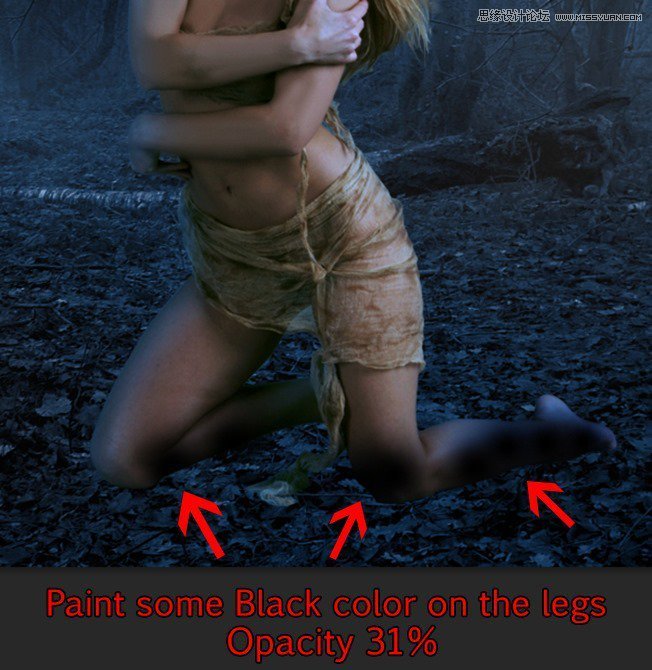
Step 9 – Adding Shadow To The Model’s Legs
We will use the same method we just did with the forest to the model’s legs in this step. Reduce the Opacity to 31%.
 愛你不要你
愛你不要你
-
 Photoshop制作復古風格的老照片效果【英】2018-04-23
-
 Photoshop合成長著創意大樹的長頸鹿【英】2018-04-23
-
 Photoshop合成冰凍特效的金魚場景【英】2018-02-10
-
 Photoshop合成夢幻風格的森林場景【英】2018-02-10
-
 Photoshop合成正在施法的巫師【英】2018-02-10
-
 Photoshop制作金屬質感的3D立體字【英】2018-01-09
-
 Photoshop設計火焰燃燒藝術字教程【英】2018-01-09
-
Photoshop制作復古風格的老照片效果【英】
相關文章11882018-04-23
-
Photoshop合成長著創意大樹的長頸鹿【英】
相關文章13832018-04-23
-
Photoshop合成冰凍特效的金魚場景【英】
相關文章34052018-02-10
-
 Photoshop制作黃金質感立體字【英】
相關文章7422018-02-10
Photoshop制作黃金質感立體字【英】
相關文章7422018-02-10
-
 Photoshop制作驚艷大氣的3D立體字
相關文章14682018-02-10
Photoshop制作驚艷大氣的3D立體字
相關文章14682018-02-10
-
Photoshop合成夢幻風格的森林場景【英】
相關文章24492018-02-10
-
Photoshop合成正在施法的巫師【英】
相關文章8372018-02-10
-
 Photoshop制作復古雙重曝光字體
相關文章6532018-01-09
Photoshop制作復古雙重曝光字體
相關文章6532018-01-09
