Photoshop合成長(zhǎng)著創(chuàng)意大樹(shù)的長(zhǎng)頸鹿【英】(5)
文章來(lái)源于 Tutsplus.com,感謝作者 Jenny Le 給我們帶來(lái)經(jīng)精彩的文章!Step 4
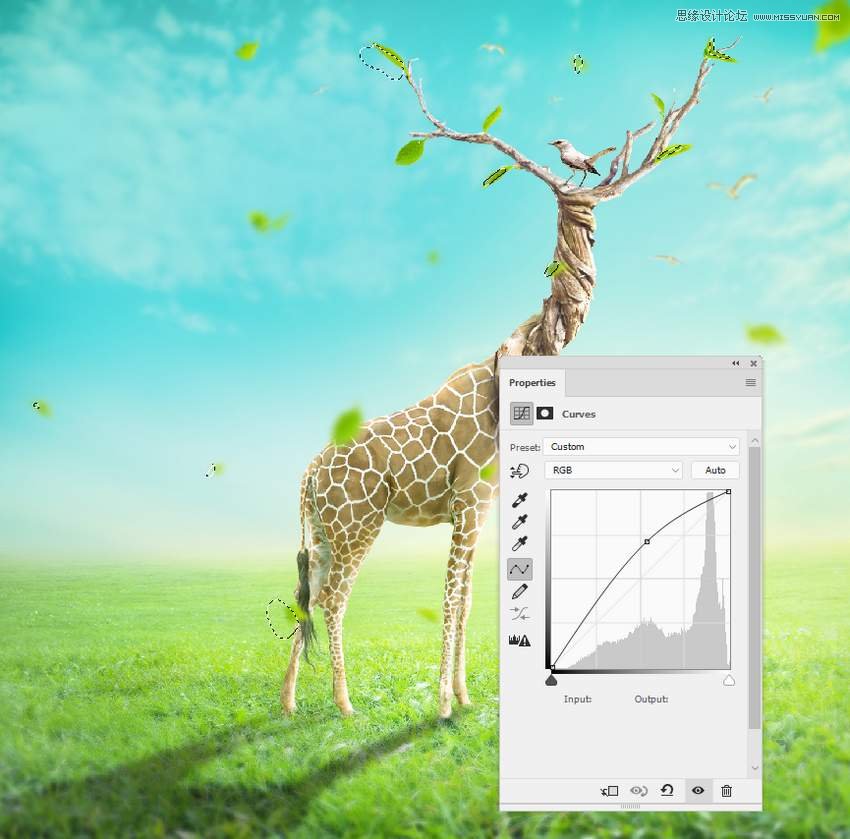
Make another Curves adjustment layer with the same purpose.
Step 5
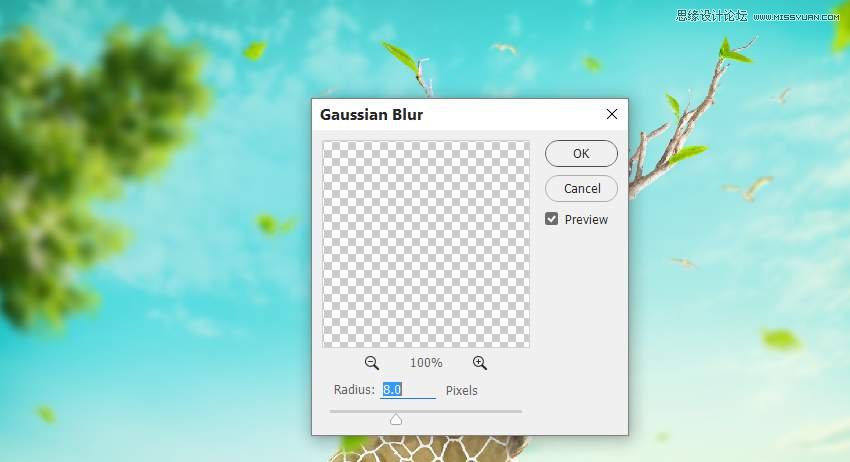
Add the tree 2 image to the top left of the scene and apply a Gaussian Blur of 8 px to this layer.
Step 6
The light of the scene is pretty soft, so use a Curves adjustment layer to reduce the contrast of tree 2.

Step 7
Use the Dodge Tool on a new layer to decrease the shadow areas on tree 2.

Step 8
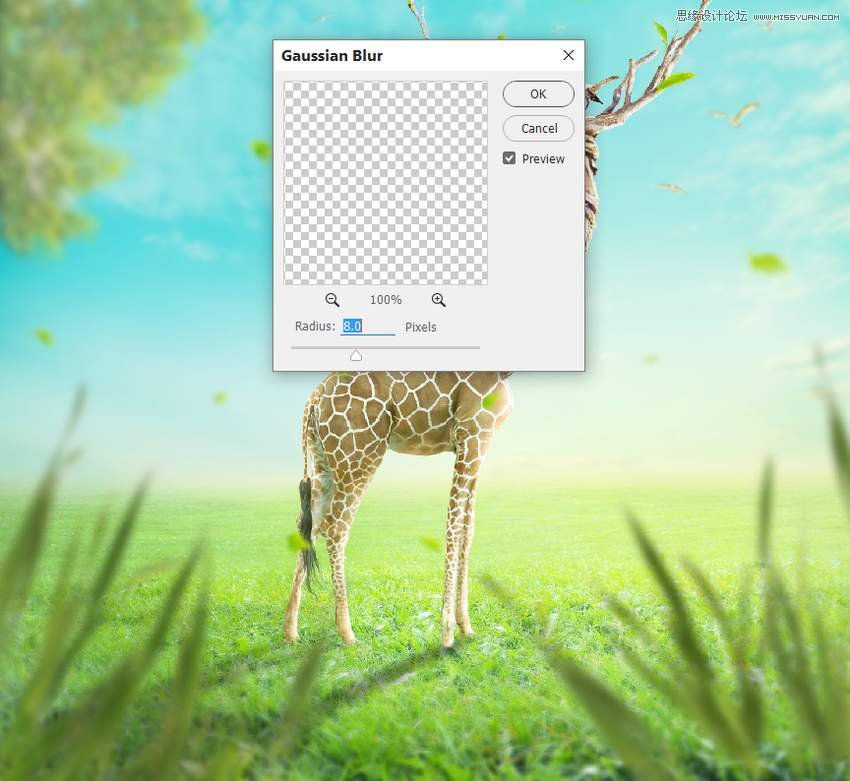
Open the grass image pack. Take different grass blades to add to the foreground of the main scene. You can duplicate, resize, and rotate so they appear different. Apply a Gaussian Blur of 8 px to each of the grass layers.
Step 9
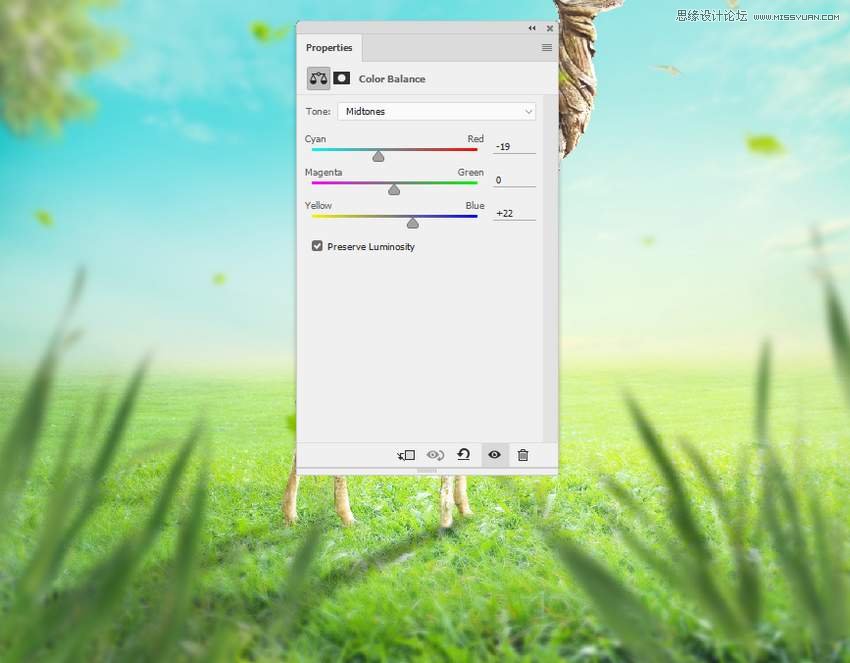
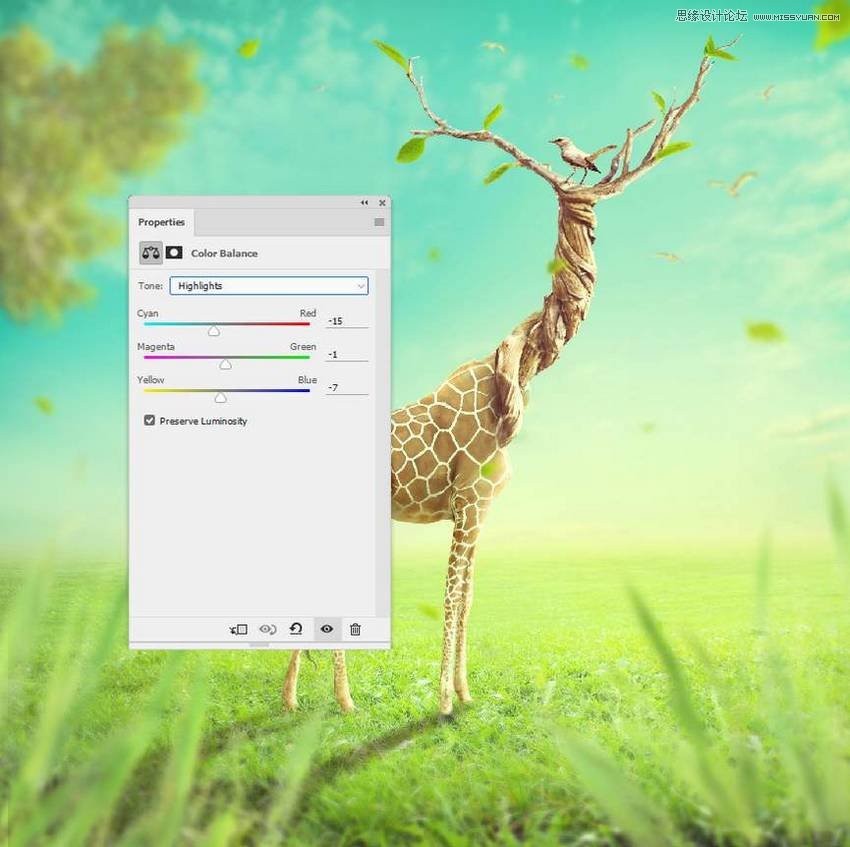
Make a group for the grass layer and add a Color Balance adjustment layer to change the grass's color a bit.
Step 10
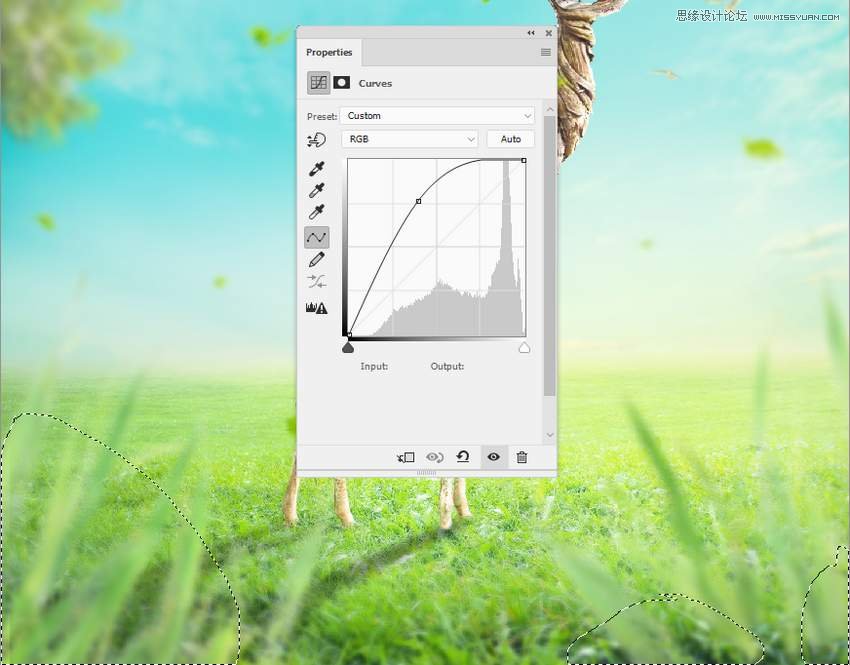
Use a Curves adjustment layer to bring more light to the top of the grass's blades.
7. How to Make the Final Adjustments
Step 1
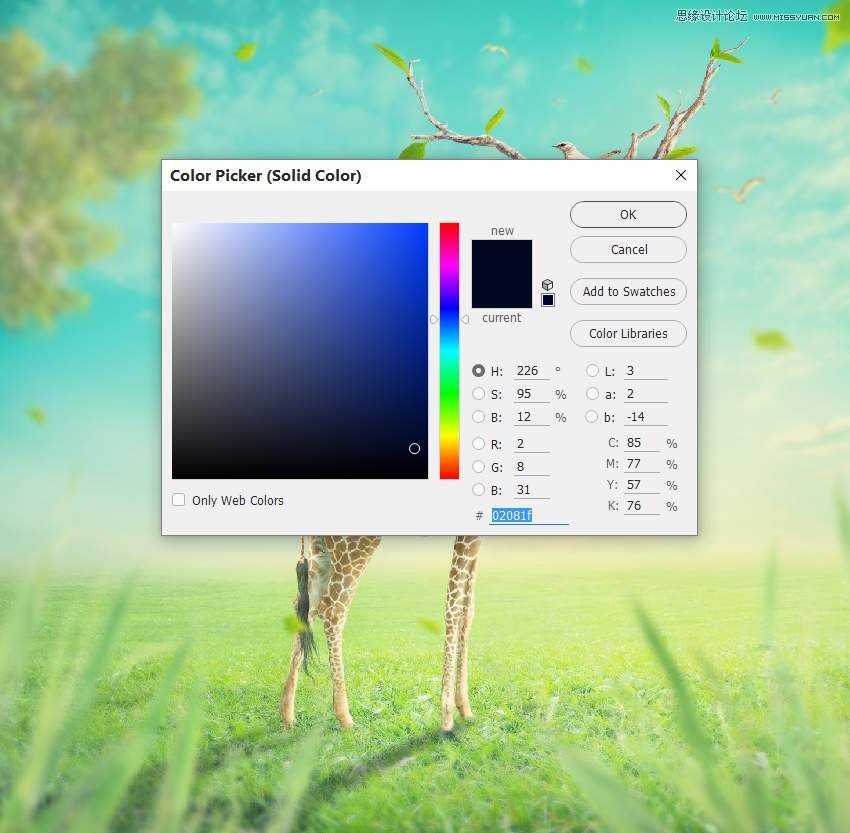
Create a Color Fill layer on top of the layers and pick the color #02081f. Change this layer to Exclusion 100%.
Step 2
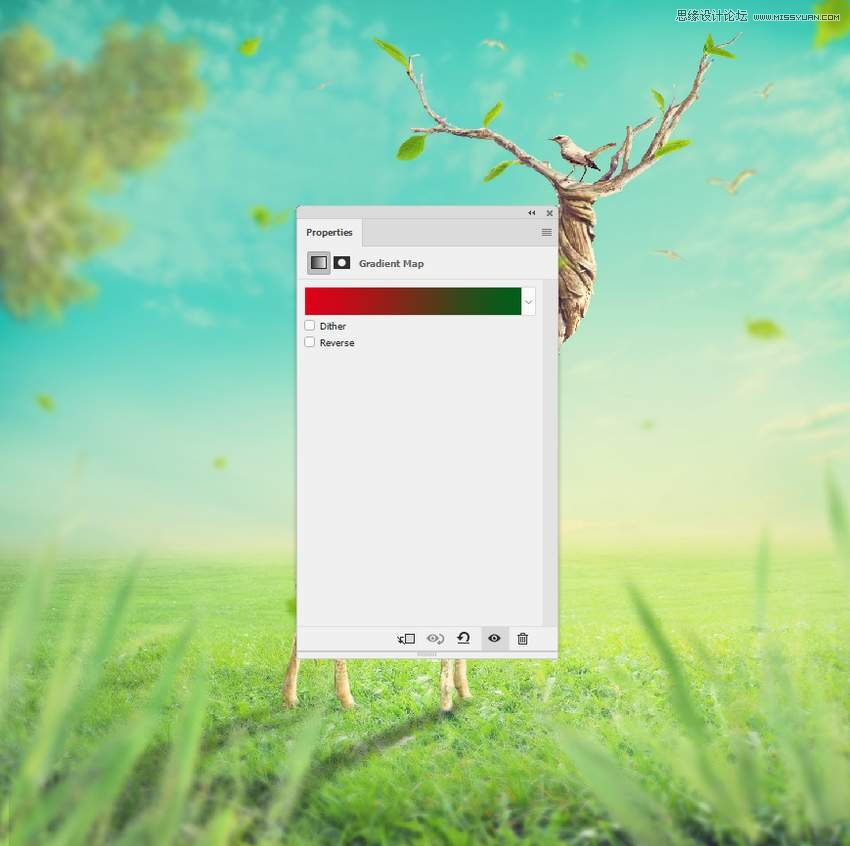
Make a Gradient Map adjustment layer and pick the colors #e10019 and #00601b. Alter this layer mode to Soft Light 20%.
Step 3
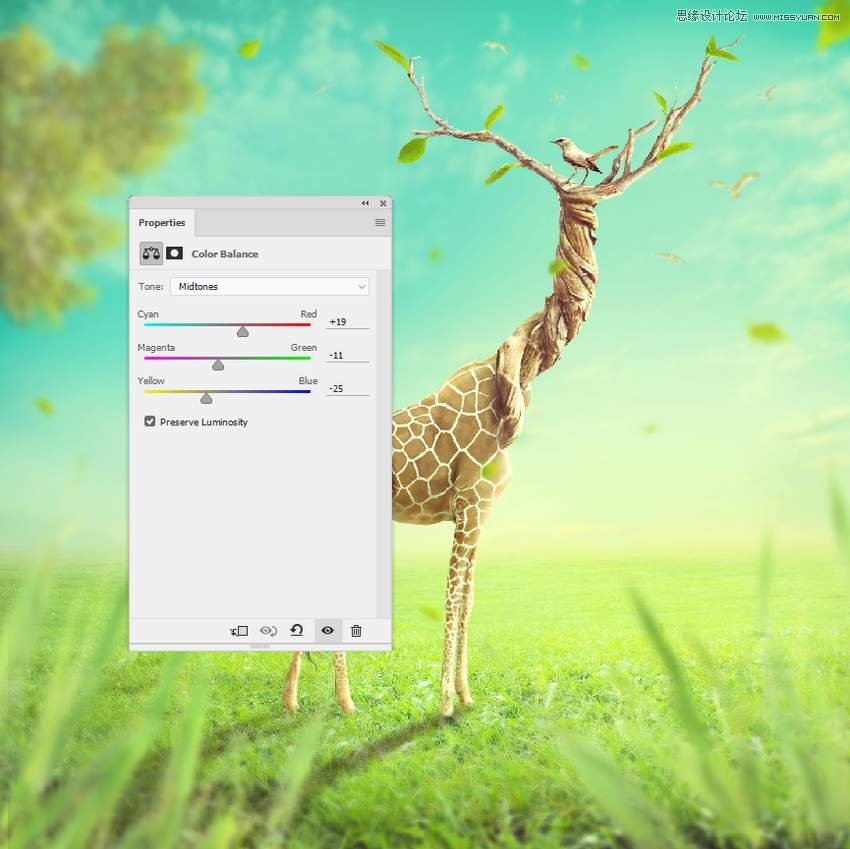
Add a Color Balance adjustment layer to give some vibrance to the whole scene.
 情非得已
情非得已
-
 Photoshop制作復(fù)古風(fēng)格的老照片效果【英】2018-04-23
-
 Photoshop合成長(zhǎng)著創(chuàng)意大樹(shù)的長(zhǎng)頸鹿【英】2018-04-23
-
 Photoshop合成冰凍特效的金魚(yú)場(chǎng)景【英】2018-02-10
-
 Photoshop合成夢(mèng)幻風(fēng)格的森林場(chǎng)景【英】2018-02-10
-
 Photoshop合成正在施法的巫師【英】2018-02-10
-
 Photoshop制作金屬質(zhì)感的3D立體字【英】2018-01-09
-
 Photoshop設(shè)計(jì)火焰燃燒藝術(shù)字教程【英】2018-01-09
-
Photoshop制作復(fù)古風(fēng)格的老照片效果【英】
相關(guān)文章11882018-04-23
-
Photoshop合成冰凍特效的金魚(yú)場(chǎng)景【英】
相關(guān)文章34052018-02-10
-
 Photoshop制作黃金質(zhì)感立體字【英】
相關(guān)文章7422018-02-10
Photoshop制作黃金質(zhì)感立體字【英】
相關(guān)文章7422018-02-10
-
 Photoshop制作驚艷大氣的3D立體字
相關(guān)文章14682018-02-10
Photoshop制作驚艷大氣的3D立體字
相關(guān)文章14682018-02-10
-
Photoshop合成夢(mèng)幻風(fēng)格的森林場(chǎng)景【英】
相關(guān)文章24492018-02-10
-
Photoshop合成正在施法的巫師【英】
相關(guān)文章8372018-02-10
-
 Photoshop制作復(fù)古雙重曝光字體
相關(guān)文章6532018-01-09
Photoshop制作復(fù)古雙重曝光字體
相關(guān)文章6532018-01-09
-
 Photoshop制作木地板LOGO刻印效果【英】
相關(guān)文章19272018-01-09
Photoshop制作木地板LOGO刻印效果【英】
相關(guān)文章19272018-01-09
