Photoshop制作驚艷大氣的3D立體字(3)
文章來源于 Tutsplus.com,感謝作者 Rose 給我們帶來經精彩的文章!Step 3
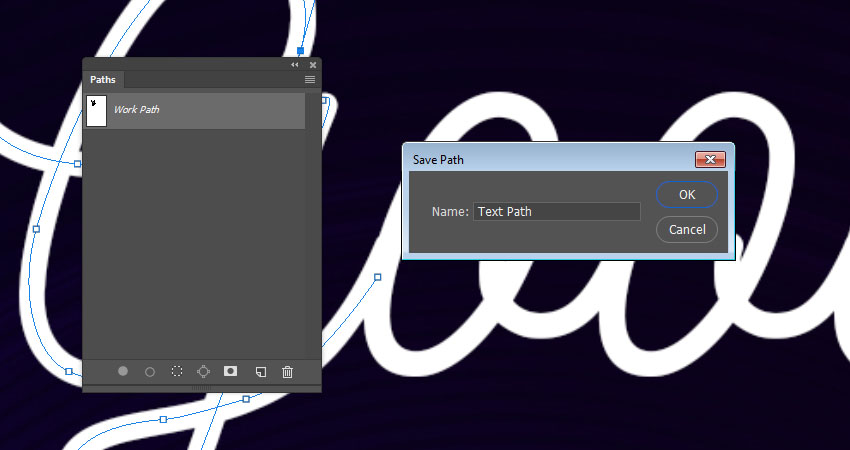
In the Paths panel, double-click the Work Path tab and enter a name for your path to save it.
Step 4
It is better to separate the paths where needed, so that you can edit them easily after stroking them.
Make sure to align the paths so that they fall nicely on top of each other where they are supposed to overlap.

4. How to Adjust the Mixer Brush Tool's Settings
Step 1
Pick the Mixer Brush Tool (click and hold the standard Brush Tool to reveal it), and use these settings in the Options bar:
Click the Load the brush after each stroke icon.
Click the Clean the brush after each stroke icon.
Choose the Dry, Heavy Load preset from the Useful mixer brush combinations list.
Wet: 0%
Load: 100%
Flow: 100%
Stroke Smoothing: 100%
Uncheck the Sample All Layers box.
Once you adjust the settings, change the tip's Size to 10 px more than the styled ellipse's Size, so here the brush tip's Size is set to 60 px.

Step 2
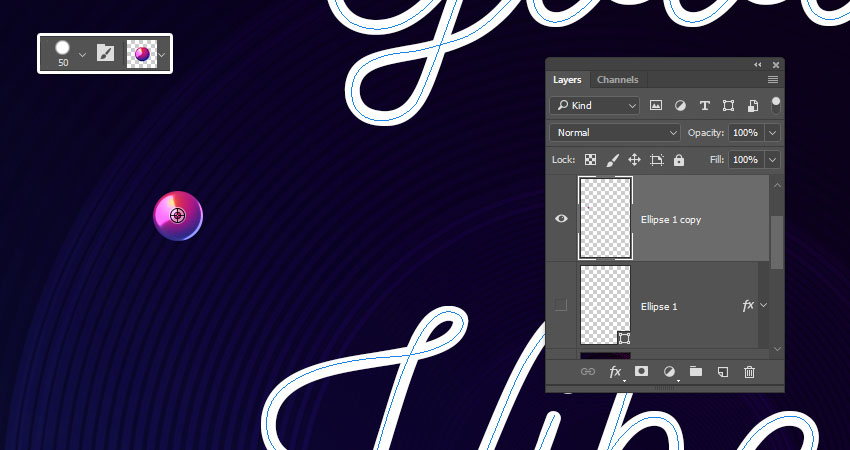
Select the styled ellipse's layer, place the cursor in the center of the styled ellipse, press-hold the Optionkey, and click to load the ellipse into the brush tip.
5. How to Stroke a Work Path Using the Mixer Brush Tool
Step 1
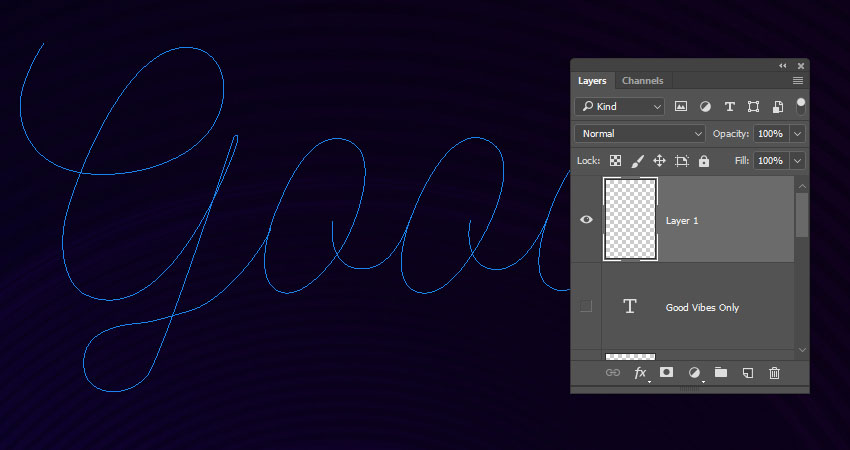
Hide the original text layer and create a new layer on top of it.
Step 2
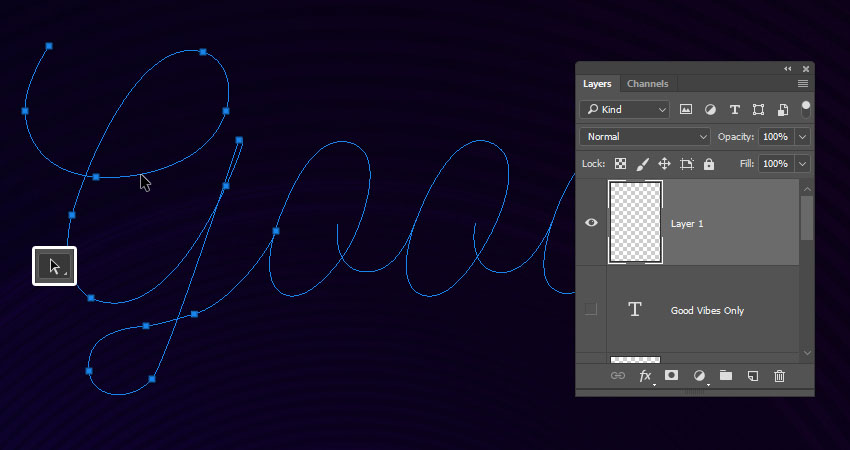
Pick the Path Selection Tool, click outside all paths to make sure none of them are selected, and then click the first letter's path you want to stroke.
Step 3
Hit the Return key to stroke the path, create a new layer, select the next path, and stroke it on the new layer.

Step 4
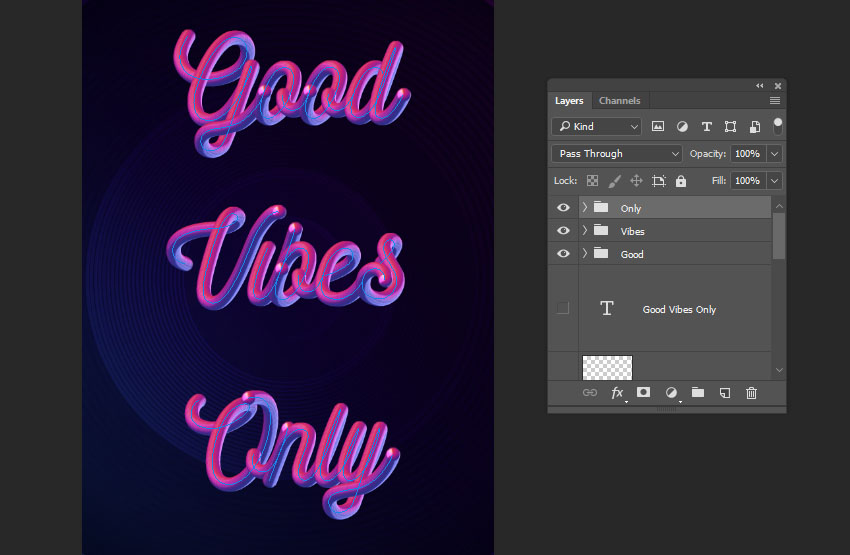
Continue selecting the paths and stroking them on separate layers until you're done with the first word.
Place all the word's layers in a group to keep things organized.

Step 5
Finish stroking all the words you have to start adjusting the final effect.
 情非得已
情非得已
-
 Photoshop制作復古風格的老照片效果【英】2018-04-23
-
 Photoshop合成長著創意大樹的長頸鹿【英】2018-04-23
-
 Photoshop合成冰凍特效的金魚場景【英】2018-02-10
-
 Photoshop合成夢幻風格的森林場景【英】2018-02-10
-
 Photoshop合成正在施法的巫師【英】2018-02-10
-
 Photoshop制作金屬質感的3D立體字【英】2018-01-09
-
 Photoshop設計火焰燃燒藝術字教程【英】2018-01-09
-
Photoshop制作復古風格的老照片效果【英】
相關文章11882018-04-23
-
 Photoshop制作黃金質感立體字【英】
相關文章7422018-02-10
Photoshop制作黃金質感立體字【英】
相關文章7422018-02-10
-
 Photoshop制作復古雙重曝光字體
相關文章6532018-01-09
Photoshop制作復古雙重曝光字體
相關文章6532018-01-09
-
 Photoshop制作木地板LOGO刻印效果【英】
相關文章19272018-01-09
Photoshop制作木地板LOGO刻印效果【英】
相關文章19272018-01-09
-
Photoshop制作金屬質感的3D立體字【英】
相關文章4612018-01-09
-
 Photoshop制作復古花朵組成的藝術字【英】
相關文章3802018-01-09
Photoshop制作復古花朵組成的藝術字【英】
相關文章3802018-01-09
-
 Photoshop制作可愛的糖果餅干字【英】
相關文章6722017-12-25
Photoshop制作可愛的糖果餅干字【英】
相關文章6722017-12-25
-
 Photoshop制作夢幻耶穌光和高光背景【英】
相關文章6002017-12-16
Photoshop制作夢幻耶穌光和高光背景【英】
相關文章6002017-12-16
