Photoshop設計火焰燃燒藝術字教程【英】(3)
文章來源于 Tutsplus,感謝作者 Rose 給我們帶來經精彩的文章!6. How to Adjust a Layer's Blending Options
Step 1
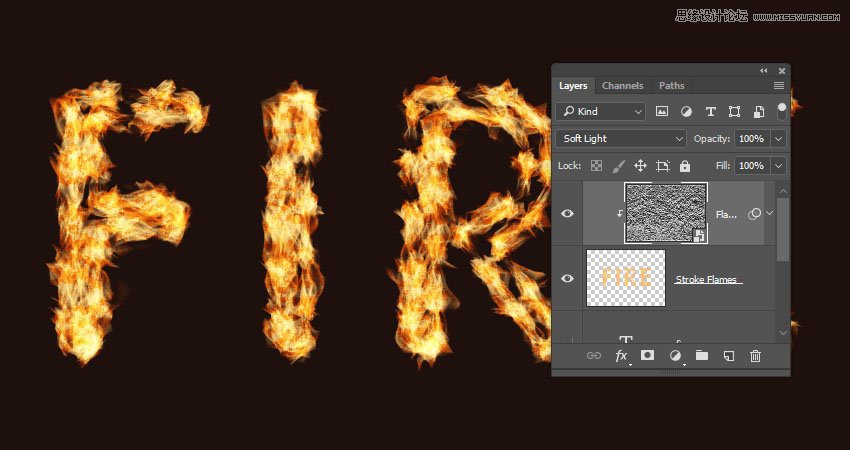
Change the Flame Texture layer's Blend Mode to Soft Light.
Step 2
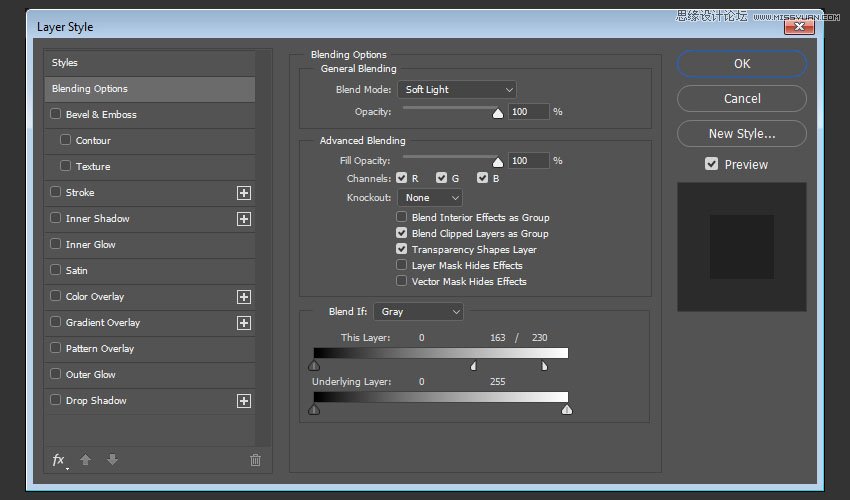
Double-click the Flame Texture layer to adjust its Blending Options. We are going to adjust the This Layersliders under the Blend If section.
Press-hold the Option key, and click-drag the right slider to split it. As you move the slider's ends, you'll notice how the texture starts to blend better with the flames.
What this slider does is prevent the lighter areas of the texture from interacting with the content below it.
Step 3
Try different values until you like the outcome.
We will get back to the texture at the end of the tutorial to blur it, so you can also modify the values some more then.

7. How to Add Flame Images
Step 1
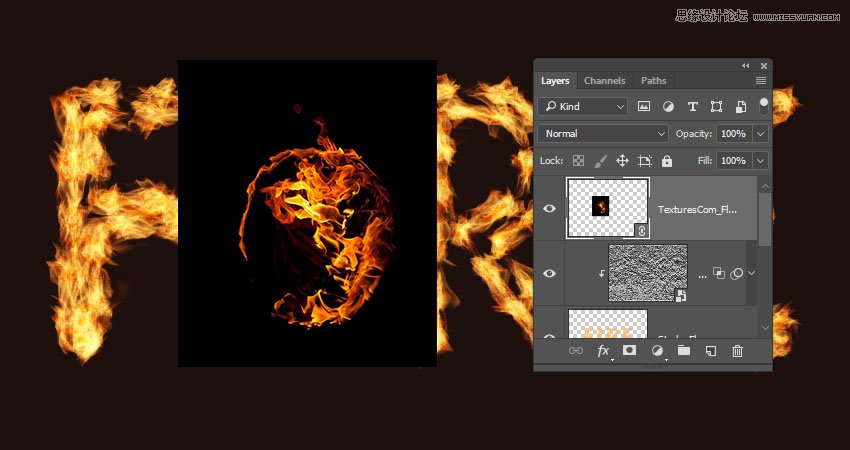
Use any of the flame images from the Flames0032, Flames0036, and Flames0043 sets to add to the text.
It is better to add the images as Smart Objects so that you can apply changes to them non-destructively.
To do so, go to File > Place Linked, and open the image you want to add.
Step 2
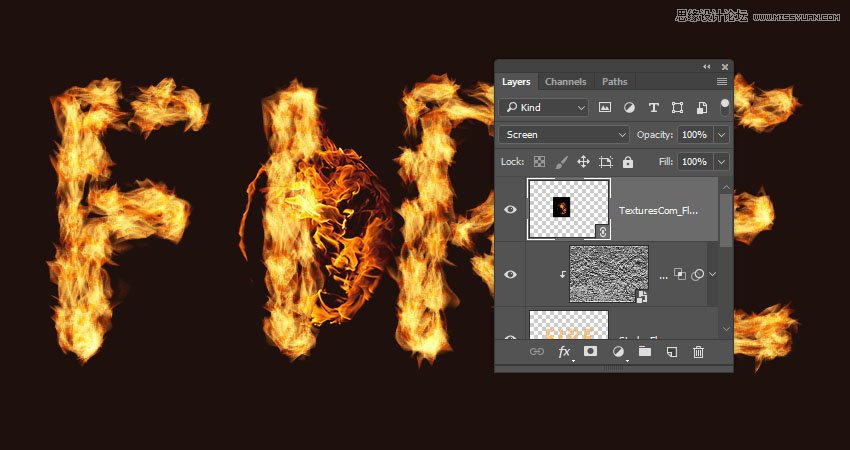
Change the image layer's Blend Mode to Screen.
Step 3
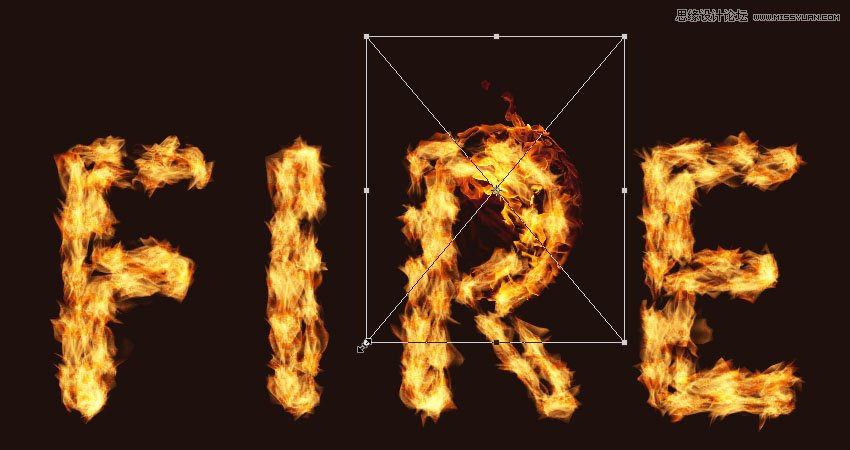
Press Command-T to enter the Free Transform Mode, and move, resize, and rotate the image to place it over a part of the text.
Hit the Return key to commit the changes.
Step 4
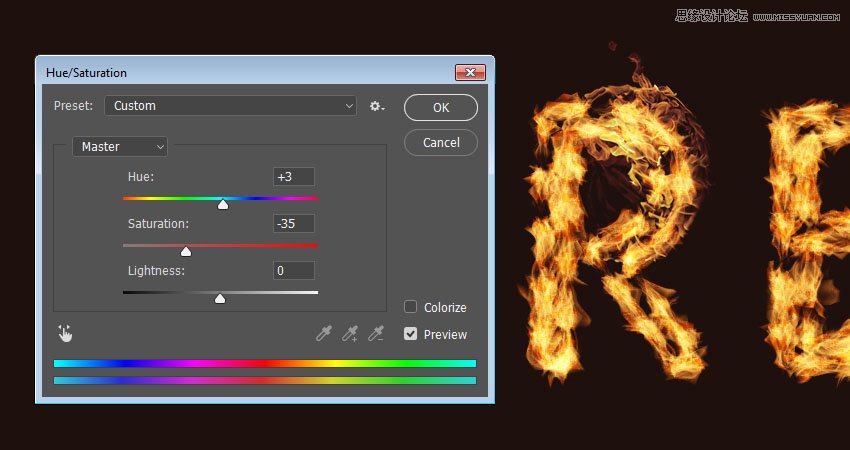
Go to Image > Adjustments > Hue/Saturation, and change the Hue to 3 and the Saturation to -35, or use any other values to match the color of the image's flame with the stroke's flame color.
 愛你不要你
愛你不要你
-
 Photoshop制作復古風格的老照片效果【英】2018-04-23
-
 Photoshop合成長著創意大樹的長頸鹿【英】2018-04-23
-
 Photoshop合成冰凍特效的金魚場景【英】2018-02-10
-
 Photoshop合成夢幻風格的森林場景【英】2018-02-10
-
 Photoshop合成正在施法的巫師【英】2018-02-10
-
 Photoshop制作金屬質感的3D立體字【英】2018-01-09
-
 Photoshop設計火焰燃燒藝術字教程【英】2018-01-09
-
 Photoshop制作復古花朵組成的藝術字【英】
相關文章3802018-01-09
Photoshop制作復古花朵組成的藝術字【英】
相關文章3802018-01-09
-
 Photoshop制作毛茸茸的圣誕節字體【英】
相關文章8882017-12-16
Photoshop制作毛茸茸的圣誕節字體【英】
相關文章8882017-12-16
-
 Photoshop合成創意的英雄戰斗場景教程【英】
相關文章5802017-12-12
Photoshop合成創意的英雄戰斗場景教程【英】
相關文章5802017-12-12
