Photoshop制作復古雙重曝光字體(3)
文章來源于 Tutsplus.com,感謝作者 Rose 給我們帶來經精彩的文章!Step 3
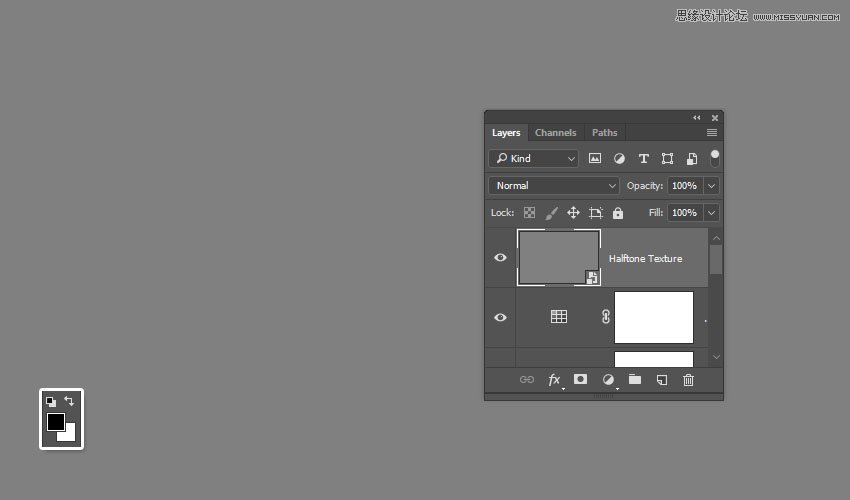
Right-click the Halftone Texture layer and choose Convert to Smart Object, and set the Foreground and Background Colors to Black and White.
Step 4
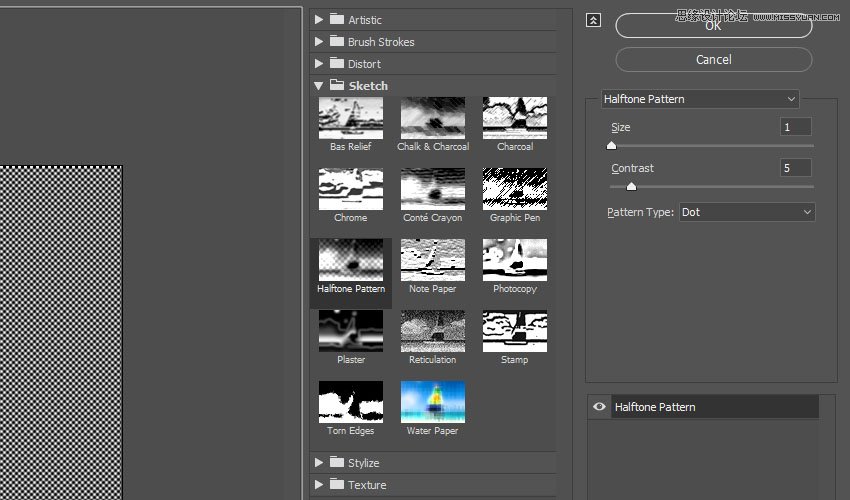
Go to Filter > Filter Gallery > Sketch > Halftone Pattern, and use these settings:
Size: 1
Contrast: 5
Pattern Type: Dot
Advertisement
Step 5
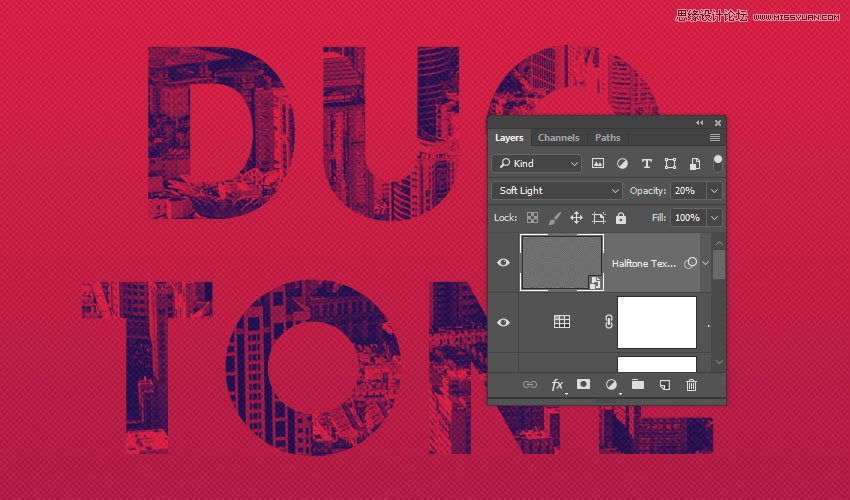
Change the Halftone Texture layer's Blend Mode to Soft Light and its Opacity to 20%.
Congratulations, You're Done!
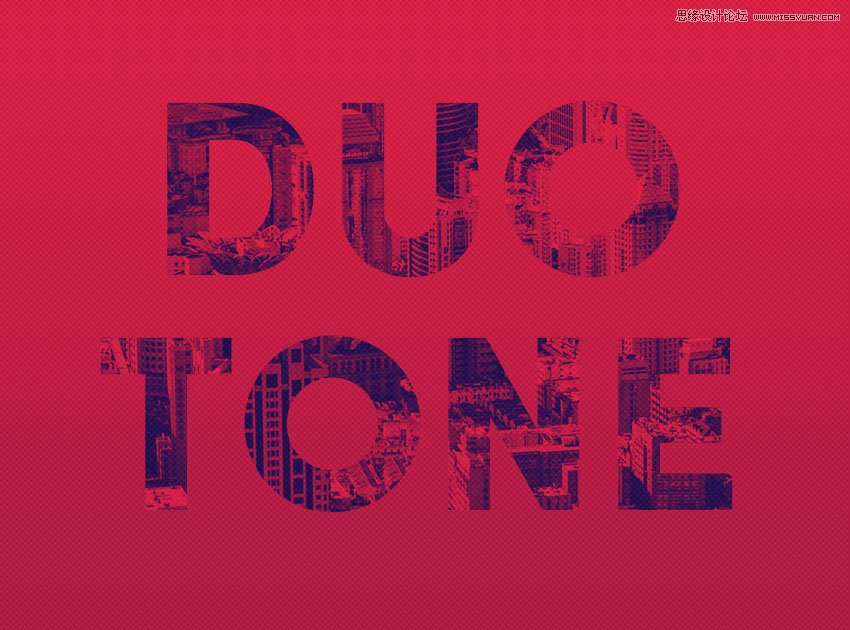
In this tutorial, we created a simple gradient background and added some text.
Then, we clipped an image texture to the text, and created the duotone effect using a gradient map.
Finally, we added some more adjustment layers to enhance the final result, and applied a halftone texture overlay.
Please feel free to leave your comments, suggestions, and outcomes below.
 愛你不要你
愛你不要你
-
 Photoshop制作復古風格的老照片效果【英】2018-04-23
-
 Photoshop合成長著創意大樹的長頸鹿【英】2018-04-23
-
 Photoshop合成冰凍特效的金魚場景【英】2018-02-10
-
 Photoshop合成夢幻風格的森林場景【英】2018-02-10
-
 Photoshop合成正在施法的巫師【英】2018-02-10
-
 Photoshop制作金屬質感的3D立體字【英】2018-01-09
-
 Photoshop設計火焰燃燒藝術字教程【英】2018-01-09
-
 Photoshop制作毛茸茸的圣誕節字體【英】
相關文章8882017-12-16
Photoshop制作毛茸茸的圣誕節字體【英】
相關文章8882017-12-16
