Photoshop合成在天空中飛行的天使【英】(4)
文章來源于 photoshoptutorials,感謝作者 MONIKA NOWAKOWSKA 給我們帶來經精彩的文章!設計教程/國外教程/國外教程2017-12-25
Step 21 Add new layer. Choose the same brush. On back of model draw lights. I used #ebac67 and #ffffff colors. Step 22 Now you should make glow on wings. Choose Soft brush, opacity 60% #fff200 and #f
Step 21
Add new layer. Choose the same brush. On back of model draw lights. I used #ebac67 and #ffffff colors.
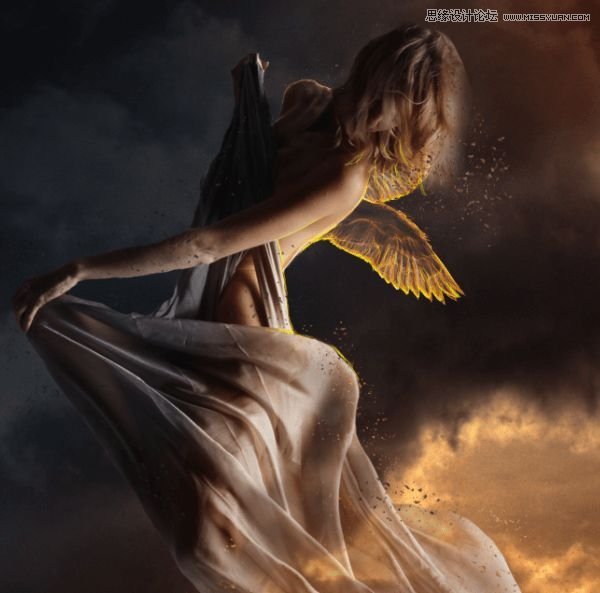
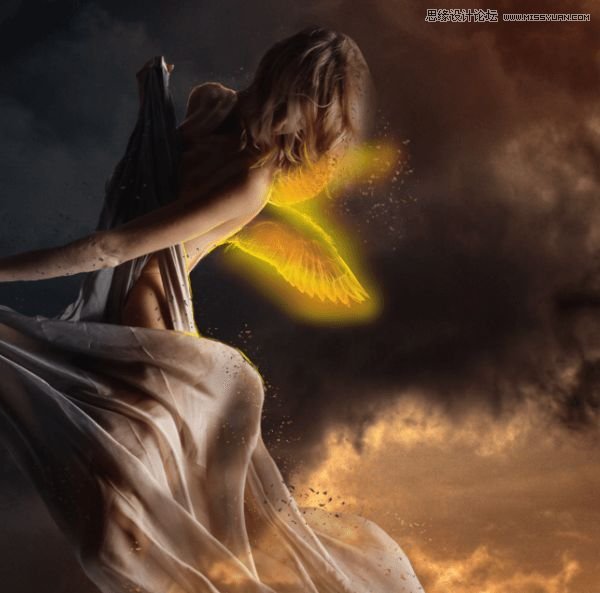
Step 22
Now you should make glow on wings. Choose Soft brush, opacity 60% #fff200 and #f7941d colors.
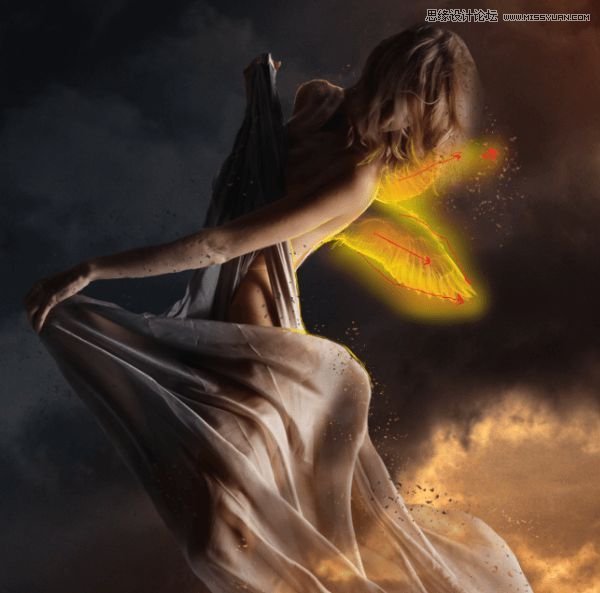
Step 23
Change blending mode to Soft light.
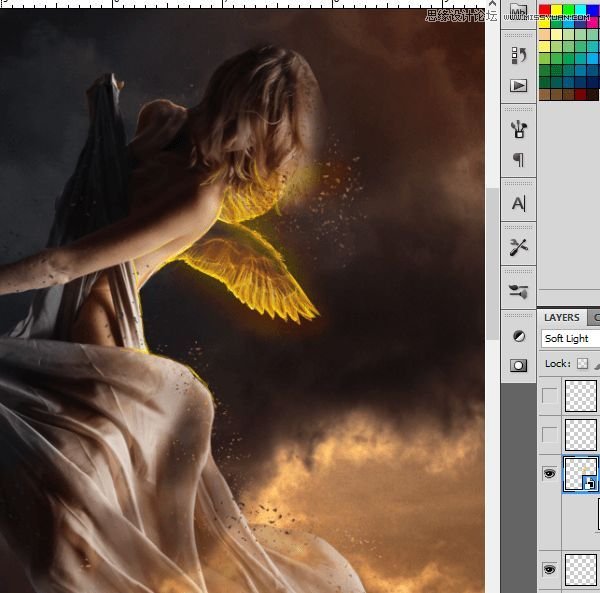
Step 24
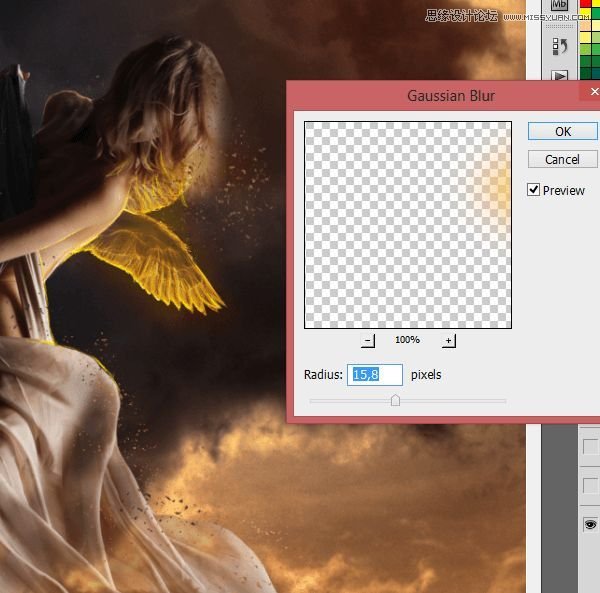
Convert it to smart object. Choose Filter > Blur > Gaussian blur. Set it to 15,8 px.
Step 25 – skin retouch
Now you should make delight skin retouch. Add new layer. With soft brush #cea483 color, 23px draw as shown:

Step 26
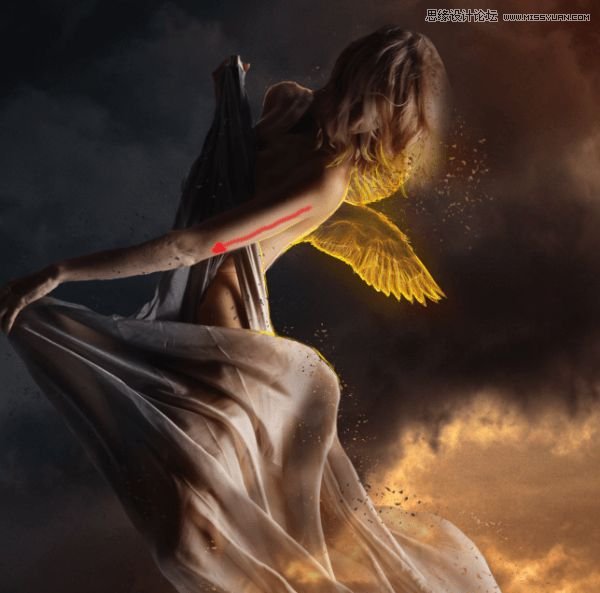
With the same brush, #b38a6f color draw on arm.
Step 27
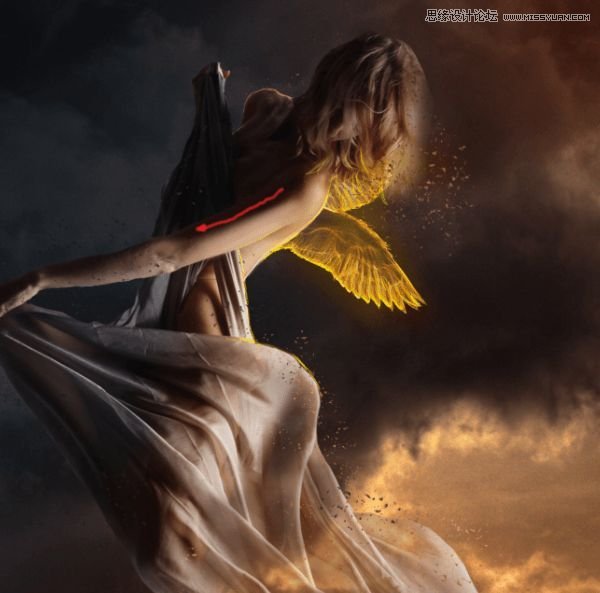
The same brush, change color to #1b0e0b. Draw:
Step 28
Choose soft brush, 2px, #806961 color.
 情非得已
情非得已
推薦文章
-
 Photoshop制作復古風格的老照片效果【英】2018-04-23
-
 Photoshop合成長著創意大樹的長頸鹿【英】2018-04-23
-
 Photoshop合成冰凍特效的金魚場景【英】2018-02-10
-
 Photoshop合成夢幻風格的森林場景【英】2018-02-10
-
 Photoshop合成正在施法的巫師【英】2018-02-10
-
 Photoshop制作金屬質感的3D立體字【英】2018-01-09
-
 Photoshop設計火焰燃燒藝術字教程【英】2018-01-09
熱門文章
