Photoshop制作可愛的糖果餅干字【英】(5)
文章來源于 Tutsplus,感謝作者 Rose 給我們帶來經精彩的文章!8. How to Create a Textured Glaze Style
Double-click the Glaze 02 layer to apply the following layer style:
Step 1
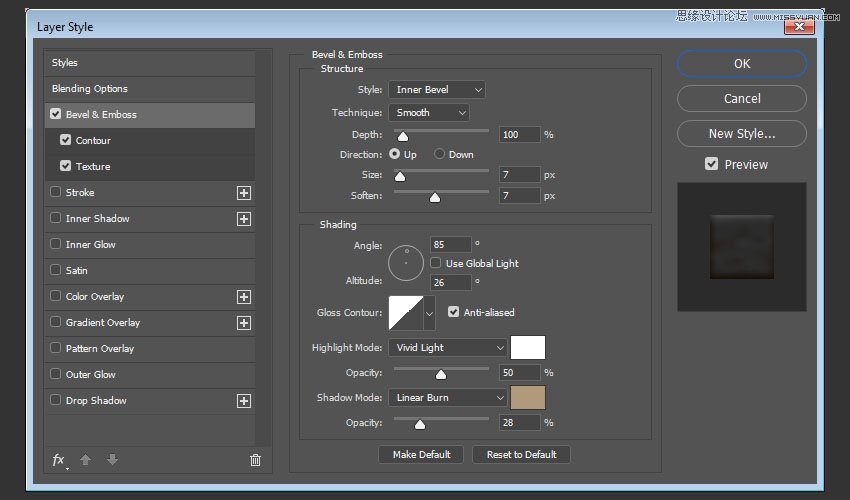
Add a Bevel and Emboss with these settings:
Size: 7
Soften: 7
Uncheck the Use Global Light box
Angle: 85
Altitude: 26
Check the Anti-aliased box
Highlight Mode: Vivid Light
Color: #ffffff
Shadow Mode: Linear Burn
Color: #b1997c
Opacity: 28%
Step 2
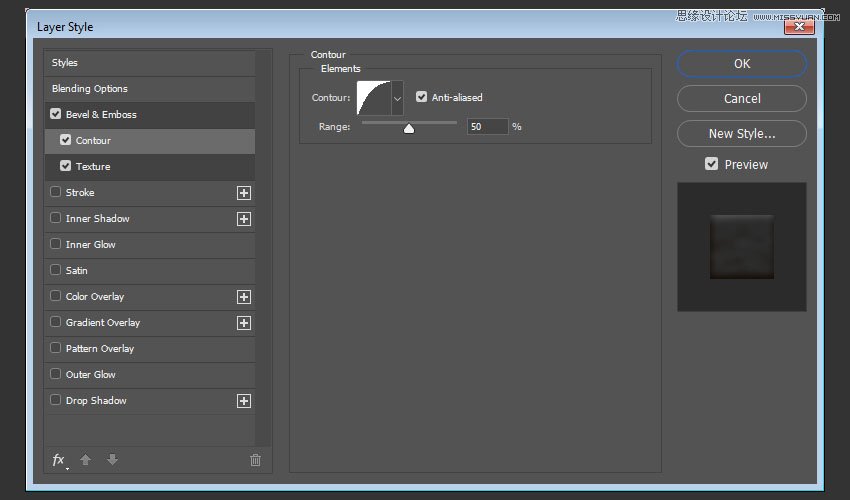
Add a Contour with these settings:
Contour: Half Round
Check the Anti-aliased box.
Step 3
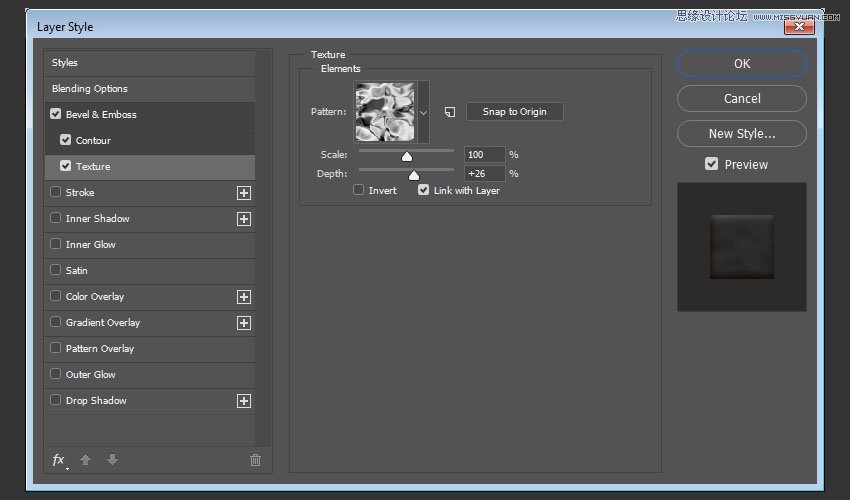
Add a Texture with these settings:
Pattern: Satin
Depth: 26%
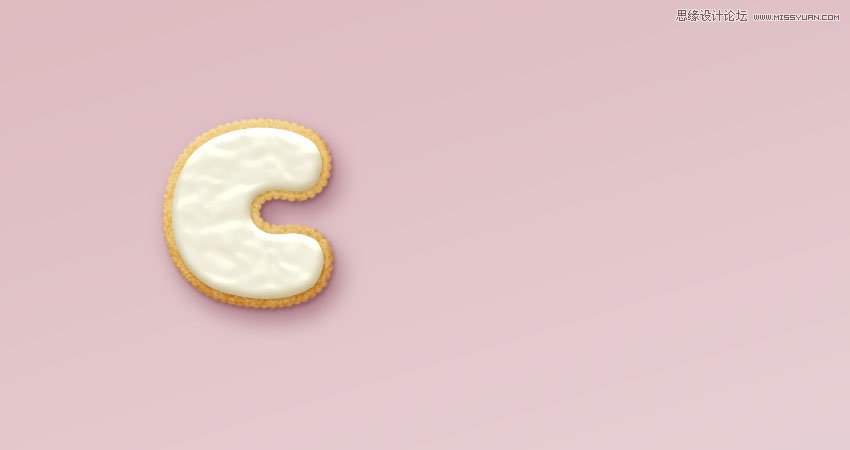
This will create a more textured glaze.
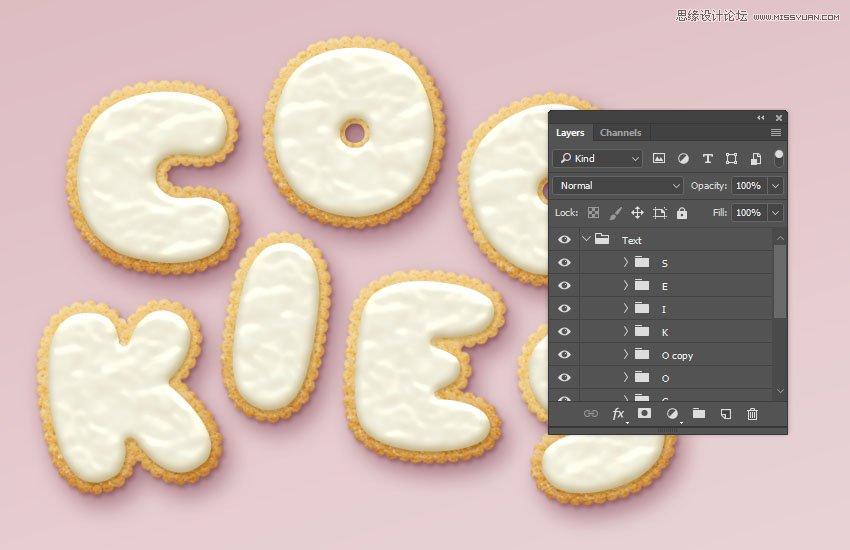
9. How to Create More Letters
Repeat the same steps to create any more letters you need.
Use the Free Transform Mode to rotate the letters and place them however you like.
You don't need to re-apply all the layer styles for each layer. Instead, you can right-click the styled layer, choose Copy Layer Style, right-click the new layer you want to apply the same layer style to, and choose Paste Layer Style.
Once you're done, place all the letter groups in another group and name it Text.
10. How to Create a Sprinkles Brush Tip
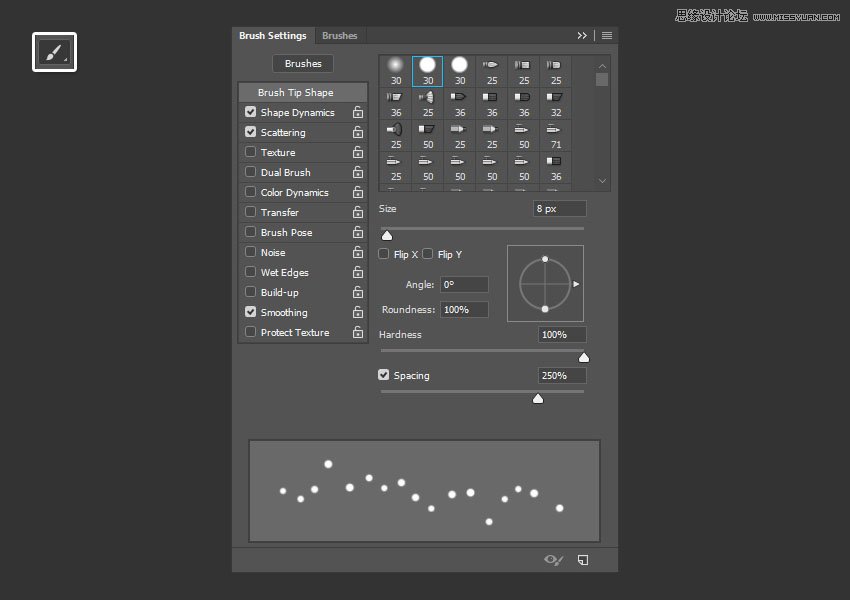
Pick the Brush Tool and open the Brush panel.
Choose a hard round tip and use these settings:
Brush Tip Shape
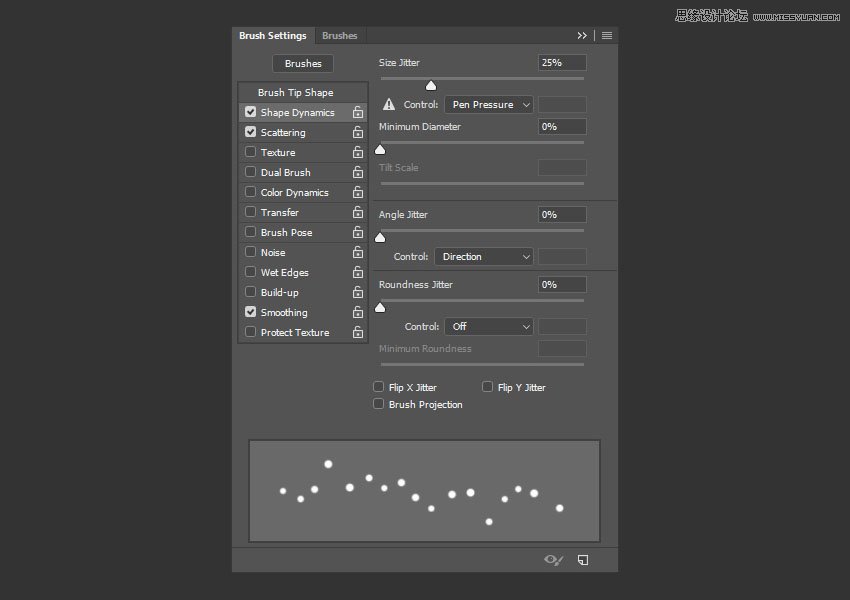
Shape Dynamics
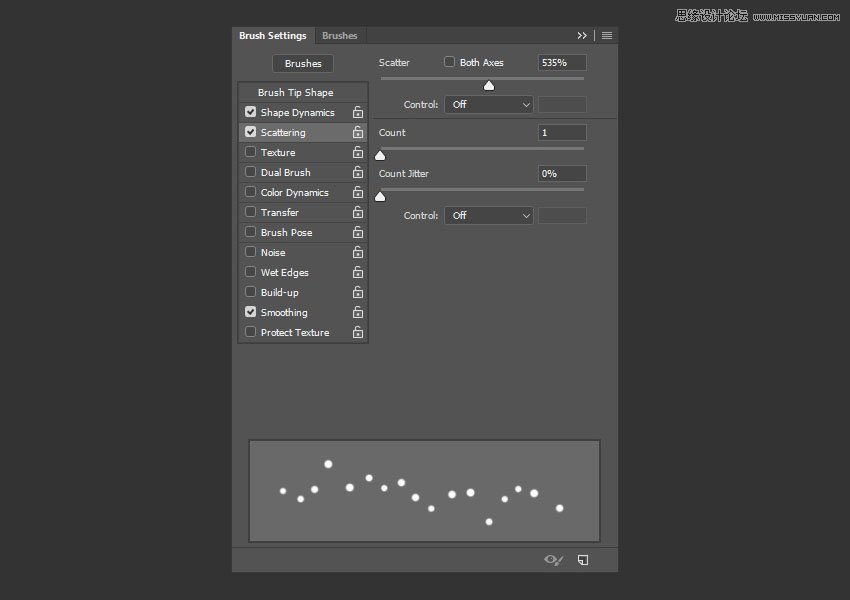
Scattering
11. How to Create a Sprinkles Style
Step 1
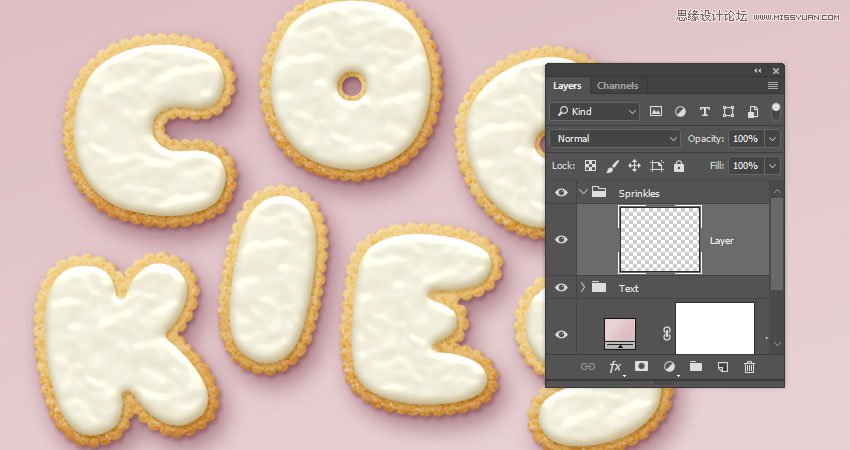
Create a new layer on top of the Text group, and place it in a group with the name Sprinkles.
 情非得已
情非得已
-
 Photoshop制作復古風格的老照片效果【英】2018-04-23
-
 Photoshop合成長著創意大樹的長頸鹿【英】2018-04-23
-
 Photoshop合成冰凍特效的金魚場景【英】2018-02-10
-
 Photoshop合成夢幻風格的森林場景【英】2018-02-10
-
 Photoshop合成正在施法的巫師【英】2018-02-10
-
 Photoshop制作金屬質感的3D立體字【英】2018-01-09
-
 Photoshop設計火焰燃燒藝術字教程【英】2018-01-09
-
Photoshop制作復古風格的老照片效果【英】
相關文章11882018-04-23
-
Photoshop合成長著創意大樹的長頸鹿【英】
相關文章13832018-04-23
-
Photoshop合成冰凍特效的金魚場景【英】
相關文章34052018-02-10
-
 Photoshop制作黃金質感立體字【英】
相關文章7422018-02-10
Photoshop制作黃金質感立體字【英】
相關文章7422018-02-10
-
 Photoshop制作驚艷大氣的3D立體字
相關文章14682018-02-10
Photoshop制作驚艷大氣的3D立體字
相關文章14682018-02-10
-
Photoshop合成夢幻風格的森林場景【英】
相關文章24492018-02-10
-
Photoshop合成正在施法的巫師【英】
相關文章8372018-02-10
-
 Photoshop制作復古雙重曝光字體
相關文章6532018-01-09
Photoshop制作復古雙重曝光字體
相關文章6532018-01-09
