Photoshop合成城市被流星攻擊場景【英】(6)
文章來源于 Photoshoptutorials,感謝作者 Jarka Hrnčárko 給我們帶來經精彩的文章!Step 19 – Bluer Tones II
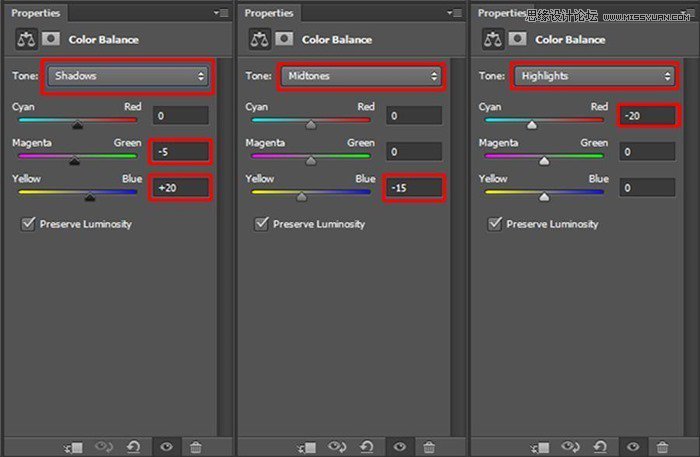
To add even more blue tones add new adjustment layer Color Balance and set the values as on the following picture:
On the following image you can compare how the photo manipulation looks before and after the adjustment.
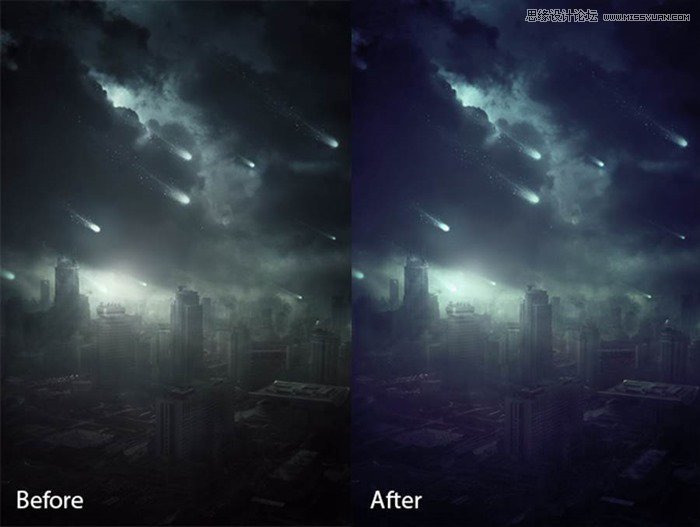
Thanks to the more vibrant colors the photo manipulation is more eye catching, isn’t it?
Step 20 – Increasing Contrast
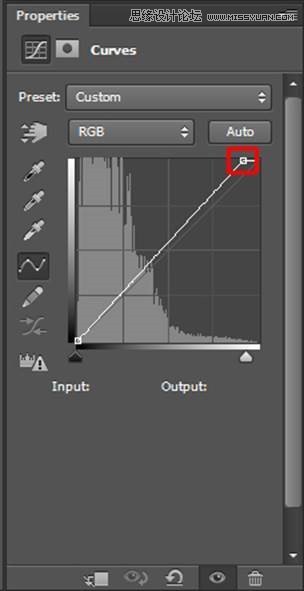
According to me the photo manipulation would look more interesting if there is more contrast. To increase it you use two adjustment layers in this step – Gradient Map and Curves. Let’s start with Curves. You use this adjustment layer to to make lights lighter. Add new adjustment layer Curves on the top of all layers and set the curve as on the following picture.
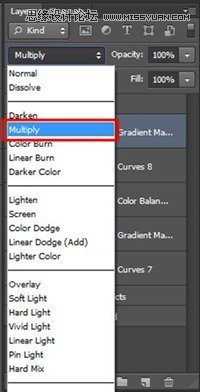
To make shadows darker add new adjustment layer Gradient Map on the top of all layers and set it as on the following picture.
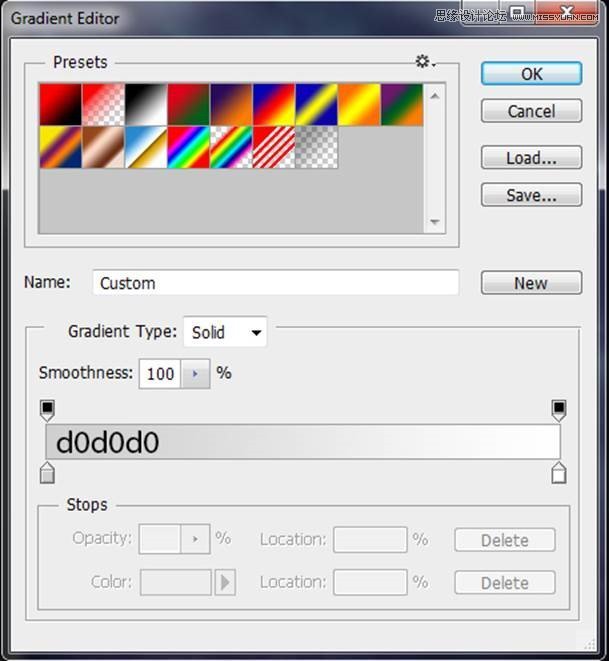
To blend this adjustment layer properly with the rest of the image change its Blending Mode from Normal to Multiply.
Step 21 – Sharpening
To create an illusion of more details you’ll gently sharpen your photo manipulation in this step. Press Ctrl+A on your keyboard to select the whole image. Then go to Edit > Copy Merged (or press Ctrl + Shift + C) to copy merged image. Paste it by pressing Ctrl+V. Place this new layer on the top of all layers and name it SHARPENING. Go to Filter > Other > High Pass and set the value Radius on about 1,7 pixels. Press OK.
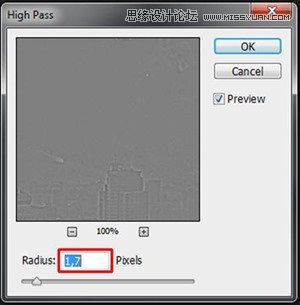
To blend this layer with the rest of the photo manipulation change its Blending Mode from Normal to Overlay.

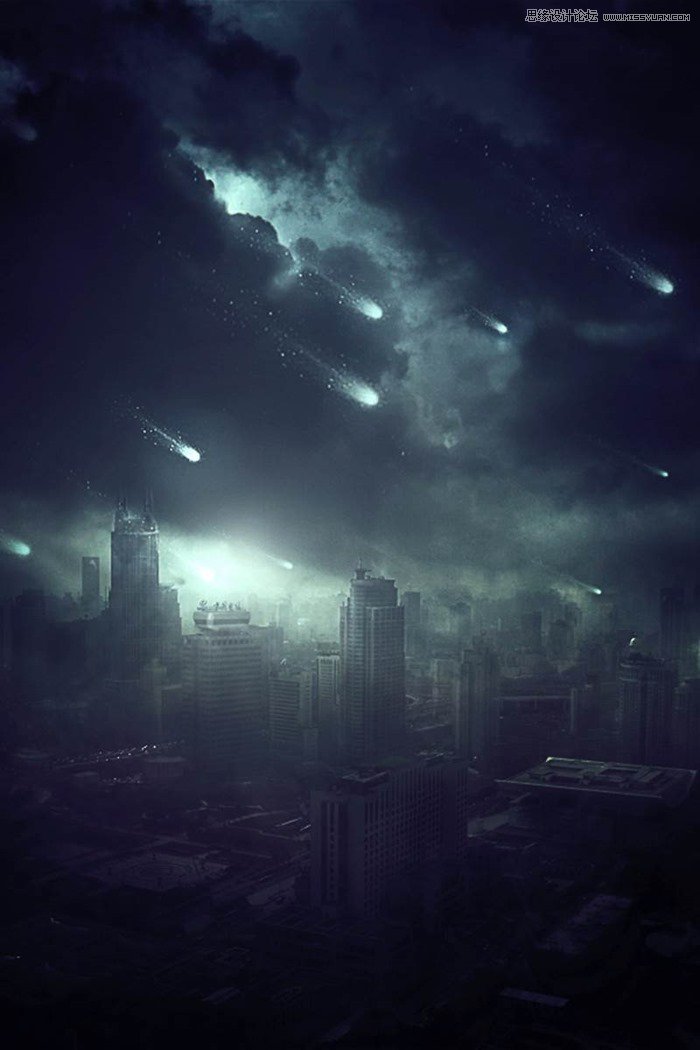
Final Results
 愛你不要你
愛你不要你
-
 Photoshop制作復古風格的老照片效果【英】2018-04-23
-
 Photoshop合成長著創意大樹的長頸鹿【英】2018-04-23
-
 Photoshop合成冰凍特效的金魚場景【英】2018-02-10
-
 Photoshop合成夢幻風格的森林場景【英】2018-02-10
-
 Photoshop合成正在施法的巫師【英】2018-02-10
-
 Photoshop制作金屬質感的3D立體字【英】2018-01-09
-
 Photoshop設計火焰燃燒藝術字教程【英】2018-01-09
-
Photoshop合成冰凍特效的金魚場景【英】
相關文章34052018-02-10
-
Photoshop合成夢幻風格的森林場景【英】
相關文章24492018-02-10
-
 Photoshop合成創意的英雄戰斗場景教程【英】
相關文章5802017-12-12
Photoshop合成創意的英雄戰斗場景教程【英】
相關文章5802017-12-12
